Slack channel setup instructions
Prerequisites
- Slack workspace with admin access (or permission to install apps)
- Ability to create Slack apps at api.slack.com/apps
Creating a Slack App
1
Create App
Go to api.slack.com/apps and click Create New App.Choose From scratch and provide:
- App name (e.g., “Support Bot”)
- Workspace to develop in
2
Configure OAuth Scopes
Go to OAuth & Permissions and add these Bot Token Scopes:
chat:write- Send messageschannels:history- Read public channel messagesgroups:history- Read private channel messagesim:history- Read DM messagesmpim:history- Read group DM messagesusers:read- Get user information
3
Install to Workspace
Click Install to Workspace and authorize the app.Copy the Bot User OAuth Token (starts with
xoxb-).4
Get Signing Secret
Go to Basic Information and find Signing Secret.Click Show and copy the secret.
5
Note App ID
Copy your App ID from the Basic Information page.
Connecting to Chatbot Platform
1
Create Slack Channel
In Chatbot Platform, navigate to your bot’s channels and click Create Channel.Select Slack.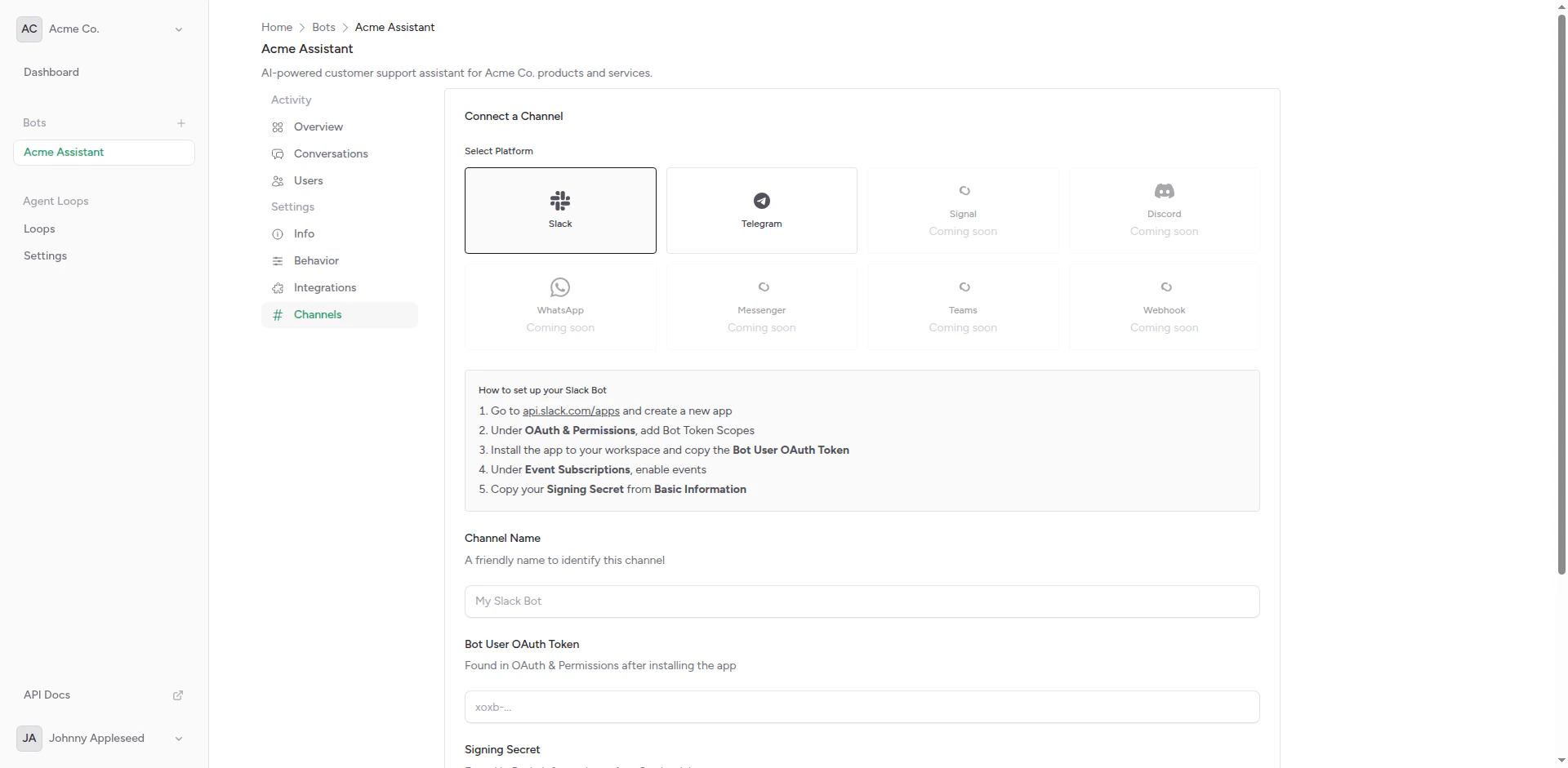
Slack channel creation form
2
Enter Credentials
Fill in the form: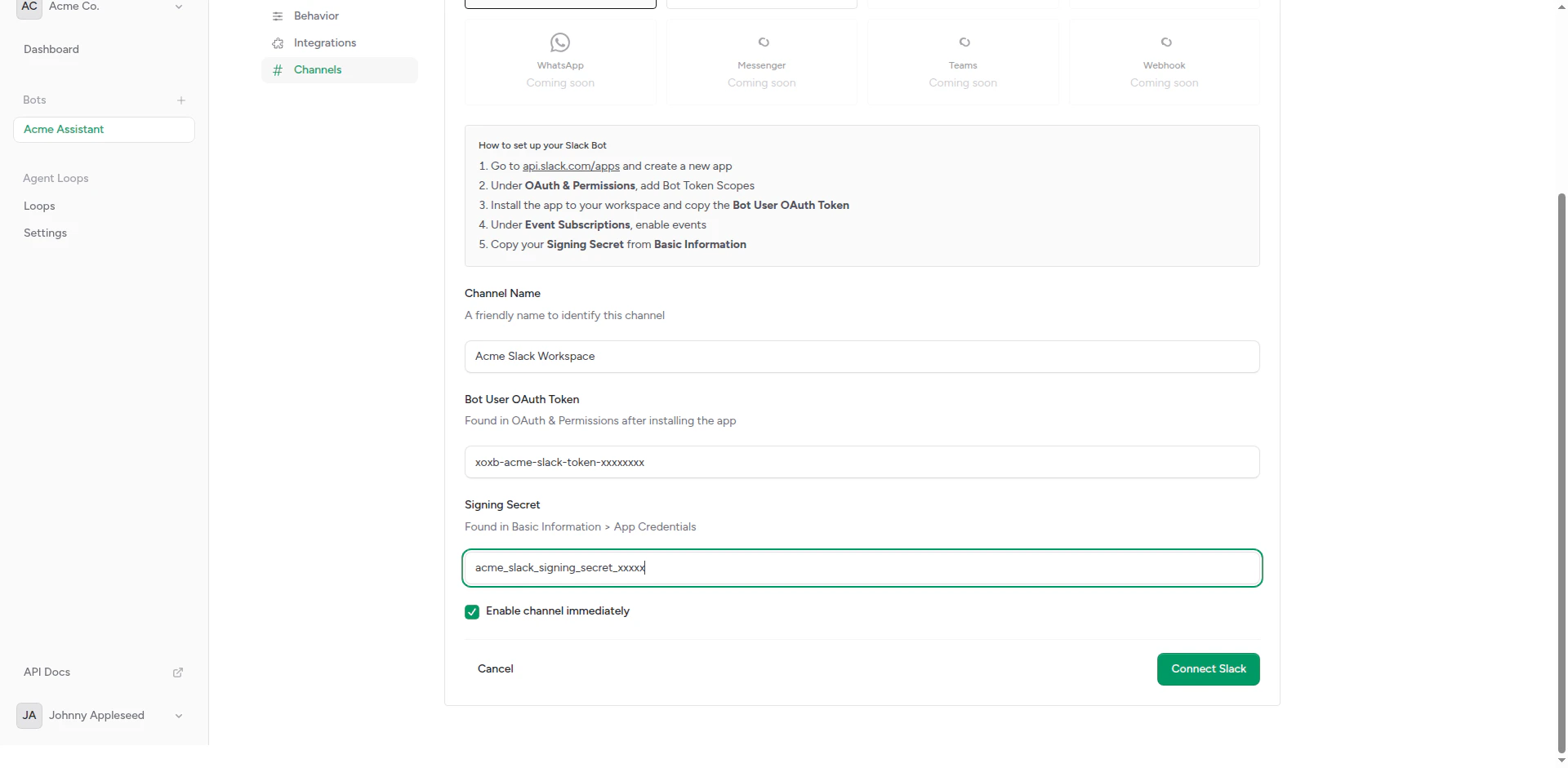
Slack credentials filled in
- Bot Token: Paste the
xoxb-...token - Signing Secret: Paste the signing secret
- App ID: Paste the app ID (optional but recommended)
3
Copy Webhook URL
After creating the channel, copy the generated webhook URL.
4
Configure Event Subscriptions
Back in your Slack app settings:
- Go to Event Subscriptions
- Enable events
- Paste the webhook URL into Request URL
- Wait for verification (green checkmark)
5
Subscribe to Bot Events
Add these bot events:
message.channels- Messages in public channelsmessage.groups- Messages in private channelsmessage.im- Direct messagesmessage.mpim- Group direct messages
6
Save and Reinstall
Click Save Changes and reinstall the app to your workspace.
The webhook URL verification happens automatically when you paste it into Slack’s settings.
Features
Thread Support
Slack channels maintain thread-aware conversations:Direct Messages
1:1 conversations in DMs work seamlessly with full context history.Channel Messages
Bot can participate in:- Public channels (if invited)
- Private channels (if invited)
- Group DMs
Native Typing Indicators
Slack shows typing indicators natively when enabled in bot behavior settings.Testing
1
Invite Bot to Channel
In a Slack channel, type:
2
Send Message
@mention your bot or send a DM:
3
Verify Response
Bot should respond using your configured integration.
Configuration
Bot Mention Requirement
Configure whether bot requires @mention in channels: Option 1: Require @mention- Bot only responds when @mentioned
- Quieter in busy channels
- User intent is clear
- Bot sees all channel messages
- Can respond to any message
- May be noisy in active channels
Home Tab (Coming Soon)
Future support for Slack’s Home Tab feature for bot configuration UI.Slash Commands (Coming Soon)
Register custom slash commands like/support or /ask.
Troubleshooting
Events Not Received
Check:- Event subscriptions are enabled
- Webhook URL is verified (green checkmark)
- Bot events are subscribed
- App is reinstalled after changes
Bot Not Responding
Check:- Bot token starts with
xoxb- - Required OAuth scopes are granted
- Bot is invited to the channel
- Integration is configured and working
Verification Failed
If webhook URL won’t verify:- Ensure channel is created and active
- Check webhook URL is copied correctly
- No extra spaces or characters in URL
- Try creating new channel if needed
Duplicate Messages
If bot responds multiple times:- Check for duplicate event subscriptions
- Verify only one channel per Slack app
- Review event logs for duplicates
Slack App Distribution
Private Distribution
For single workspace:- Install to your workspace only
- No approval process needed
- Immediate access
Public Distribution (Future)
To distribute to other workspaces:- Submit for Slack App Directory review
- Follow Slack’s app guidelines
- Handle multi-workspace authentication
Security
Request Signing
All requests verified using Slack signing secret
OAuth Tokens
Bot tokens securely stored and encrypted
Minimal Scopes
Only request necessary permissions
Workspace Isolation
Each workspace has separate configuration
Rate Limits
Slack enforces rate limits:
The platform handles rate limiting automatically.
Best Practices
Do:- Test in a private channel first
- Set clear app description and icon
- Use threads for context
- Enable typing indicators for better UX
- Expose bot token or signing secret
- Respond to all messages in busy channels
- Forget to handle thread context
- Skip OAuth scope review
Next Steps
Telegram Channel
Also deploy to Telegram
Should Respond Detection
Configure thread awareness