How It Works
When a user sends a message:- Message Received: Channel forwards the message to your bot
- Indicator Sent: Bot immediately shows typing feedback
- Processing: Integration generates response (this takes time)
- Response Sent: Bot sends the reply and removes the indicator
Native vs. Simulated
Different platforms support different indicator types:Native Indicators
Platforms with built-in typing support: Telegram- Uses
sendChatActionwithtypingaction - Shows three animated dots
- Automatically disappears after 5 seconds or when message sent
- Looks identical to human typing
- Uses ephemeral “thinking” messages or app status
- Shows in thread or channel
- Visible only to the message sender
Simulated Indicators
For platforms without native support, the bot sends a temporary message:- Sent immediately when processing starts
- Deleted when the response is ready
- Visible to all participants (in groups)
Configuration
1
Go to Bot Settings
Navigate to your bot and click on the Behaviors tab.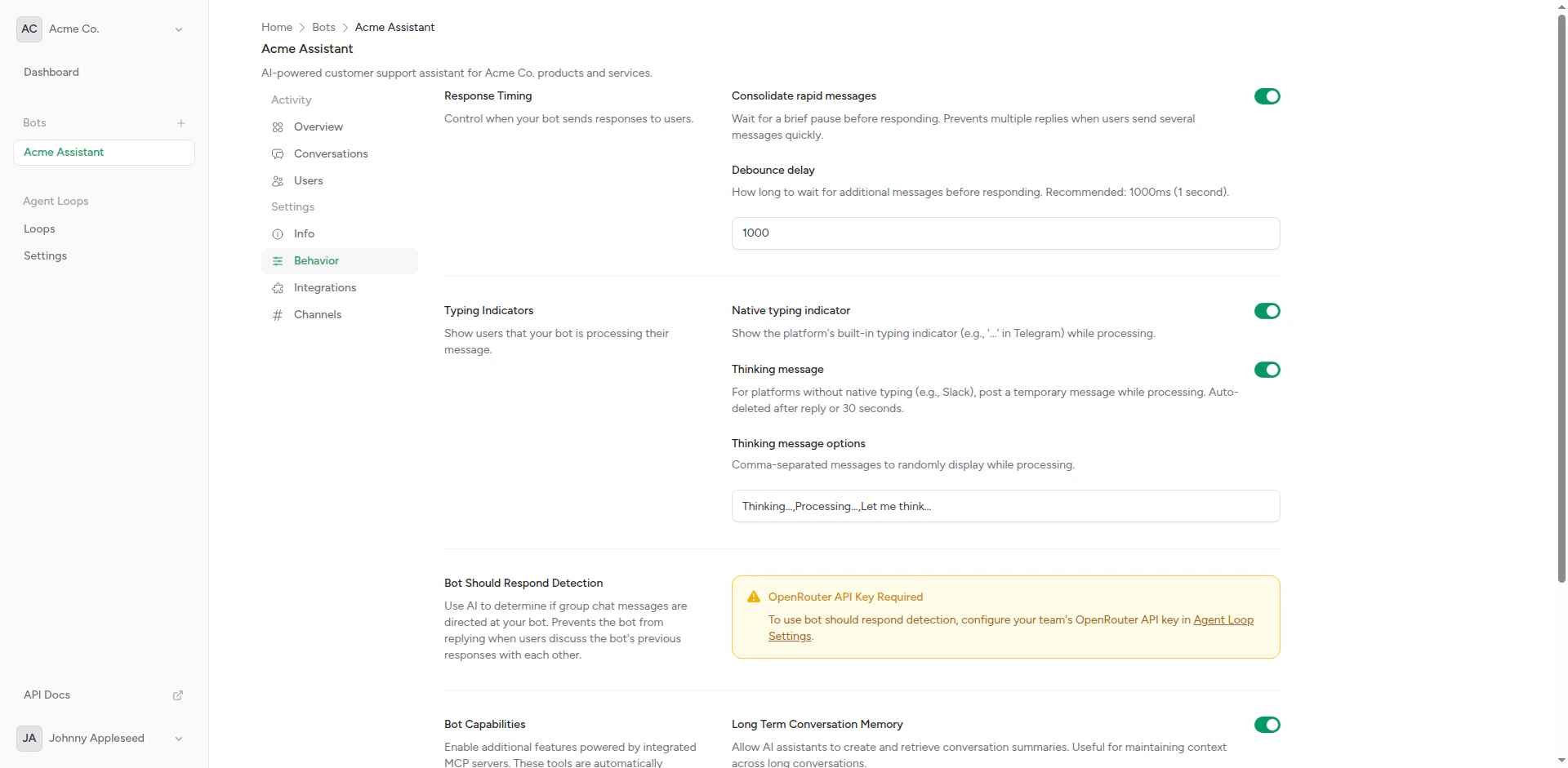
Behavior settings page
2
Enable Typing Indicators
Toggle the Typing Indicators option on or off.
3
Save
Click Save to apply changes. New conversations will use the updated setting immediately.
When to Use Typing Indicators
Recommended Use Cases
Enable typing indicators when your integration typically takes 2+ seconds to generate responses.
- Complex AI reasoning (GPT-4, Claude)
- Long-form content generation
- Multiple API calls in sequence
- User-facing customer support bots
- Instant responses (< 1 second)
- Batch processing scenarios
- Backend automation (no human waiting)
- Testing and development
User Experience Impact
With Typing Indicators:- Users know the bot is working
- Reduces perceived wait time
- Feels more like human conversation
- Clear expectation that response is coming
- Silent period after message sent
- Users may send duplicate messages
- Feels more asynchronous
- Better for automated workflows
Platform Behavior
Telegram
Native typing indicator usingsendChatAction:
- Indicator shown to all participants
- Shows “Bot is typing…”
- Auto-expires after 5 seconds
Slack
Ephemeral thinking messages or app status:- Indicator appears in the thread
- Visible only to thread participants
- Deleted when response sent
Discord (Coming Soon)
Will use Discord’s native typing endpoint:Timing Considerations
Indicator Duration
Native indicators:- Automatically managed by platform
- Usually 5-10 second display
- Renewed if still processing
- Displayed entire duration
- Deleted when response ready
- No automatic timeout
Integration Timeouts
If your integration times out:- Typing indicator stops
- Error message sent to user
- No “stuck” indicator left behind
Set integration timeout to be less than channel timeout to avoid stuck indicators.
Testing Typing Indicators
To verify typing indicators work:1
Enable in Settings
Turn on typing indicators in bot behaviors.
2
Send Test Message
Send a message through the connected channel.
3
Observe Indicator
Watch for typing animation (Telegram) or thinking message (other platforms).
4
Verify Removal
Confirm indicator disappears when response arrives.
Troubleshooting
Indicator Not Showing
Check:- Typing indicators enabled in bot settings
- Channel properly connected and authorized
- Bot has permission to send messages
- Platform supports typing indicators
Indicator Stuck
Possible causes:- Integration timeout not configured
- Network issue preventing response
- AI backend not responding
- Set appropriate timeout values
- Check integration health
- Review error logs
Multiple Indicators
If you see multiple indicators:- Check for duplicate channel connections
- Verify A/B testing isn’t causing double-sends
- Review integration configuration
Best Practices
Match Response Time
Enable indicators when responses take > 2 seconds
Test Per Platform
Verify behavior on each connected channel
Set Timeouts
Configure timeouts to avoid stuck indicators
Consider Context
Disable for automated or backend workflows
Next Steps
Should Respond
Configure when your bot responds
Integration Setup
Optimize response times