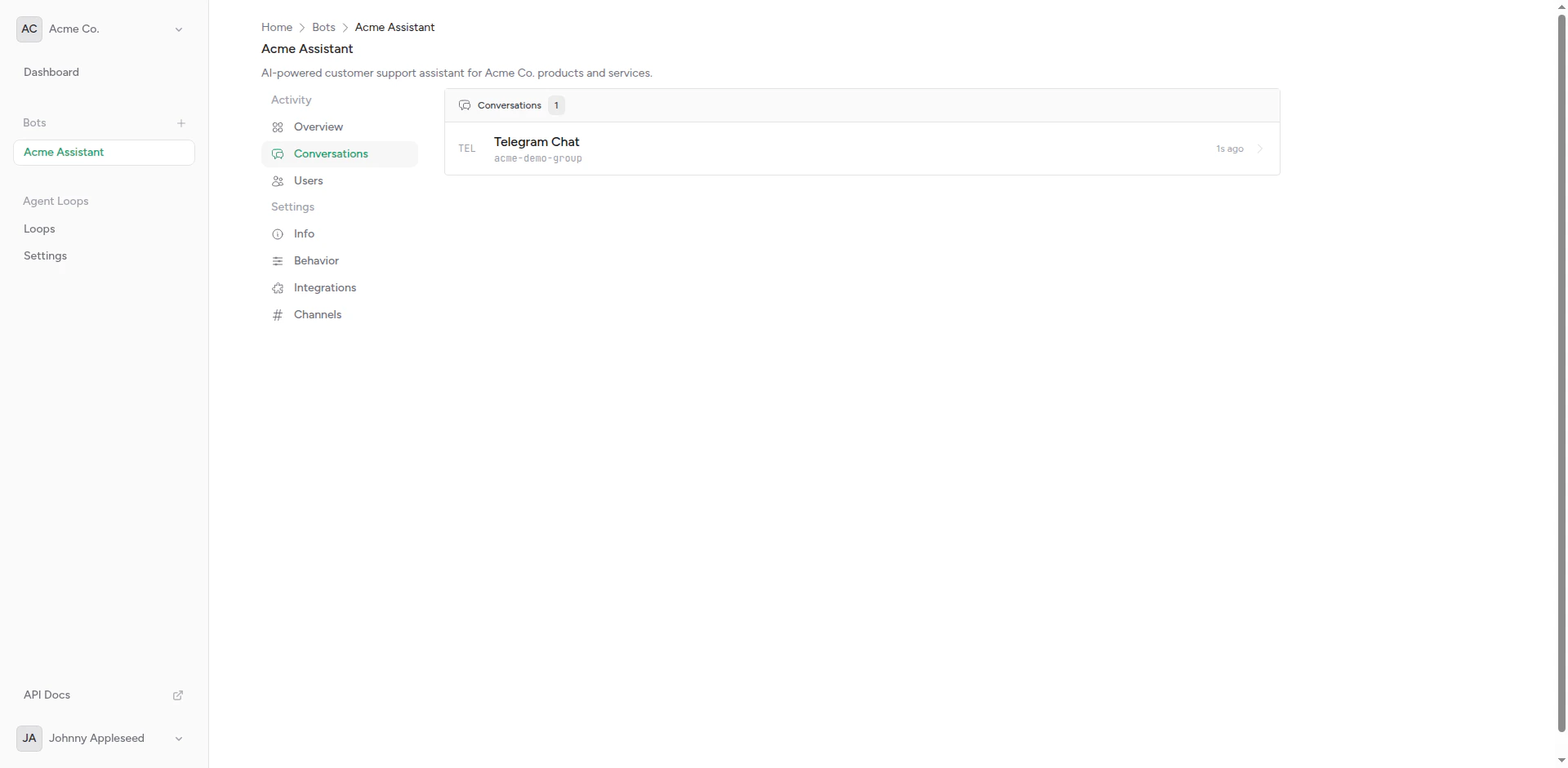
List of bot conversations
Overview
A conversation is a grouped series of messages between a user and your bot. Conversations are automatically created and managed based on your bot’s message detection settings.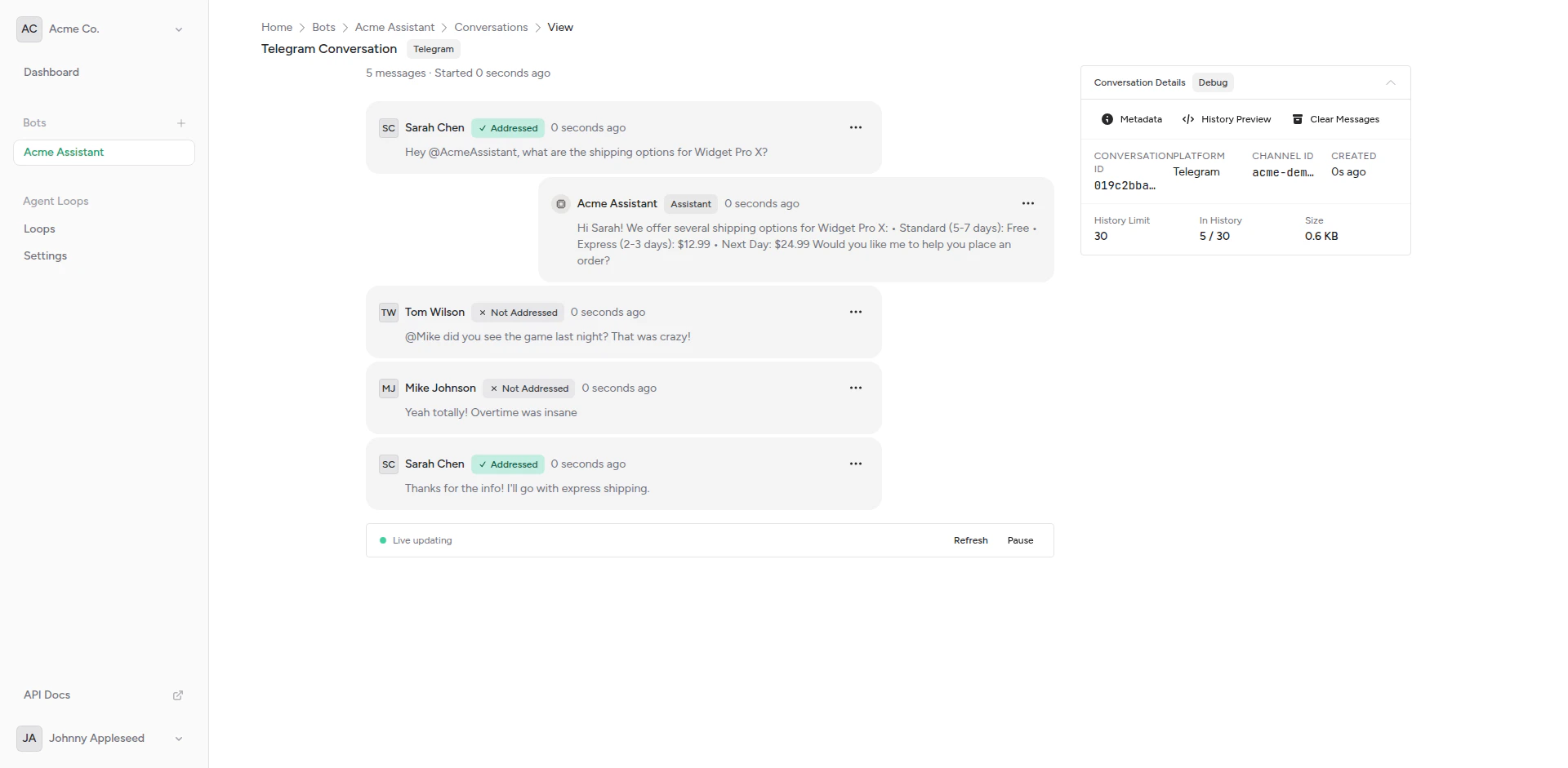
Single conversation with message history
Conversation Structure
Each conversation includes:- Unique ID: Persistent identifier
- User Information: Platform, username, display name
- Channel: Which platform the conversation is on
- Message History: All messages in chronological order
- Metadata: Timestamps, platform-specific data
- Context: Recent messages sent to AI integration
Viewing Conversations
1
Navigate to Conversations
From your bot page, click Conversations in the sidebar.
2
Browse List
See all conversations ordered by most recent activity.
3
Open Conversation
Click on a conversation to view full message history.
4
Review Messages
See user messages, bot responses, and timestamps.
Conversation Attributes
User Information
- User ID: Unique platform identifier
- Username: Platform username (if available)
- Display Name: User’s display name
- Platform: telegram, slack, discord, etc.
Channel Information
- Channel Type: Platform name
- Channel ID: Unique channel identifier
- Chat ID: Specific chat or thread identifier
- Metadata: Platform-specific context
Message History
- Messages: Ordered list of user and assistant messages
- Timestamps: When each message was sent
- Roles:
user,assistant, orsystem - Content: Message text or multimodal content (text + images)
- Message Types: Regular messages or synthetic messages (system-generated)
Synthetic Messages
Synthetic messages are system-generated messages injected into conversations by features like reminders:- Created by System: Not sent by users, but appear as user messages in the conversation
- Trigger Bot Responses: Bot responds as if the user sent the message
- Scheduled: Created at specific times (e.g., reminder triggers)
- Use Cases: Reminders, scheduled notifications, automated follow-ups
Message Detection
How messages are grouped into conversations depends on your bot’s detection settings:Thread-Based (Slack)
Each Slack thread is a separate conversation:User-Based (Telegram Groups)
Each user in a group has their own conversation:Session-Based (Custom)
Conversations expire after inactivity:Context Window
The context window determines how many recent messages are included when calling your AI integration:Configuring Context Window
Set this in bot behavior settings:1
Go to Bot Settings
Navigate to your bot’s settings page.
2
Find Context Window
Look for the Context Window or Message History setting.
3
Set Size
Enter the number of messages to include (e.g., 10).
4
Save
Click Save to apply changes.
Larger context windows use more tokens and increase costs, but provide better context for the AI.
Conversation Lifecycle
Creation
Conversations are created automatically when:- First message from a new user
- New thread started (Slack)
- Session timeout expired
Updates
Conversations are updated when:- User sends new message
- Bot sends response
- Context changes (group, thread, etc.)
Archival
Conversations may be archived:- After long inactivity
- When user blocks bot
- Manual archival (coming soon)
Searching Conversations
Search and filter conversations by:- User: Find conversations with specific users
- Date Range: Messages within timeframe
- Channel: Filter by platform
- Content: Search message text (coming soon)
Privacy and Data
Data Storage
Conversations are stored:- Encrypted at rest
- Per-team isolation
- Retained according to your plan
Data Access
- Team Members: Can view all team conversations
- API Access: Retrieve via API with authentication
- Exports: Export conversation history (coming soon)
Data Deletion
Delete conversations:- Individual conversations (coming soon)
- Bulk deletion (coming soon)
- Account deletion (removes all data)
Deleted conversations cannot be recovered. Ensure you export any needed data first.
Conversation Insights
Use conversations to:- Improve Bot Performance: See where bot struggles
- Improve Prompts: Identify common misunderstandings
- Track Usage: Understand user behavior
- Debug Issues: Investigate error reports
Best Practices
Review Regularly
Check conversations to identify improvements
Right Context Size
Configure message history for your use case
Privacy Awareness
Handle user data responsibly
Use Insights
Learn from conversation patterns
API Access
Retrieve and manage conversations programmatically using the API.List bot conversations
List bot conversations
- cURL
- JavaScript
- PHP
- Python
Get conversation details
Get conversation details
- cURL
- JavaScript
- PHP
- Python
Get conversation messages
Get conversation messages
- cURL
- JavaScript
- PHP
- Python
Complete API Reference
View the full API specification with all endpoints, parameters, and response schemas.
Next Steps
Message History
Configure context window
Should Respond Detection
Control when bot responds