Connect your agents to real-world data sources to eliminate hallucinations
Model Context Protocol (MCP) servers provide tools that enable Agentic Loops to access real-world data instead of hallucinating responses. This is the key to grounding AI in verifiable facts.
Why Tools Eliminate Hallucinations
The Problem: LLMs Guess When They Don’t Know
User: "What's the current price of AAPL stock?"LLM (No Tools): "Apple stock is trading around $180."[HALLUCINATION: Training data from months ago, price is wrong]Agent (With Tools): [Calls stock_price API] "Apple stock is currently at $193.42."[GROUNDED: Real-time data from stock market API]
The Solution: Tools Provide Real Data
Tools transform your agent from a text generator into a data-driven assistant:
No Tool: Agent guesses based on outdated training data
With Tool: Agent fetches current, verifiable information
Every tool call is logged, making every fact in your agent’s response traceable to its source. This builds trust and enables debugging.
Available MCP Servers
Built-In MCP Servers
These servers are ready to use without additional setup:
Time Utilities
Current time, date utilities, timezone conversion
OpenRouter
AI model recommendations and capabilities
Conversation Archives
Access conversation history and summaries
Reminders
Create and manage reminders for conversations
External Data Source MCP Servers
These require API keys from external services:
Google Maps
Geocoding, place search, directions, location services
Custom MCP Servers
Build your own MCP servers for proprietary data sources:
Build Custom MCP Servers
Learn how to create custom MCP servers using Laravel’s MCP package
Configuring MCP Servers
1
Open Agent Loop Settings
Navigate to your Agentic Loop configuration page.
2
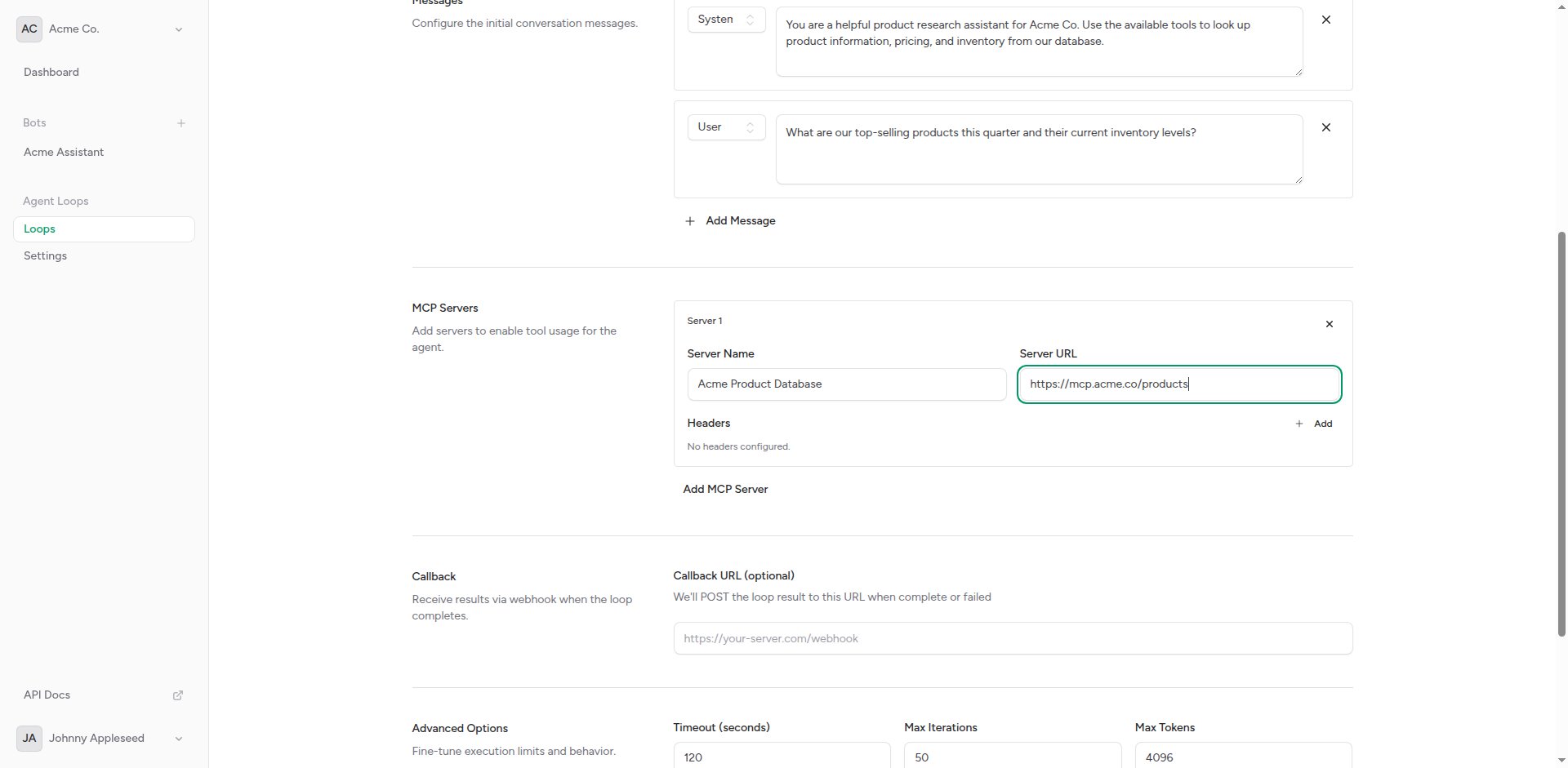
Add MCP Server
In the MCP Servers section, click Add Server.
MCP server configuration
3
Select Server Type
Choose from available MCP servers:
Time Utilities: No additional config required
Google Maps: Requires Google Maps API key
Custom Server: Enter your server URL
4
Configure Authentication
For servers requiring API keys:
Server: Google MapsAPI Key Header: X-Google-Maps-Api-KeyAPI Key: YOUR_GOOGLE_MAPS_API_KEY
5
Test Connection
Click Test to verify the MCP server is accessible.
6
Save
Click Save to enable the tool for your agent.
Using MCP Tools in Your Agent
1. Document Tools in System Prompt
The agent needs to know what tools are available and when to use them.Example System Prompt:
You are a location-aware assistant with access to these tools:1. Google Maps MCP Server - geocode: Convert addresses to coordinates Parameters: {address: string} Returns: {lat: number, lng: number, formatted_address: string} - search_places: Find nearby locations Parameters: {query: string, location?: string} Returns: [{name: string, address: string, rating: number}] - get_directions: Get route between two locations Parameters: {origin: string, destination: string, mode?: string} Returns: {distance: string, duration: string, steps: array}When users ask about locations, addresses, or directions, use thesetools to provide accurate, current information. Never guess locationsor directions.
2. Agent Decides When to Use Tools
During execution, the agent analyzes the user’s question and determines which tool to use:
User: "How do I get from San Francisco to Palo Alto?"Agent Reasoning:"This is a directions request. I need to use the get_directionstool from Google Maps MCP."Tool Call:{ tool: "get_directions", parameters: { origin: "San Francisco, CA", destination: "Palo Alto, CA", mode: "driving" }}Tool Response:{ distance: "35 miles", duration: "45 minutes", steps: [ "Head south on US-101 S", "Take exit 398 for University Ave", ... ]}Agent Response:"To get from San Francisco to Palo Alto, take US-101 South forabout 35 miles. The drive takes approximately 45 minutes. Key steps:head south on US-101 S, then take exit 398 for University Ave."[GROUNDED: Every detail from Google Maps API]
3. Multiple Tool Calls
Complex queries may require multiple tool calls:
User: "Find coffee shops near the Golden Gate Bridge"Iteration 1:Agent: "I need the coordinates of Golden Gate Bridge first."Tool Call: geocode({address: "Golden Gate Bridge, San Francisco"})Response: {lat: 37.8199, lng: -122.4783}Iteration 2:Agent: "Now I'll search for coffee shops near those coordinates."Tool Call: search_places({ query: "coffee shop", location: "37.8199,-122.4783"})Response: [ {name: "Blue Bottle Coffee", address: "2 Marina Blvd", rating: 4.5}, {name: "Equator Coffees", address: "2001 Chestnut St", rating: 4.3}, ...]Iteration 3:Agent: "I have the results. I'll format them clearly."Response: "Here are coffee shops near the Golden Gate Bridge:1. Blue Bottle Coffee - 2 Marina Blvd (4.5⭐)2. Equator Coffees - 2001 Chestnut St (4.3⭐)..."[GROUNDED: Real places from Google Maps API]
Real-World Examples by Use Case
Example 1: Order Tracking System
Goal: Stop hallucinating order statuses.MCP Server Configuration:
You track customer orders using our order database.Available Tools:- get_order_status: Get current order status Parameters: {order_id: string} Returns: {status, date_ordered, date_shipped, tracking_number}Process:1. Extract order ID from user question2. Call get_order_status with order ID3. Format response with actual data4. If order not found, say so clearlyNEVER guess order information. Every fact must come from the database.
Result: 100% accurate order information, zero hallucinations.
Example 2: Weather Information Bot
Goal: Provide current weather, not outdated training data.MCP Server Configuration:
You provide weather information using real-time data.Available Tools:- get_current_weather: Get current conditions Parameters: {city: string} Returns: {temperature, condition, humidity, wind}CRITICAL: Always call get_current_weather before answering.Never use training data for weather information.
Result: Always current weather data, no outdated information.
Example 3: Location-Based Recommendations
Goal: Recommend actual places, not fictional locations.MCP Server Configuration:
Server: Google Maps MCPAPI Key: YOUR_GOOGLE_MAPS_API_KEYTools:- search_places- geocode- get_place_details
System Prompt:
You recommend locations using Google Maps data.Available Tools:- search_places: Find locations by query Parameters: {query: string, location?: string, radius?: number} Returns: [{name, address, rating, types}]Process:1. Understand what user is looking for (restaurants, hotels, etc.)2. Use search_places to find actual locations3. Present results with names, addresses, and ratings4. All recommendations must come from the APINEVER invent place names or addresses. Only recommend real locationsfrom the search results.
Result: All recommendations are real, verified locations.
Example 4: Calendar Assistant
Goal: Schedule meetings based on actual availability.MCP Server Configuration:
You manage calendar events with access to real availability data.Available Tools:- check_availability: Find available time slots Parameters: {date: string, attendees: array, duration: number} Returns: [{start_time, end_time, available: boolean}]- create_event: Schedule a meeting Parameters: {title, start, end, attendees} Returns: {event_id, confirmation}Process:1. Parse meeting request (date, attendees, duration)2. Call check_availability to find open slots3. Present available options to user4. Once confirmed, create event5. Provide confirmation with event detailsNEVER suggest meeting times without checking availability first.
Result: Zero scheduling conflicts, all meetings based on real availability.
Authentication Patterns
MCP servers use different authentication methods:
Pattern 1: Public (No Authentication)
Some servers are publicly accessible:
Server: Time UtilitiesURL: https://app.chatbotplatform.io/mcp/timeAuthentication: None required
Pattern 2: Conversation API Key
Servers accessing conversation data use the conversation’s API key:
Server: Conversation ArchivesURL: https://app.chatbotplatform.io/mcp/archivesAuthentication: Automatically provided (conversation API key)
Pattern 3: External API Key
Servers proxying external services require API keys:
Server: Google MapsURL: https://app.chatbotplatform.io/mcp/google-mapsAuthentication: X-Google-Maps-Api-Key headerValue: YOUR_GOOGLE_MAPS_API_KEY
Pattern 4: Custom Authentication
Your custom MCP servers can use any auth method:
Server: Custom Internal APIURL: https://your-api.com/mcpAuthentication: Bearer token or API keyHeaders: Authorization: Bearer YOUR_INTERNAL_API_TOKEN X-Organization-ID: your_org_id
Tool: get_order_statusDescription: Retrieves current status of an orderParameters: - order_id (string, required): The order ID to look upReturns: - order_id (string): Order identifier - status (string): Current status - date_ordered (string): Order date - date_shipped (string): Ship date (if applicable) - tracking_number (string): Tracking number (if applicable)Errors: - "Order not found" if order_id doesn't exist
3
Add to Agent Loop
Configure your custom MCP server in the agent loop:
Server Type: CustomURL: https://your-mcp-server.comAuthentication: Bearer YOUR_API_TOKEN
4
Update System Prompt
Document the tools in your agent’s system prompt:
Available Tools:- get_order_status: Get order details Parameters: {order_id: string} Returns: {order_id, status, dates, tracking}
Build Custom MCP Servers
Complete guide to building MCP servers with Laravel’s MCP package
{ "success": false, "error": { "code": "ORDER_NOT_FOUND", "message": "No order found with ID 12345", "details": { "order_id": "12345", "checked_at": "2024-01-16T10:30:00Z" } }}
Troubleshooting
Tool Not Being Called
Symptom: Agent provides answer without calling tool (hallucination).Possible Causes:
Tool not mentioned in system prompt
Instructions unclear about when to use tool
Agent decided tool wasn’t necessary
Solutions:
Update System Prompt:"CRITICAL: You MUST use the [tool_name] tool for [use case].NEVER answer without calling this tool first."Add explicit process steps:"Process:1. Identify the [parameter] from user question2. Call [tool_name] with [parameter]3. Wait for response4. Format response dataDo not skip step 2."
Tool Call Fails
Symptom: Error message in execution log, agent can’t complete task.Check:
MCP server URL is correct and accessible
Authentication credentials are valid
MCP server is running and responsive
Parameters match expected format
Network connectivity between platform and server
Debug:
# Test MCP server manuallycurl -X POST https://your-mcp-server.com/tools/your_tool \ -H "Content-Type: application/json" \ -H "Authorization: Bearer YOUR_TOKEN" \ -d '{"tool": "your_tool", "parameters": {"param": "value"}}'
Wrong Parameters Sent
Symptom: Tool receives incorrect or missing parameters.Possible Causes:
System prompt doesn’t document parameters clearly
Agent misunderstood parameter requirements
Parameter validation is missing
Solutions:
Document parameters explicitly:"Tool: get_order_statusParameters: - order_id (string, required): The order ID, e.g., '12345' - include_history (boolean, optional): Include order historyExample call:{ tool: 'get_order_status', parameters: { order_id: '12345', include_history: true }}"
Tool Responses Are Inconsistent
Symptom: Sometimes works, sometimes doesn’t.Check:
Timeout settings (increase if needed)
Rate limiting on external APIs
Data availability (some queries may return no results)
Error handling in MCP server code
Best Practices
Start Simple
Begin with one tool, add more as needed
Document Clearly
Explicit tool documentation in system prompts
Test Thoroughly
Test tools separately before agent integration
Handle Errors
Provide clear error messages for debugging
System Prompt Best Practices
Do:
List all available tools with descriptions
Document parameters and return values
Provide usage examples
Specify when to use each tool
Include error handling instructions
Don’t:
Assume agent knows about tools (document everything)
Use vague descriptions (“use this when needed”)
Skip parameter documentation
Forget to mention required vs. optional parameters
MCP Server Design
Do:
Create focused, single-purpose tools
Use clear, descriptive tool names
Validate all input parameters
Return structured, consistent JSON
Include helpful error messages
Don’t:
Create overly complex multi-purpose tools
Return unstructured text responses
Skip input validation
Ignore errors or return generic “failed” messages
Next Steps
Best Practices
Optimize for performance, cost, and reliability
Available MCP Servers
Explore all built-in MCP servers
Build Custom Servers
Create tools for your proprietary systems
Complete API Reference
View the full API specification for MCP server integration
⌘I
{"docsConfig":{"theme":"maple","$schema":"https://mintlify.com/docs.json","name":"Chatbot Platform Documentation","colors":{"primary":"#6366F1"},"footer":{},"styling":{"latex":true},"navigation":{"pages":[]}},"deployment":{"deploymentMetadataValue":{"subdomain":"chatbotplatform","hasAudioNarration":false,"actualSubdomain":"chatbotplatform","customDomains":["docs.chatbotplatform.io"],"gitSource":{"type":"github","owner":"jonnx","repo":"docs.chatbotplatform.io","deployBranch":"main","contentDirectory":"","isPrivate":true,"mountPath":"","label":""},"entitlements":{},"buildId":"6b09daf3bc2b2d94fb276943","clientVersion":"0.0.4342","searchFilterCounts":[{"language":"default","tag":"Bots","count":40},{"language":"default","tag":"Guides","count":16},{"language":"default","tag":"MCP Servers","count":12},{"language":"default","tag":"Agentic Loops","count":10},{"language":"default","tag":"Channels","count":8},{"language":"default","tag":"Behaviors","count":3},{"language":"default","tag":"Conversations","count":3},{"language":"default","tag":"Integrations","count":3},{"language":"default","tag":"Getting Started","count":2}]},"assistantConfig":{"enableAskAiButton":false,"enableStarterQuestions":false,"enableAskAiSearchBar":true},"basePath":"","hasChatPermissions":false,"hasWebMcpPermissions":false,"toggles":[{"name":"kill-isr","enabled":true,"variant":{"name":"disabled","enabled":false,"feature_enabled":true},"impressionData":false},{"name":"custom-rbac-roles","enabled":true,"variant":{"name":"disabled","enabled":false,"feature_enabled":true},"impressionData":false},{"name":"agent-mintlify-slack","enabled":true,"variant":{"name":"disabled","enabled":false,"feature_enabled":true},"impressionData":false},{"name":"agent-integrations-settings","enabled":true,"variant":{"name":"disabled","enabled":false,"feature_enabled":true},"impressionData":false},{"name":"rbac-expansion","enabled":true,"variant":{"name":"disabled","enabled":false,"feature_enabled":true},"impressionData":false},{"name":"automations-pr-grouping","enabled":true,"variant":{"name":"disabled","enabled":false,"feature_enabled":true},"impressionData":false},{"name":"custom-prefix","enabled":true,"variant":{"name":"disabled","enabled":false,"feature_enabled":true},"impressionData":false},{"name":"analytics-v7","enabled":true,"variant":{"name":"disabled","enabled":false,"feature_enabled":true},"impressionData":false},{"name":"user-flows-analytics","enabled":true,"variant":{"name":"disabled","enabled":false,"feature_enabled":true},"impressionData":false},{"name":"no-publish-flow","enabled":true,"variant":{"name":"disabled","enabled":false,"feature_enabled":true},"impressionData":false},{"name":"snapshot-serving-live","enabled":true,"variant":{"name":"disabled","enabled":false,"feature_enabled":true},"impressionData":false},{"name":"stripTemperatureMiddleware","enabled":true,"variant":{"name":"disabled","enabled":false,"feature_enabled":true},"impressionData":false},{"name":"support-platform-pylon-zendesk","enabled":true,"variant":{"name":"disabled","enabled":false,"feature_enabled":true},"impressionData":false},{"name":"snapshot-serving","enabled":true,"variant":{"name":"disabled","enabled":false,"feature_enabled":true},"impressionData":false},{"name":"instant-rollback","enabled":true,"variant":{"name":"disabled","enabled":false,"feature_enabled":true},"impressionData":false},{"name":"granular-notifications-server","enabled":true,"variant":{"name":"disabled","enabled":false,"feature_enabled":true},"impressionData":false},{"name":"granular-notifications","enabled":true,"variant":{"name":"disabled","enabled":false,"feature_enabled":true},"impressionData":false},{"name":"automations-fable","enabled":true,"variant":{"name":"disabled","enabled":false,"feature_enabled":true},"impressionData":false},{"name":"fixed-ai-action-pricing","enabled":true,"variant":{"name":"disabled","enabled":false,"feature_enabled":true},"impressionData":false},{"name":"site-roles","enabled":true,"variant":{"name":"disabled","enabled":false,"feature_enabled":true},"impressionData":false},{"name":"automation-resolve-merge-conflict","enabled":true,"variant":{"name":"disabled","enabled":false,"feature_enabled":true},"impressionData":false},{"name":"scoped-publishing","enabled":true,"variant":{"name":"disabled","enabled":false,"feature_enabled":true},"impressionData":false},{"name":"mintql","enabled":true,"variant":{"name":"disabled","enabled":false,"feature_enabled":true},"impressionData":false},{"name":"page-level-analytics","enabled":true,"variant":{"name":"disabled","enabled":false,"feature_enabled":true},"impressionData":false},{"name":"editor-version-history-v2","enabled":true,"variant":{"name":"disabled","enabled":false,"feature_enabled":true},"impressionData":false},{"name":"billing-page-v2","enabled":true,"variant":{"name":"disabled","enabled":false,"feature_enabled":true},"impressionData":false},{"name":"full-page-search","enabled":true,"variant":{"name":"disabled","enabled":false,"feature_enabled":true},"impressionData":false},{"name":"workspace-projects","enabled":true,"variant":{"name":"disabled","enabled":false,"feature_enabled":true},"impressionData":false},{"name":"fork-pr-previews","enabled":true,"variant":{"name":"disabled","enabled":false,"feature_enabled":true},"impressionData":false},{"name":"revalidation-jwt","enabled":true,"variant":{"name":"disabled","enabled":false,"feature_enabled":true},"impressionData":false},{"name":"hobby-abuse-scan","enabled":true,"variant":{"name":"disabled","enabled":false,"feature_enabled":true},"impressionData":false},{"name":"dashboard-inbox","enabled":true,"variant":{"name":"disabled","enabled":false,"feature_enabled":true},"impressionData":false},{"name":"turbopuffer-dual-write","enabled":true,"variant":{"name":"disabled","enabled":false,"feature_enabled":true},"impressionData":false},{"name":"approve-review-flow","enabled":true,"variant":{"name":"disabled","enabled":false,"feature_enabled":true},"impressionData":false},{"name":"editor-metadata","enabled":true,"variant":{"name":"disabled","enabled":false,"feature_enabled":true},"impressionData":false},{"name":"turbopuffer-serve","enabled":true,"variant":{"name":"disabled","enabled":false,"feature_enabled":true},"impressionData":false},{"name":"live-agents","enabled":true,"variant":{"name":"disabled","enabled":false,"feature_enabled":true},"impressionData":false},{"name":"starter-pricing","enabled":true,"variant":{"name":"control","enabled":true,"payload":{"type":"string","value":"control"},"feature_enabled":true},"impressionData":false},{"name":"llms-txt-v2","enabled":true,"variant":{"name":"disabled","enabled":false,"feature_enabled":true},"impressionData":false},{"name":"wildcard-email-auth","enabled":true,"variant":{"name":"disabled","enabled":false,"feature_enabled":true},"impressionData":false}],"starterQuestions":[],"googleFontsInlined":false},"customCss":[]}
{"page":{"pagePath":"agentic-loops/using-tools","slug":"/agentic-loops/using-tools","pageMetadata":{"title":"Using Tools with MCP Servers","description":"Connect your agents to real-world data sources to eliminate hallucinations","href":"/agentic-loops/using-tools"},"description":{"compiledSource":"\"use strict\";\nconst {jsx: _jsx} = arguments[0];\nconst {useMDXComponents: _provideComponents} = arguments[0];\nfunction _createMdxContent(props) {\n const _components = {\n p: \"p\",\n ..._provideComponents(),\n ...props.components\n };\n return _jsx(_components.p, {\n children: \"Connect your agents to real-world data sources to eliminate hallucinations\"\n });\n}\nfunction MDXContent(props = {}) {\n const {wrapper: MDXLayout} = {\n ..._provideComponents(),\n ...props.components\n };\n return MDXLayout ? _jsx(MDXLayout, {\n ...props,\n children: _jsx(_createMdxContent, {\n ...props\n })\n }) : _createMdxContent(props);\n}\nreturn {\n default: MDXContent\n};\n","frontmatter":{},"scope":{}},"pageType":"default","mdx":{"mdxSource":{"compiledSource":"\"use strict\";const{Fragment:_Fragment,jsx:_jsx,jsxs:_jsxs}=arguments[0];const{useMDXComponents:_provideComponents}=arguments[0];function _createMdxContent(props){const _components={a:`a`,code:`code`,li:`li`,ol:`ol`,p:`p`,pre:`pre`,span:`span`,strong:`strong`,ul:`ul`,..._provideComponents(),...props.components},{Callout,Card,CardGroup,CodeBlock,Frame,Heading,OptimizedImage,Step,Steps}=_components;if(!Callout)_missingMdxReference(`Callout`,true);if(!Card)_missingMdxReference(`Card`,true);if(!CardGroup)_missingMdxReference(`CardGroup`,true);if(!CodeBlock)_missingMdxReference(`CodeBlock`,true);if(!Frame)_missingMdxReference(`Frame`,true);if(!Heading)_missingMdxReference(`Heading`,true);if(!OptimizedImage)_missingMdxReference(`OptimizedImage`,true);if(!Step)_missingMdxReference(`Step`,true);if(!Steps)_missingMdxReference(`Steps`,true);return _jsxs(_Fragment,{children:[_jsx(_components.p,{children:`Model Context Protocol (MCP) servers provide tools that enable Agentic Loops to access real-world data instead of hallucinating responses. This is the key to grounding AI in verifiable facts.`}),`\n`,_jsx(Heading,{level:`2`,id:`why-tools-eliminate-hallucinations`,children:`Why Tools Eliminate Hallucinations`}),`\n`,_jsx(Heading,{level:`3`,id:`the-problem-llms-guess-when-they-don’t-know`,children:`The Problem: LLMs Guess When They Don’t Know`}),`\n`,_jsx(CodeBlock,{numberOfLines:`9`,language:`text`,children:_jsx(_components.pre,{className:`shiki shiki-themes github-light-default dark-plus`,style:{backgroundColor:`#ffffff`,\"--shiki-dark-bg\":`#0B0C0E`,color:`#1f2328`,\"--shiki-dark\":`#D4D4D4`},language:`text`,children:_jsxs(_components.code,{language:`text`,numberOfLines:`9`,children:[_jsx(_components.span,{className:`line`,children:_jsx(_components.span,{children:`User: \"What's the current price of AAPL stock?\"`})}),`\n`,_jsx(_components.span,{className:`line`,children:_jsx(_components.span,{})}),`\n`,_jsx(_components.span,{className:`line`,children:_jsx(_components.span,{children:`LLM (No Tools): \"Apple stock is trading around $180.\"`})}),`\n`,_jsx(_components.span,{className:`line`,children:_jsx(_components.span,{children:`[HALLUCINATION: Training data from months ago, price is wrong]`})}),`\n`,_jsx(_components.span,{className:`line`,children:_jsx(_components.span,{})}),`\n`,_jsx(_components.span,{className:`line`,children:_jsx(_components.span,{children:`Agent (With Tools): [Calls stock_price API]`})}),`\n`,_jsx(_components.span,{className:`line`,children:_jsx(_components.span,{children:` \"Apple stock is currently at $193.42.\"`})}),`\n`,_jsx(_components.span,{className:`line`,children:_jsx(_components.span,{children:`[GROUNDED: Real-time data from stock market API]`})}),`\n`,_jsx(_components.span,{className:`line`,children:_jsx(_components.span,{})})]})})}),`\n`,_jsx(Heading,{level:`3`,id:`the-solution-tools-provide-real-data`,children:`The Solution: Tools Provide Real Data`}),`\n`,_jsx(_components.p,{children:`Tools transform your agent from a text generator into a data-driven assistant:`}),`\n`,_jsxs(_components.ul,{children:[`\n`,_jsxs(_components.li,{children:[_jsx(_components.strong,{children:`No Tool`}),`: Agent guesses based on outdated training data`]}),`\n`,_jsxs(_components.li,{children:[_jsx(_components.strong,{children:`With Tool`}),`: Agent fetches current, verifiable information`]}),`\n`]}),`\n`,_jsx(Callout,{type:`info`,children:_jsx(_components.p,{children:`Every tool call is logged, making every fact in your agent’s response traceable to its source. This builds trust and enables debugging.`})}),`\n`,_jsx(Heading,{level:`2`,id:`available-mcp-servers`,children:`Available MCP Servers`}),`\n`,_jsx(Heading,{level:`3`,id:`built-in-mcp-servers`,children:`Built-In MCP Servers`}),`\n`,_jsx(_components.p,{children:`These servers are ready to use without additional setup:`}),`\n`,_jsxs(CardGroup,{cols:2,children:[_jsx(Card,{title:`Time Utilities`,icon:`clock`,href:`/mcp-servers/time`,children:_jsx(_components.p,{children:`Current time, date utilities, timezone conversion`})}),_jsx(Card,{title:`OpenRouter`,icon:`microchip-ai`,href:`/mcp-servers/openrouter`,children:_jsx(_components.p,{children:`AI model recommendations and capabilities`})}),_jsx(Card,{title:`Conversation Archives`,icon:`archive`,href:`/mcp-servers/conversation-archives`,children:_jsx(_components.p,{children:`Access conversation history and summaries`})}),_jsx(Card,{title:`Reminders`,icon:`bell`,href:`/mcp-servers/reminders`,children:_jsx(_components.p,{children:`Create and manage reminders for conversations`})})]}),`\n`,_jsx(Heading,{level:`3`,id:`external-data-source-mcp-servers`,children:`External Data Source MCP Servers`}),`\n`,_jsx(_components.p,{children:`These require API keys from external services:`}),`\n`,_jsx(CardGroup,{cols:2,children:_jsx(Card,{title:`Google Maps`,icon:`map-location-dot`,href:`/mcp-servers/google-maps`,children:_jsx(_components.p,{children:`Geocoding, place search, directions, location services`})})}),`\n`,_jsx(Heading,{level:`3`,id:`custom-mcp-servers`,children:`Custom MCP Servers`}),`\n`,_jsx(_components.p,{children:`Build your own MCP servers for proprietary data sources:`}),`\n`,_jsx(Card,{title:`Build Custom MCP Servers`,icon:`code`,href:`/mcp-servers/building-servers`,children:_jsx(_components.p,{children:`Learn how to create custom MCP servers using Laravel’s MCP package`})}),`\n`,_jsx(Heading,{level:`2`,id:`configuring-mcp-servers`,children:`Configuring MCP Servers`}),`\n`,_jsxs(Steps,{children:[_jsx(Step,{title:`Open Agent Loop Settings`,children:_jsx(_components.p,{children:`Navigate to your Agentic Loop configuration page.`})}),_jsxs(Step,{title:`Add MCP Server`,children:[_jsxs(_components.p,{children:[`In the `,_jsx(_components.strong,{children:`MCP Servers`}),` section, click `,_jsx(_components.strong,{children:`Add Server`}),`.`]}),_jsx(Frame,{caption:`MCP server configuration`,children:_jsx(OptimizedImage,{src:`https://mintcdn.com/chatbotplatform/IwOyuSig9ydzaHpG/images/screenshots/04-agentic/07_mcp_server_configured.png?fit=max\u0026auto=format\u0026n=IwOyuSig9ydzaHpG\u0026q=85\u0026s=bec5c6035662f70e5b6d997c1740bffe`,alt:`MCP server configured`,\"data-og-width\":`1920`,width:`1920`,\"data-og-height\":`941`,height:`941`,\"data-path\":`images/screenshots/04-agentic/07_mcp_server_configured.png`,\"data-optimize\":`true`,\"data-opv\":`3`,srcset:`https://mintcdn.com/chatbotplatform/IwOyuSig9ydzaHpG/images/screenshots/04-agentic/07_mcp_server_configured.png?w=280\u0026fit=max\u0026auto=format\u0026n=IwOyuSig9ydzaHpG\u0026q=85\u0026s=96de68d4deb236755e6332daf0d3fbe5 280w, https://mintcdn.com/chatbotplatform/IwOyuSig9ydzaHpG/images/screenshots/04-agentic/07_mcp_server_configured.png?w=560\u0026fit=max\u0026auto=format\u0026n=IwOyuSig9ydzaHpG\u0026q=85\u0026s=798faccc477e2ca1cc326c320c31f43a 560w, https://mintcdn.com/chatbotplatform/IwOyuSig9ydzaHpG/images/screenshots/04-agentic/07_mcp_server_configured.png?w=840\u0026fit=max\u0026auto=format\u0026n=IwOyuSig9ydzaHpG\u0026q=85\u0026s=f7094f177c4f0b4be0a4c3e547720a1e 840w, https://mintcdn.com/chatbotplatform/IwOyuSig9ydzaHpG/images/screenshots/04-agentic/07_mcp_server_configured.png?w=1100\u0026fit=max\u0026auto=format\u0026n=IwOyuSig9ydzaHpG\u0026q=85\u0026s=f93be6940ba98d92b6e49294b8143cf7 1100w, https://mintcdn.com/chatbotplatform/IwOyuSig9ydzaHpG/images/screenshots/04-agentic/07_mcp_server_configured.png?w=1650\u0026fit=max\u0026auto=format\u0026n=IwOyuSig9ydzaHpG\u0026q=85\u0026s=f01d484ab8f7fe8996017704841ecbfa 1650w, https://mintcdn.com/chatbotplatform/IwOyuSig9ydzaHpG/images/screenshots/04-agentic/07_mcp_server_configured.png?w=2500\u0026fit=max\u0026auto=format\u0026n=IwOyuSig9ydzaHpG\u0026q=85\u0026s=77b59218acdaf792a03f58a7236dea03 2500w`})})]}),_jsxs(Step,{title:`Select Server Type`,children:[_jsx(_components.p,{children:`Choose from available MCP servers:`}),_jsxs(_components.ul,{children:[`\n`,_jsxs(_components.li,{children:[_jsx(_components.strong,{children:`Time Utilities`}),`: No additional config required`]}),`\n`,_jsxs(_components.li,{children:[_jsx(_components.strong,{children:`Google Maps`}),`: Requires Google Maps API key`]}),`\n`,_jsxs(_components.li,{children:[_jsx(_components.strong,{children:`Custom Server`}),`: Enter your server URL`]}),`\n`]})]}),_jsxs(Step,{title:`Configure Authentication`,children:[_jsx(_components.p,{children:`For servers requiring API keys:`}),_jsx(CodeBlock,{numberOfLines:`4`,language:`text`,children:_jsx(_components.pre,{className:`shiki shiki-themes github-light-default dark-plus`,style:{backgroundColor:`#ffffff`,\"--shiki-dark-bg\":`#0B0C0E`,color:`#1f2328`,\"--shiki-dark\":`#D4D4D4`},language:`text`,children:_jsxs(_components.code,{language:`text`,numberOfLines:`4`,children:[_jsx(_components.span,{className:`line`,children:_jsx(_components.span,{children:`Server: Google Maps`})}),`\n`,_jsx(_components.span,{className:`line`,children:_jsx(_components.span,{children:`API Key Header: X-Google-Maps-Api-Key`})}),`\n`,_jsx(_components.span,{className:`line`,children:_jsx(_components.span,{children:`API Key: YOUR_GOOGLE_MAPS_API_KEY`})}),`\n`,_jsx(_components.span,{className:`line`,children:_jsx(_components.span,{})})]})})})]}),_jsx(Step,{title:`Test Connection`,children:_jsxs(_components.p,{children:[`Click `,_jsx(_components.strong,{children:`Test`}),` to verify the MCP server is accessible.`]})}),_jsx(Step,{title:`Save`,children:_jsxs(_components.p,{children:[`Click `,_jsx(_components.strong,{children:`Save`}),` to enable the tool for your agent.`]})})]}),`\n`,_jsx(Heading,{level:`2`,id:`using-mcp-tools-in-your-agent`,children:`Using MCP Tools in Your Agent`}),`\n`,_jsx(Heading,{level:`3`,id:`1-document-tools-in-system-prompt`,children:`1. Document Tools in System Prompt`}),`\n`,_jsx(_components.p,{children:`The agent needs to know what tools are available and when to use them.`}),`\n`,_jsxs(_components.p,{children:[_jsx(_components.strong,{children:`Example System Prompt`}),`:`]}),`\n`,_jsx(CodeBlock,{numberOfLines:`19`,language:`text`,children:_jsx(_components.pre,{className:`shiki shiki-themes github-light-default dark-plus`,style:{backgroundColor:`#ffffff`,\"--shiki-dark-bg\":`#0B0C0E`,color:`#1f2328`,\"--shiki-dark\":`#D4D4D4`},language:`text`,children:_jsxs(_components.code,{language:`text`,numberOfLines:`19`,children:[_jsx(_components.span,{className:`line`,children:_jsx(_components.span,{children:`You are a location-aware assistant with access to these tools:`})}),`\n`,_jsx(_components.span,{className:`line`,children:_jsx(_components.span,{})}),`\n`,_jsx(_components.span,{className:`line`,children:_jsx(_components.span,{children:`1. Google Maps MCP Server`})}),`\n`,_jsx(_components.span,{className:`line`,children:_jsx(_components.span,{children:` - geocode: Convert addresses to coordinates`})}),`\n`,_jsx(_components.span,{className:`line`,children:_jsx(_components.span,{children:` Parameters: {address: string}`})}),`\n`,_jsx(_components.span,{className:`line`,children:_jsx(_components.span,{children:` Returns: {lat: number, lng: number, formatted_address: string}`})}),`\n`,_jsx(_components.span,{className:`line`,children:_jsx(_components.span,{})}),`\n`,_jsx(_components.span,{className:`line`,children:_jsx(_components.span,{children:` - search_places: Find nearby locations`})}),`\n`,_jsx(_components.span,{className:`line`,children:_jsx(_components.span,{children:` Parameters: {query: string, location?: string}`})}),`\n`,_jsx(_components.span,{className:`line`,children:_jsx(_components.span,{children:` Returns: [{name: string, address: string, rating: number}]`})}),`\n`,_jsx(_components.span,{className:`line`,children:_jsx(_components.span,{})}),`\n`,_jsx(_components.span,{className:`line`,children:_jsx(_components.span,{children:` - get_directions: Get route between two locations`})}),`\n`,_jsx(_components.span,{className:`line`,children:_jsx(_components.span,{children:` Parameters: {origin: string, destination: string, mode?: string}`})}),`\n`,_jsx(_components.span,{className:`line`,children:_jsx(_components.span,{children:` Returns: {distance: string, duration: string, steps: array}`})}),`\n`,_jsx(_components.span,{className:`line`,children:_jsx(_components.span,{})}),`\n`,_jsx(_components.span,{className:`line`,children:_jsx(_components.span,{children:`When users ask about locations, addresses, or directions, use these`})}),`\n`,_jsx(_components.span,{className:`line`,children:_jsx(_components.span,{children:`tools to provide accurate, current information. Never guess locations`})}),`\n`,_jsx(_components.span,{className:`line`,children:_jsx(_components.span,{children:`or directions.`})}),`\n`,_jsx(_components.span,{className:`line`,children:_jsx(_components.span,{})})]})})}),`\n`,_jsx(Heading,{level:`3`,id:`2-agent-decides-when-to-use-tools`,children:`2. Agent Decides When to Use Tools`}),`\n`,_jsx(_components.p,{children:`During execution, the agent analyzes the user’s question and determines which tool to use:`}),`\n`,_jsx(CodeBlock,{numberOfLines:`34`,language:`text`,children:_jsx(_components.pre,{className:`shiki shiki-themes github-light-default dark-plus`,style:{backgroundColor:`#ffffff`,\"--shiki-dark-bg\":`#0B0C0E`,color:`#1f2328`,\"--shiki-dark\":`#D4D4D4`},language:`text`,children:_jsxs(_components.code,{language:`text`,numberOfLines:`34`,children:[_jsx(_components.span,{className:`line`,children:_jsx(_components.span,{children:`User: \"How do I get from San Francisco to Palo Alto?\"`})}),`\n`,_jsx(_components.span,{className:`line`,children:_jsx(_components.span,{})}),`\n`,_jsx(_components.span,{className:`line`,children:_jsx(_components.span,{children:`Agent Reasoning:`})}),`\n`,_jsx(_components.span,{className:`line`,children:_jsx(_components.span,{children:`\"This is a directions request. I need to use the get_directions`})}),`\n`,_jsx(_components.span,{className:`line`,children:_jsx(_components.span,{children:`tool from Google Maps MCP.\"`})}),`\n`,_jsx(_components.span,{className:`line`,children:_jsx(_components.span,{})}),`\n`,_jsx(_components.span,{className:`line`,children:_jsx(_components.span,{children:`Tool Call:`})}),`\n`,_jsx(_components.span,{className:`line`,children:_jsx(_components.span,{children:`{`})}),`\n`,_jsx(_components.span,{className:`line`,children:_jsx(_components.span,{children:` tool: \"get_directions\",`})}),`\n`,_jsx(_components.span,{className:`line`,children:_jsx(_components.span,{children:` parameters: {`})}),`\n`,_jsx(_components.span,{className:`line`,children:_jsx(_components.span,{children:` origin: \"San Francisco, CA\",`})}),`\n`,_jsx(_components.span,{className:`line`,children:_jsx(_components.span,{children:` destination: \"Palo Alto, CA\",`})}),`\n`,_jsx(_components.span,{className:`line`,children:_jsx(_components.span,{children:` mode: \"driving\"`})}),`\n`,_jsx(_components.span,{className:`line`,children:_jsx(_components.span,{children:` }`})}),`\n`,_jsx(_components.span,{className:`line`,children:_jsx(_components.span,{children:`}`})}),`\n`,_jsx(_components.span,{className:`line`,children:_jsx(_components.span,{})}),`\n`,_jsx(_components.span,{className:`line`,children:_jsx(_components.span,{children:`Tool Response:`})}),`\n`,_jsx(_components.span,{className:`line`,children:_jsx(_components.span,{children:`{`})}),`\n`,_jsx(_components.span,{className:`line`,children:_jsx(_components.span,{children:` distance: \"35 miles\",`})}),`\n`,_jsx(_components.span,{className:`line`,children:_jsx(_components.span,{children:` duration: \"45 minutes\",`})}),`\n`,_jsx(_components.span,{className:`line`,children:_jsx(_components.span,{children:` steps: [`})}),`\n`,_jsx(_components.span,{className:`line`,children:_jsx(_components.span,{children:` \"Head south on US-101 S\",`})}),`\n`,_jsx(_components.span,{className:`line`,children:_jsx(_components.span,{children:` \"Take exit 398 for University Ave\",`})}),`\n`,_jsx(_components.span,{className:`line`,children:_jsx(_components.span,{children:` ...`})}),`\n`,_jsx(_components.span,{className:`line`,children:_jsx(_components.span,{children:` ]`})}),`\n`,_jsx(_components.span,{className:`line`,children:_jsx(_components.span,{children:`}`})}),`\n`,_jsx(_components.span,{className:`line`,children:_jsx(_components.span,{})}),`\n`,_jsx(_components.span,{className:`line`,children:_jsx(_components.span,{children:`Agent Response:`})}),`\n`,_jsx(_components.span,{className:`line`,children:_jsx(_components.span,{children:`\"To get from San Francisco to Palo Alto, take US-101 South for`})}),`\n`,_jsx(_components.span,{className:`line`,children:_jsx(_components.span,{children:`about 35 miles. The drive takes approximately 45 minutes. Key steps:`})}),`\n`,_jsx(_components.span,{className:`line`,children:_jsx(_components.span,{children:`head south on US-101 S, then take exit 398 for University Ave.\"`})}),`\n`,_jsx(_components.span,{className:`line`,children:_jsx(_components.span,{})}),`\n`,_jsx(_components.span,{className:`line`,children:_jsx(_components.span,{children:`[GROUNDED: Every detail from Google Maps API]`})}),`\n`,_jsx(_components.span,{className:`line`,children:_jsx(_components.span,{})})]})})}),`\n`,_jsx(Heading,{level:`3`,id:`3-multiple-tool-calls`,children:`3. Multiple Tool Calls`}),`\n`,_jsx(_components.p,{children:`Complex queries may require multiple tool calls:`}),`\n`,_jsx(CodeBlock,{numberOfLines:`29`,language:`text`,children:_jsx(_components.pre,{className:`shiki shiki-themes github-light-default dark-plus`,style:{backgroundColor:`#ffffff`,\"--shiki-dark-bg\":`#0B0C0E`,color:`#1f2328`,\"--shiki-dark\":`#D4D4D4`},language:`text`,children:_jsxs(_components.code,{language:`text`,numberOfLines:`29`,children:[_jsx(_components.span,{className:`line`,children:_jsx(_components.span,{children:`User: \"Find coffee shops near the Golden Gate Bridge\"`})}),`\n`,_jsx(_components.span,{className:`line`,children:_jsx(_components.span,{})}),`\n`,_jsx(_components.span,{className:`line`,children:_jsx(_components.span,{children:`Iteration 1:`})}),`\n`,_jsx(_components.span,{className:`line`,children:_jsx(_components.span,{children:`Agent: \"I need the coordinates of Golden Gate Bridge first.\"`})}),`\n`,_jsx(_components.span,{className:`line`,children:_jsx(_components.span,{children:`Tool Call: geocode({address: \"Golden Gate Bridge, San Francisco\"})`})}),`\n`,_jsx(_components.span,{className:`line`,children:_jsx(_components.span,{children:`Response: {lat: 37.8199, lng: -122.4783}`})}),`\n`,_jsx(_components.span,{className:`line`,children:_jsx(_components.span,{})}),`\n`,_jsx(_components.span,{className:`line`,children:_jsx(_components.span,{children:`Iteration 2:`})}),`\n`,_jsx(_components.span,{className:`line`,children:_jsx(_components.span,{children:`Agent: \"Now I'll search for coffee shops near those coordinates.\"`})}),`\n`,_jsx(_components.span,{className:`line`,children:_jsx(_components.span,{children:`Tool Call: search_places({`})}),`\n`,_jsx(_components.span,{className:`line`,children:_jsx(_components.span,{children:` query: \"coffee shop\",`})}),`\n`,_jsx(_components.span,{className:`line`,children:_jsx(_components.span,{children:` location: \"37.8199,-122.4783\"`})}),`\n`,_jsx(_components.span,{className:`line`,children:_jsx(_components.span,{children:`})`})}),`\n`,_jsx(_components.span,{className:`line`,children:_jsx(_components.span,{children:`Response: [`})}),`\n`,_jsx(_components.span,{className:`line`,children:_jsx(_components.span,{children:` {name: \"Blue Bottle Coffee\", address: \"2 Marina Blvd\", rating: 4.5},`})}),`\n`,_jsx(_components.span,{className:`line`,children:_jsx(_components.span,{children:` {name: \"Equator Coffees\", address: \"2001 Chestnut St\", rating: 4.3},`})}),`\n`,_jsx(_components.span,{className:`line`,children:_jsx(_components.span,{children:` ...`})}),`\n`,_jsx(_components.span,{className:`line`,children:_jsx(_components.span,{children:`]`})}),`\n`,_jsx(_components.span,{className:`line`,children:_jsx(_components.span,{})}),`\n`,_jsx(_components.span,{className:`line`,children:_jsx(_components.span,{children:`Iteration 3:`})}),`\n`,_jsx(_components.span,{className:`line`,children:_jsx(_components.span,{children:`Agent: \"I have the results. I'll format them clearly.\"`})}),`\n`,_jsx(_components.span,{className:`line`,children:_jsx(_components.span,{children:`Response: \"Here are coffee shops near the Golden Gate Bridge:`})}),`\n`,_jsx(_components.span,{className:`line`,children:_jsx(_components.span,{})}),`\n`,_jsx(_components.span,{className:`line`,children:_jsx(_components.span,{children:`1. Blue Bottle Coffee - 2 Marina Blvd (4.5⭐)`})}),`\n`,_jsx(_components.span,{className:`line`,children:_jsx(_components.span,{children:`2. Equator Coffees - 2001 Chestnut St (4.3⭐)`})}),`\n`,_jsx(_components.span,{className:`line`,children:_jsx(_components.span,{children:`...\"`})}),`\n`,_jsx(_components.span,{className:`line`,children:_jsx(_components.span,{})}),`\n`,_jsx(_components.span,{className:`line`,children:_jsx(_components.span,{children:`[GROUNDED: Real places from Google Maps API]`})}),`\n`,_jsx(_components.span,{className:`line`,children:_jsx(_components.span,{})})]})})}),`\n`,_jsx(Heading,{level:`2`,id:`real-world-examples-by-use-case`,children:`Real-World Examples by Use Case`}),`\n`,_jsx(Heading,{level:`3`,id:`example-1-order-tracking-system`,children:`Example 1: Order Tracking System`}),`\n`,_jsxs(_components.p,{children:[_jsx(_components.strong,{children:`Goal`}),`: Stop hallucinating order statuses.`]}),`\n`,_jsxs(_components.p,{children:[_jsx(_components.strong,{children:`MCP Server Configuration`}),`:`]}),`\n`,_jsx(CodeBlock,{numberOfLines:`9`,language:`text`,children:_jsx(_components.pre,{className:`shiki shiki-themes github-light-default dark-plus`,style:{backgroundColor:`#ffffff`,\"--shiki-dark-bg\":`#0B0C0E`,color:`#1f2328`,\"--shiki-dark\":`#D4D4D4`},language:`text`,children:_jsxs(_components.code,{language:`text`,numberOfLines:`9`,children:[_jsx(_components.span,{className:`line`,children:_jsx(_components.span,{children:`Server: Custom Order Database MCP`})}),`\n`,_jsx(_components.span,{className:`line`,children:_jsx(_components.span,{children:`URL: https://your-api.com/mcp/orders`})}),`\n`,_jsx(_components.span,{className:`line`,children:_jsx(_components.span,{children:`Authentication: Bearer token`})}),`\n`,_jsx(_components.span,{className:`line`,children:_jsx(_components.span,{})}),`\n`,_jsx(_components.span,{className:`line`,children:_jsx(_components.span,{children:`Tools:`})}),`\n`,_jsx(_components.span,{className:`line`,children:_jsx(_components.span,{children:`- get_order_status`})}),`\n`,_jsx(_components.span,{className:`line`,children:_jsx(_components.span,{children:`- get_tracking_info`})}),`\n`,_jsx(_components.span,{className:`line`,children:_jsx(_components.span,{children:`- get_order_history`})}),`\n`,_jsx(_components.span,{className:`line`,children:_jsx(_components.span,{})})]})})}),`\n`,_jsxs(_components.p,{children:[_jsx(_components.strong,{children:`System Prompt`}),`:`]}),`\n`,_jsx(CodeBlock,{numberOfLines:`15`,language:`text`,children:_jsx(_components.pre,{className:`shiki shiki-themes github-light-default dark-plus`,style:{backgroundColor:`#ffffff`,\"--shiki-dark-bg\":`#0B0C0E`,color:`#1f2328`,\"--shiki-dark\":`#D4D4D4`},language:`text`,children:_jsxs(_components.code,{language:`text`,numberOfLines:`15`,children:[_jsx(_components.span,{className:`line`,children:_jsx(_components.span,{children:`You track customer orders using our order database.`})}),`\n`,_jsx(_components.span,{className:`line`,children:_jsx(_components.span,{})}),`\n`,_jsx(_components.span,{className:`line`,children:_jsx(_components.span,{children:`Available Tools:`})}),`\n`,_jsx(_components.span,{className:`line`,children:_jsx(_components.span,{children:`- get_order_status: Get current order status`})}),`\n`,_jsx(_components.span,{className:`line`,children:_jsx(_components.span,{children:` Parameters: {order_id: string}`})}),`\n`,_jsx(_components.span,{className:`line`,children:_jsx(_components.span,{children:` Returns: {status, date_ordered, date_shipped, tracking_number}`})}),`\n`,_jsx(_components.span,{className:`line`,children:_jsx(_components.span,{})}),`\n`,_jsx(_components.span,{className:`line`,children:_jsx(_components.span,{children:`Process:`})}),`\n`,_jsx(_components.span,{className:`line`,children:_jsx(_components.span,{children:`1. Extract order ID from user question`})}),`\n`,_jsx(_components.span,{className:`line`,children:_jsx(_components.span,{children:`2. Call get_order_status with order ID`})}),`\n`,_jsx(_components.span,{className:`line`,children:_jsx(_components.span,{children:`3. Format response with actual data`})}),`\n`,_jsx(_components.span,{className:`line`,children:_jsx(_components.span,{children:`4. If order not found, say so clearly`})}),`\n`,_jsx(_components.span,{className:`line`,children:_jsx(_components.span,{})}),`\n`,_jsx(_components.span,{className:`line`,children:_jsx(_components.span,{children:`NEVER guess order information. Every fact must come from the database.`})}),`\n`,_jsx(_components.span,{className:`line`,children:_jsx(_components.span,{})})]})})}),`\n`,_jsxs(_components.p,{children:[_jsx(_components.strong,{children:`Result`}),`: 100% accurate order information, zero hallucinations.`]}),`\n`,_jsx(Heading,{level:`3`,id:`example-2-weather-information-bot`,children:`Example 2: Weather Information Bot`}),`\n`,_jsxs(_components.p,{children:[_jsx(_components.strong,{children:`Goal`}),`: Provide current weather, not outdated training data.`]}),`\n`,_jsxs(_components.p,{children:[_jsx(_components.strong,{children:`MCP Server Configuration`}),`:`]}),`\n`,_jsx(CodeBlock,{numberOfLines:`8`,language:`text`,children:_jsx(_components.pre,{className:`shiki shiki-themes github-light-default dark-plus`,style:{backgroundColor:`#ffffff`,\"--shiki-dark-bg\":`#0B0C0E`,color:`#1f2328`,\"--shiki-dark\":`#D4D4D4`},language:`text`,children:_jsxs(_components.code,{language:`text`,numberOfLines:`8`,children:[_jsx(_components.span,{className:`line`,children:_jsx(_components.span,{children:`Server: Custom Weather MCP (or HTTP Client)`})}),`\n`,_jsx(_components.span,{className:`line`,children:_jsx(_components.span,{children:`URL: https://api.weather.com/mcp`})}),`\n`,_jsx(_components.span,{className:`line`,children:_jsx(_components.span,{children:`API Key: YOUR_WEATHER_API_KEY`})}),`\n`,_jsx(_components.span,{className:`line`,children:_jsx(_components.span,{})}),`\n`,_jsx(_components.span,{className:`line`,children:_jsx(_components.span,{children:`Tools:`})}),`\n`,_jsx(_components.span,{className:`line`,children:_jsx(_components.span,{children:`- get_current_weather`})}),`\n`,_jsx(_components.span,{className:`line`,children:_jsx(_components.span,{children:`- get_forecast`})}),`\n`,_jsx(_components.span,{className:`line`,children:_jsx(_components.span,{})})]})})}),`\n`,_jsxs(_components.p,{children:[_jsx(_components.strong,{children:`System Prompt`}),`:`]}),`\n`,_jsx(CodeBlock,{numberOfLines:`10`,language:`text`,children:_jsx(_components.pre,{className:`shiki shiki-themes github-light-default dark-plus`,style:{backgroundColor:`#ffffff`,\"--shiki-dark-bg\":`#0B0C0E`,color:`#1f2328`,\"--shiki-dark\":`#D4D4D4`},language:`text`,children:_jsxs(_components.code,{language:`text`,numberOfLines:`10`,children:[_jsx(_components.span,{className:`line`,children:_jsx(_components.span,{children:`You provide weather information using real-time data.`})}),`\n`,_jsx(_components.span,{className:`line`,children:_jsx(_components.span,{})}),`\n`,_jsx(_components.span,{className:`line`,children:_jsx(_components.span,{children:`Available Tools:`})}),`\n`,_jsx(_components.span,{className:`line`,children:_jsx(_components.span,{children:`- get_current_weather: Get current conditions`})}),`\n`,_jsx(_components.span,{className:`line`,children:_jsx(_components.span,{children:` Parameters: {city: string}`})}),`\n`,_jsx(_components.span,{className:`line`,children:_jsx(_components.span,{children:` Returns: {temperature, condition, humidity, wind}`})}),`\n`,_jsx(_components.span,{className:`line`,children:_jsx(_components.span,{})}),`\n`,_jsx(_components.span,{className:`line`,children:_jsx(_components.span,{children:`CRITICAL: Always call get_current_weather before answering.`})}),`\n`,_jsx(_components.span,{className:`line`,children:_jsx(_components.span,{children:`Never use training data for weather information.`})}),`\n`,_jsx(_components.span,{className:`line`,children:_jsx(_components.span,{})})]})})}),`\n`,_jsxs(_components.p,{children:[_jsx(_components.strong,{children:`Result`}),`: Always current weather data, no outdated information.`]}),`\n`,_jsx(Heading,{level:`3`,id:`example-3-location-based-recommendations`,children:`Example 3: Location-Based Recommendations`}),`\n`,_jsxs(_components.p,{children:[_jsx(_components.strong,{children:`Goal`}),`: Recommend actual places, not fictional locations.`]}),`\n`,_jsxs(_components.p,{children:[_jsx(_components.strong,{children:`MCP Server Configuration`}),`:`]}),`\n`,_jsx(CodeBlock,{numberOfLines:`8`,language:`text`,children:_jsx(_components.pre,{className:`shiki shiki-themes github-light-default dark-plus`,style:{backgroundColor:`#ffffff`,\"--shiki-dark-bg\":`#0B0C0E`,color:`#1f2328`,\"--shiki-dark\":`#D4D4D4`},language:`text`,children:_jsxs(_components.code,{language:`text`,numberOfLines:`8`,children:[_jsx(_components.span,{className:`line`,children:_jsx(_components.span,{children:`Server: Google Maps MCP`})}),`\n`,_jsx(_components.span,{className:`line`,children:_jsx(_components.span,{children:`API Key: YOUR_GOOGLE_MAPS_API_KEY`})}),`\n`,_jsx(_components.span,{className:`line`,children:_jsx(_components.span,{})}),`\n`,_jsx(_components.span,{className:`line`,children:_jsx(_components.span,{children:`Tools:`})}),`\n`,_jsx(_components.span,{className:`line`,children:_jsx(_components.span,{children:`- search_places`})}),`\n`,_jsx(_components.span,{className:`line`,children:_jsx(_components.span,{children:`- geocode`})}),`\n`,_jsx(_components.span,{className:`line`,children:_jsx(_components.span,{children:`- get_place_details`})}),`\n`,_jsx(_components.span,{className:`line`,children:_jsx(_components.span,{})})]})})}),`\n`,_jsxs(_components.p,{children:[_jsx(_components.strong,{children:`System Prompt`}),`:`]}),`\n`,_jsx(CodeBlock,{numberOfLines:`16`,language:`text`,children:_jsx(_components.pre,{className:`shiki shiki-themes github-light-default dark-plus`,style:{backgroundColor:`#ffffff`,\"--shiki-dark-bg\":`#0B0C0E`,color:`#1f2328`,\"--shiki-dark\":`#D4D4D4`},language:`text`,children:_jsxs(_components.code,{language:`text`,numberOfLines:`16`,children:[_jsx(_components.span,{className:`line`,children:_jsx(_components.span,{children:`You recommend locations using Google Maps data.`})}),`\n`,_jsx(_components.span,{className:`line`,children:_jsx(_components.span,{})}),`\n`,_jsx(_components.span,{className:`line`,children:_jsx(_components.span,{children:`Available Tools:`})}),`\n`,_jsx(_components.span,{className:`line`,children:_jsx(_components.span,{children:`- search_places: Find locations by query`})}),`\n`,_jsx(_components.span,{className:`line`,children:_jsx(_components.span,{children:` Parameters: {query: string, location?: string, radius?: number}`})}),`\n`,_jsx(_components.span,{className:`line`,children:_jsx(_components.span,{children:` Returns: [{name, address, rating, types}]`})}),`\n`,_jsx(_components.span,{className:`line`,children:_jsx(_components.span,{})}),`\n`,_jsx(_components.span,{className:`line`,children:_jsx(_components.span,{children:`Process:`})}),`\n`,_jsx(_components.span,{className:`line`,children:_jsx(_components.span,{children:`1. Understand what user is looking for (restaurants, hotels, etc.)`})}),`\n`,_jsx(_components.span,{className:`line`,children:_jsx(_components.span,{children:`2. Use search_places to find actual locations`})}),`\n`,_jsx(_components.span,{className:`line`,children:_jsx(_components.span,{children:`3. Present results with names, addresses, and ratings`})}),`\n`,_jsx(_components.span,{className:`line`,children:_jsx(_components.span,{children:`4. All recommendations must come from the API`})}),`\n`,_jsx(_components.span,{className:`line`,children:_jsx(_components.span,{})}),`\n`,_jsx(_components.span,{className:`line`,children:_jsx(_components.span,{children:`NEVER invent place names or addresses. Only recommend real locations`})}),`\n`,_jsx(_components.span,{className:`line`,children:_jsx(_components.span,{children:`from the search results.`})}),`\n`,_jsx(_components.span,{className:`line`,children:_jsx(_components.span,{})})]})})}),`\n`,_jsxs(_components.p,{children:[_jsx(_components.strong,{children:`Result`}),`: All recommendations are real, verified locations.`]}),`\n`,_jsx(Heading,{level:`3`,id:`example-4-calendar-assistant`,children:`Example 4: Calendar Assistant`}),`\n`,_jsxs(_components.p,{children:[_jsx(_components.strong,{children:`Goal`}),`: Schedule meetings based on actual availability.`]}),`\n`,_jsxs(_components.p,{children:[_jsx(_components.strong,{children:`MCP Server Configuration`}),`:`]}),`\n`,_jsx(CodeBlock,{numberOfLines:`9`,language:`text`,children:_jsx(_components.pre,{className:`shiki shiki-themes github-light-default dark-plus`,style:{backgroundColor:`#ffffff`,\"--shiki-dark-bg\":`#0B0C0E`,color:`#1f2328`,\"--shiki-dark\":`#D4D4D4`},language:`text`,children:_jsxs(_components.code,{language:`text`,numberOfLines:`9`,children:[_jsx(_components.span,{className:`line`,children:_jsx(_components.span,{children:`Server: Custom Calendar MCP`})}),`\n`,_jsx(_components.span,{className:`line`,children:_jsx(_components.span,{children:`URL: https://your-app.com/mcp/calendar`})}),`\n`,_jsx(_components.span,{className:`line`,children:_jsx(_components.span,{children:`Authentication: Bearer token`})}),`\n`,_jsx(_components.span,{className:`line`,children:_jsx(_components.span,{})}),`\n`,_jsx(_components.span,{className:`line`,children:_jsx(_components.span,{children:`Tools:`})}),`\n`,_jsx(_components.span,{className:`line`,children:_jsx(_components.span,{children:`- check_availability`})}),`\n`,_jsx(_components.span,{className:`line`,children:_jsx(_components.span,{children:`- create_event`})}),`\n`,_jsx(_components.span,{className:`line`,children:_jsx(_components.span,{children:`- list_events`})}),`\n`,_jsx(_components.span,{className:`line`,children:_jsx(_components.span,{})})]})})}),`\n`,_jsxs(_components.p,{children:[_jsx(_components.strong,{children:`System Prompt`}),`:`]}),`\n`,_jsx(CodeBlock,{numberOfLines:`20`,language:`text`,children:_jsx(_components.pre,{className:`shiki shiki-themes github-light-default dark-plus`,style:{backgroundColor:`#ffffff`,\"--shiki-dark-bg\":`#0B0C0E`,color:`#1f2328`,\"--shiki-dark\":`#D4D4D4`},language:`text`,children:_jsxs(_components.code,{language:`text`,numberOfLines:`20`,children:[_jsx(_components.span,{className:`line`,children:_jsx(_components.span,{children:`You manage calendar events with access to real availability data.`})}),`\n`,_jsx(_components.span,{className:`line`,children:_jsx(_components.span,{})}),`\n`,_jsx(_components.span,{className:`line`,children:_jsx(_components.span,{children:`Available Tools:`})}),`\n`,_jsx(_components.span,{className:`line`,children:_jsx(_components.span,{children:`- check_availability: Find available time slots`})}),`\n`,_jsx(_components.span,{className:`line`,children:_jsx(_components.span,{children:` Parameters: {date: string, attendees: array, duration: number}`})}),`\n`,_jsx(_components.span,{className:`line`,children:_jsx(_components.span,{children:` Returns: [{start_time, end_time, available: boolean}]`})}),`\n`,_jsx(_components.span,{className:`line`,children:_jsx(_components.span,{})}),`\n`,_jsx(_components.span,{className:`line`,children:_jsx(_components.span,{children:`- create_event: Schedule a meeting`})}),`\n`,_jsx(_components.span,{className:`line`,children:_jsx(_components.span,{children:` Parameters: {title, start, end, attendees}`})}),`\n`,_jsx(_components.span,{className:`line`,children:_jsx(_components.span,{children:` Returns: {event_id, confirmation}`})}),`\n`,_jsx(_components.span,{className:`line`,children:_jsx(_components.span,{})}),`\n`,_jsx(_components.span,{className:`line`,children:_jsx(_components.span,{children:`Process:`})}),`\n`,_jsx(_components.span,{className:`line`,children:_jsx(_components.span,{children:`1. Parse meeting request (date, attendees, duration)`})}),`\n`,_jsx(_components.span,{className:`line`,children:_jsx(_components.span,{children:`2. Call check_availability to find open slots`})}),`\n`,_jsx(_components.span,{className:`line`,children:_jsx(_components.span,{children:`3. Present available options to user`})}),`\n`,_jsx(_components.span,{className:`line`,children:_jsx(_components.span,{children:`4. Once confirmed, create event`})}),`\n`,_jsx(_components.span,{className:`line`,children:_jsx(_components.span,{children:`5. Provide confirmation with event details`})}),`\n`,_jsx(_components.span,{className:`line`,children:_jsx(_components.span,{})}),`\n`,_jsx(_components.span,{className:`line`,children:_jsx(_components.span,{children:`NEVER suggest meeting times without checking availability first.`})}),`\n`,_jsx(_components.span,{className:`line`,children:_jsx(_components.span,{})})]})})}),`\n`,_jsxs(_components.p,{children:[_jsx(_components.strong,{children:`Result`}),`: Zero scheduling conflicts, all meetings based on real availability.`]}),`\n`,_jsx(Heading,{level:`2`,id:`authentication-patterns`,children:`Authentication Patterns`}),`\n`,_jsx(_components.p,{children:`MCP servers use different authentication methods:`}),`\n`,_jsx(Heading,{level:`3`,id:`pattern-1-public-no-authentication`,children:`Pattern 1: Public (No Authentication)`}),`\n`,_jsx(_components.p,{children:`Some servers are publicly accessible:`}),`\n`,_jsx(CodeBlock,{numberOfLines:`4`,language:`text`,children:_jsx(_components.pre,{className:`shiki shiki-themes github-light-default dark-plus`,style:{backgroundColor:`#ffffff`,\"--shiki-dark-bg\":`#0B0C0E`,color:`#1f2328`,\"--shiki-dark\":`#D4D4D4`},language:`text`,children:_jsxs(_components.code,{language:`text`,numberOfLines:`4`,children:[_jsx(_components.span,{className:`line`,children:_jsx(_components.span,{children:`Server: Time Utilities`})}),`\n`,_jsx(_components.span,{className:`line`,children:_jsx(_components.span,{children:`URL: https://app.chatbotplatform.io/mcp/time`})}),`\n`,_jsx(_components.span,{className:`line`,children:_jsx(_components.span,{children:`Authentication: None required`})}),`\n`,_jsx(_components.span,{className:`line`,children:_jsx(_components.span,{})})]})})}),`\n`,_jsx(Heading,{level:`3`,id:`pattern-2-conversation-api-key`,children:`Pattern 2: Conversation API Key`}),`\n`,_jsx(_components.p,{children:`Servers accessing conversation data use the conversation’s API key:`}),`\n`,_jsx(CodeBlock,{numberOfLines:`4`,language:`text`,children:_jsx(_components.pre,{className:`shiki shiki-themes github-light-default dark-plus`,style:{backgroundColor:`#ffffff`,\"--shiki-dark-bg\":`#0B0C0E`,color:`#1f2328`,\"--shiki-dark\":`#D4D4D4`},language:`text`,children:_jsxs(_components.code,{language:`text`,numberOfLines:`4`,children:[_jsx(_components.span,{className:`line`,children:_jsx(_components.span,{children:`Server: Conversation Archives`})}),`\n`,_jsx(_components.span,{className:`line`,children:_jsx(_components.span,{children:`URL: https://app.chatbotplatform.io/mcp/archives`})}),`\n`,_jsx(_components.span,{className:`line`,children:_jsx(_components.span,{children:`Authentication: Automatically provided (conversation API key)`})}),`\n`,_jsx(_components.span,{className:`line`,children:_jsx(_components.span,{})})]})})}),`\n`,_jsx(Heading,{level:`3`,id:`pattern-3-external-api-key`,children:`Pattern 3: External API Key`}),`\n`,_jsx(_components.p,{children:`Servers proxying external services require API keys:`}),`\n`,_jsx(CodeBlock,{numberOfLines:`5`,language:`text`,children:_jsx(_components.pre,{className:`shiki shiki-themes github-light-default dark-plus`,style:{backgroundColor:`#ffffff`,\"--shiki-dark-bg\":`#0B0C0E`,color:`#1f2328`,\"--shiki-dark\":`#D4D4D4`},language:`text`,children:_jsxs(_components.code,{language:`text`,numberOfLines:`5`,children:[_jsx(_components.span,{className:`line`,children:_jsx(_components.span,{children:`Server: Google Maps`})}),`\n`,_jsx(_components.span,{className:`line`,children:_jsx(_components.span,{children:`URL: https://app.chatbotplatform.io/mcp/google-maps`})}),`\n`,_jsx(_components.span,{className:`line`,children:_jsx(_components.span,{children:`Authentication: X-Google-Maps-Api-Key header`})}),`\n`,_jsx(_components.span,{className:`line`,children:_jsx(_components.span,{children:`Value: YOUR_GOOGLE_MAPS_API_KEY`})}),`\n`,_jsx(_components.span,{className:`line`,children:_jsx(_components.span,{})})]})})}),`\n`,_jsx(Heading,{level:`3`,id:`pattern-4-custom-authentication`,children:`Pattern 4: Custom Authentication`}),`\n`,_jsx(_components.p,{children:`Your custom MCP servers can use any auth method:`}),`\n`,_jsx(CodeBlock,{numberOfLines:`7`,language:`text`,children:_jsx(_components.pre,{className:`shiki shiki-themes github-light-default dark-plus`,style:{backgroundColor:`#ffffff`,\"--shiki-dark-bg\":`#0B0C0E`,color:`#1f2328`,\"--shiki-dark\":`#D4D4D4`},language:`text`,children:_jsxs(_components.code,{language:`text`,numberOfLines:`7`,children:[_jsx(_components.span,{className:`line`,children:_jsx(_components.span,{children:`Server: Custom Internal API`})}),`\n`,_jsx(_components.span,{className:`line`,children:_jsx(_components.span,{children:`URL: https://your-api.com/mcp`})}),`\n`,_jsx(_components.span,{className:`line`,children:_jsx(_components.span,{children:`Authentication: Bearer token or API key`})}),`\n`,_jsx(_components.span,{className:`line`,children:_jsx(_components.span,{children:`Headers:`})}),`\n`,_jsx(_components.span,{className:`line`,children:_jsx(_components.span,{children:` Authorization: Bearer YOUR_INTERNAL_API_TOKEN`})}),`\n`,_jsx(_components.span,{className:`line`,children:_jsx(_components.span,{children:` X-Organization-ID: your_org_id`})}),`\n`,_jsx(_components.span,{className:`line`,children:_jsx(_components.span,{})})]})})}),`\n`,_jsx(Heading,{level:`2`,id:`building-custom-mcp-servers`,children:`Building Custom MCP Servers`}),`\n`,_jsx(_components.p,{children:`Create tools for your proprietary data sources:`}),`\n`,_jsx(Heading,{level:`3`,id:`when-to-build-custom-mcp-servers`,children:`When to Build Custom MCP Servers`}),`\n`,_jsx(_components.p,{children:`Build custom servers when you need to:`}),`\n`,_jsxs(_components.ul,{children:[`\n`,_jsx(_components.li,{children:`Access your internal databases`}),`\n`,_jsx(_components.li,{children:`Connect to proprietary APIs`}),`\n`,_jsx(_components.li,{children:`Implement custom business logic`}),`\n`,_jsx(_components.li,{children:`Integrate with legacy systems`}),`\n`,_jsx(_components.li,{children:`Provide domain-specific tools`}),`\n`]}),`\n`,_jsx(Heading,{level:`3`,id:`mcp-server-requirements`,children:`MCP Server Requirements`}),`\n`,_jsx(_components.p,{children:`Your server must:`}),`\n`,_jsxs(_components.ol,{children:[`\n`,_jsxs(_components.li,{children:[_jsx(_components.strong,{children:`Accept tool call requests`}),` (POST /tools/`,`)`]}),`\n`,_jsx(_components.li,{children:_jsx(_components.strong,{children:`Execute the requested action`})}),`\n`,_jsx(_components.li,{children:_jsx(_components.strong,{children:`Return structured JSON responses`})}),`\n`,_jsx(_components.li,{children:_jsx(_components.strong,{children:`Handle errors gracefully`})}),`\n`]}),`\n`,_jsx(Heading,{level:`3`,id:`example-order-database-mcp-server`,children:`Example: Order Database MCP Server`}),`\n`,_jsx(CodeBlock,{filename:``,numberOfLines:`70`,language:`javascript`,children:_jsx(_components.pre,{className:`shiki shiki-themes github-light-default dark-plus`,style:{backgroundColor:`#ffffff`,\"--shiki-dark-bg\":`#0B0C0E`,color:`#1f2328`,\"--shiki-dark\":`#D4D4D4`},language:`javascript`,children:_jsxs(_components.code,{language:`javascript`,numberOfLines:`70`,children:[_jsx(_components.span,{className:`line`,children:_jsx(_components.span,{style:{color:`#6E7781`,\"--shiki-dark\":`#6A9955`},children:`// server.js - Node.js MCP Server`})}),`\n`,_jsxs(_components.span,{className:`line`,children:[_jsx(_components.span,{style:{color:`#CF222E`,\"--shiki-dark\":`#569CD6`},children:`const`}),_jsx(_components.span,{style:{color:`#0550AE`,\"--shiki-dark\":`#4FC1FF`},children:` express`}),_jsx(_components.span,{style:{color:`#CF222E`,\"--shiki-dark\":`#D4D4D4`},children:` =`}),_jsx(_components.span,{style:{color:`#8250DF`,\"--shiki-dark\":`#DCDCAA`},children:` require`}),_jsx(_components.span,{style:{color:`#1F2328`,\"--shiki-dark\":`#D4D4D4`},children:`(`}),_jsx(_components.span,{style:{color:`#0A3069`,\"--shiki-dark\":`#CE9178`},children:`'express'`}),_jsx(_components.span,{style:{color:`#1F2328`,\"--shiki-dark\":`#D4D4D4`},children:`);`})]}),`\n`,_jsxs(_components.span,{className:`line`,children:[_jsx(_components.span,{style:{color:`#CF222E`,\"--shiki-dark\":`#569CD6`},children:`const`}),_jsx(_components.span,{style:{color:`#0550AE`,\"--shiki-dark\":`#4FC1FF`},children:` app`}),_jsx(_components.span,{style:{color:`#CF222E`,\"--shiki-dark\":`#D4D4D4`},children:` =`}),_jsx(_components.span,{style:{color:`#8250DF`,\"--shiki-dark\":`#DCDCAA`},children:` express`}),_jsx(_components.span,{style:{color:`#1F2328`,\"--shiki-dark\":`#D4D4D4`},children:`();`})]}),`\n`,_jsxs(_components.span,{className:`line`,children:[_jsx(_components.span,{style:{color:`#1F2328`,\"--shiki-dark\":`#9CDCFE`},children:`app`}),_jsx(_components.span,{style:{color:`#1F2328`,\"--shiki-dark\":`#D4D4D4`},children:`.`}),_jsx(_components.span,{style:{color:`#8250DF`,\"--shiki-dark\":`#DCDCAA`},children:`use`}),_jsx(_components.span,{style:{color:`#1F2328`,\"--shiki-dark\":`#D4D4D4`},children:`(`}),_jsx(_components.span,{style:{color:`#1F2328`,\"--shiki-dark\":`#9CDCFE`},children:`express`}),_jsx(_components.span,{style:{color:`#1F2328`,\"--shiki-dark\":`#D4D4D4`},children:`.`}),_jsx(_components.span,{style:{color:`#8250DF`,\"--shiki-dark\":`#DCDCAA`},children:`json`}),_jsx(_components.span,{style:{color:`#1F2328`,\"--shiki-dark\":`#D4D4D4`},children:`());`})]}),`\n`,_jsx(_components.span,{className:`line`}),`\n`,_jsx(_components.span,{className:`line`,children:_jsx(_components.span,{style:{color:`#6E7781`,\"--shiki-dark\":`#6A9955`},children:`// Tool: Get Order Status`})}),`\n`,_jsxs(_components.span,{className:`line`,children:[_jsx(_components.span,{style:{color:`#1F2328`,\"--shiki-dark\":`#9CDCFE`},children:`app`}),_jsx(_components.span,{style:{color:`#1F2328`,\"--shiki-dark\":`#D4D4D4`},children:`.`}),_jsx(_components.span,{style:{color:`#8250DF`,\"--shiki-dark\":`#DCDCAA`},children:`post`}),_jsx(_components.span,{style:{color:`#1F2328`,\"--shiki-dark\":`#D4D4D4`},children:`(`}),_jsx(_components.span,{style:{color:`#0A3069`,\"--shiki-dark\":`#CE9178`},children:`'/tools/get_order_status'`}),_jsx(_components.span,{style:{color:`#1F2328`,\"--shiki-dark\":`#D4D4D4`},children:`, `}),_jsx(_components.span,{style:{color:`#CF222E`,\"--shiki-dark\":`#569CD6`},children:`async`}),_jsx(_components.span,{style:{color:`#1F2328`,\"--shiki-dark\":`#D4D4D4`},children:` (`}),_jsx(_components.span,{style:{color:`#953800`,\"--shiki-dark\":`#9CDCFE`},children:`req`}),_jsx(_components.span,{style:{color:`#1F2328`,\"--shiki-dark\":`#D4D4D4`},children:`, `}),_jsx(_components.span,{style:{color:`#953800`,\"--shiki-dark\":`#9CDCFE`},children:`res`}),_jsx(_components.span,{style:{color:`#1F2328`,\"--shiki-dark\":`#D4D4D4`},children:`) `}),_jsx(_components.span,{style:{color:`#CF222E`,\"--shiki-dark\":`#569CD6`},children:`=>`}),_jsx(_components.span,{style:{color:`#1F2328`,\"--shiki-dark\":`#D4D4D4`},children:` {`})]}),`\n`,_jsxs(_components.span,{className:`line`,children:[_jsx(_components.span,{style:{color:`#CF222E`,\"--shiki-dark\":`#569CD6`},children:` const`}),_jsx(_components.span,{style:{color:`#1F2328`,\"--shiki-dark\":`#D4D4D4`},children:` { `}),_jsx(_components.span,{style:{color:`#0550AE`,\"--shiki-dark\":`#4FC1FF`},children:`order_id`}),_jsx(_components.span,{style:{color:`#1F2328`,\"--shiki-dark\":`#D4D4D4`},children:` } `}),_jsx(_components.span,{style:{color:`#CF222E`,\"--shiki-dark\":`#D4D4D4`},children:`=`}),_jsx(_components.span,{style:{color:`#1F2328`,\"--shiki-dark\":`#9CDCFE`},children:` req`}),_jsx(_components.span,{style:{color:`#1F2328`,\"--shiki-dark\":`#D4D4D4`},children:`.`}),_jsx(_components.span,{style:{color:`#1F2328`,\"--shiki-dark\":`#9CDCFE`},children:`body`}),_jsx(_components.span,{style:{color:`#1F2328`,\"--shiki-dark\":`#D4D4D4`},children:`.`}),_jsx(_components.span,{style:{color:`#1F2328`,\"--shiki-dark\":`#9CDCFE`},children:`parameters`}),_jsx(_components.span,{style:{color:`#1F2328`,\"--shiki-dark\":`#D4D4D4`},children:`;`})]}),`\n`,_jsx(_components.span,{className:`line`}),`\n`,_jsxs(_components.span,{className:`line`,children:[_jsx(_components.span,{style:{color:`#CF222E`,\"--shiki-dark\":`#C586C0`},children:` try`}),_jsx(_components.span,{style:{color:`#1F2328`,\"--shiki-dark\":`#D4D4D4`},children:` {`})]}),`\n`,_jsx(_components.span,{className:`line`,children:_jsx(_components.span,{style:{color:`#6E7781`,\"--shiki-dark\":`#6A9955`},children:` // Query your database`})}),`\n`,_jsxs(_components.span,{className:`line`,children:[_jsx(_components.span,{style:{color:`#CF222E`,\"--shiki-dark\":`#569CD6`},children:` const`}),_jsx(_components.span,{style:{color:`#0550AE`,\"--shiki-dark\":`#4FC1FF`},children:` order`}),_jsx(_components.span,{style:{color:`#CF222E`,\"--shiki-dark\":`#D4D4D4`},children:` =`}),_jsx(_components.span,{style:{color:`#CF222E`,\"--shiki-dark\":`#C586C0`},children:` await`}),_jsx(_components.span,{style:{color:`#1F2328`,\"--shiki-dark\":`#9CDCFE`},children:` database`}),_jsx(_components.span,{style:{color:`#1F2328`,\"--shiki-dark\":`#D4D4D4`},children:`.`}),_jsx(_components.span,{style:{color:`#8250DF`,\"--shiki-dark\":`#DCDCAA`},children:`query`}),_jsx(_components.span,{style:{color:`#1F2328`,\"--shiki-dark\":`#D4D4D4`},children:`(`})]}),`\n`,_jsxs(_components.span,{className:`line`,children:[_jsx(_components.span,{style:{color:`#0A3069`,\"--shiki-dark\":`#CE9178`},children:` 'SELECT * FROM orders WHERE order_id = ?'`}),_jsx(_components.span,{style:{color:`#1F2328`,\"--shiki-dark\":`#D4D4D4`},children:`,`})]}),`\n`,_jsxs(_components.span,{className:`line`,children:[_jsx(_components.span,{style:{color:`#1F2328`,\"--shiki-dark\":`#D4D4D4`},children:` [`}),_jsx(_components.span,{style:{color:`#1F2328`,\"--shiki-dark\":`#9CDCFE`},children:`order_id`}),_jsx(_components.span,{style:{color:`#1F2328`,\"--shiki-dark\":`#D4D4D4`},children:`]`})]}),`\n`,_jsx(_components.span,{className:`line`,children:_jsx(_components.span,{style:{color:`#1F2328`,\"--shiki-dark\":`#D4D4D4`},children:` );`})}),`\n`,_jsx(_components.span,{className:`line`}),`\n`,_jsxs(_components.span,{className:`line`,children:[_jsx(_components.span,{style:{color:`#CF222E`,\"--shiki-dark\":`#C586C0`},children:` if`}),_jsx(_components.span,{style:{color:`#1F2328`,\"--shiki-dark\":`#D4D4D4`},children:` (`}),_jsx(_components.span,{style:{color:`#CF222E`,\"--shiki-dark\":`#D4D4D4`},children:`!`}),_jsx(_components.span,{style:{color:`#1F2328`,\"--shiki-dark\":`#9CDCFE`},children:`order`}),_jsx(_components.span,{style:{color:`#1F2328`,\"--shiki-dark\":`#D4D4D4`},children:`) {`})]}),`\n`,_jsxs(_components.span,{className:`line`,children:[_jsx(_components.span,{style:{color:`#CF222E`,\"--shiki-dark\":`#C586C0`},children:` return`}),_jsx(_components.span,{style:{color:`#1F2328`,\"--shiki-dark\":`#9CDCFE`},children:` res`}),_jsx(_components.span,{style:{color:`#1F2328`,\"--shiki-dark\":`#D4D4D4`},children:`.`}),_jsx(_components.span,{style:{color:`#8250DF`,\"--shiki-dark\":`#DCDCAA`},children:`json`}),_jsx(_components.span,{style:{color:`#1F2328`,\"--shiki-dark\":`#D4D4D4`},children:`({`})]}),`\n`,_jsxs(_components.span,{className:`line`,children:[_jsx(_components.span,{style:{color:`#1F2328`,\"--shiki-dark\":`#9CDCFE`},children:` success:`}),_jsx(_components.span,{style:{color:`#0550AE`,\"--shiki-dark\":`#569CD6`},children:` false`}),_jsx(_components.span,{style:{color:`#1F2328`,\"--shiki-dark\":`#D4D4D4`},children:`,`})]}),`\n`,_jsxs(_components.span,{className:`line`,children:[_jsx(_components.span,{style:{color:`#1F2328`,\"--shiki-dark\":`#9CDCFE`},children:` error:`}),_jsx(_components.span,{style:{color:`#0A3069`,\"--shiki-dark\":`#CE9178`},children:` 'Order not found'`})]}),`\n`,_jsx(_components.span,{className:`line`,children:_jsx(_components.span,{style:{color:`#1F2328`,\"--shiki-dark\":`#D4D4D4`},children:` });`})}),`\n`,_jsx(_components.span,{className:`line`,children:_jsx(_components.span,{style:{color:`#1F2328`,\"--shiki-dark\":`#D4D4D4`},children:` }`})}),`\n`,_jsx(_components.span,{className:`line`}),`\n`,_jsxs(_components.span,{className:`line`,children:[_jsx(_components.span,{style:{color:`#1F2328`,\"--shiki-dark\":`#9CDCFE`},children:` res`}),_jsx(_components.span,{style:{color:`#1F2328`,\"--shiki-dark\":`#D4D4D4`},children:`.`}),_jsx(_components.span,{style:{color:`#8250DF`,\"--shiki-dark\":`#DCDCAA`},children:`json`}),_jsx(_components.span,{style:{color:`#1F2328`,\"--shiki-dark\":`#D4D4D4`},children:`({`})]}),`\n`,_jsxs(_components.span,{className:`line`,children:[_jsx(_components.span,{style:{color:`#1F2328`,\"--shiki-dark\":`#9CDCFE`},children:` success:`}),_jsx(_components.span,{style:{color:`#0550AE`,\"--shiki-dark\":`#569CD6`},children:` true`}),_jsx(_components.span,{style:{color:`#1F2328`,\"--shiki-dark\":`#D4D4D4`},children:`,`})]}),`\n`,_jsxs(_components.span,{className:`line`,children:[_jsx(_components.span,{style:{color:`#1F2328`,\"--shiki-dark\":`#9CDCFE`},children:` data:`}),_jsx(_components.span,{style:{color:`#1F2328`,\"--shiki-dark\":`#D4D4D4`},children:` {`})]}),`\n`,_jsxs(_components.span,{className:`line`,children:[_jsx(_components.span,{style:{color:`#1F2328`,\"--shiki-dark\":`#9CDCFE`},children:` order_id:`}),_jsx(_components.span,{style:{color:`#1F2328`,\"--shiki-dark\":`#9CDCFE`},children:` order`}),_jsx(_components.span,{style:{color:`#1F2328`,\"--shiki-dark\":`#D4D4D4`},children:`.`}),_jsx(_components.span,{style:{color:`#1F2328`,\"--shiki-dark\":`#9CDCFE`},children:`id`}),_jsx(_components.span,{style:{color:`#1F2328`,\"--shiki-dark\":`#D4D4D4`},children:`,`})]}),`\n`,_jsxs(_components.span,{className:`line`,children:[_jsx(_components.span,{style:{color:`#1F2328`,\"--shiki-dark\":`#9CDCFE`},children:` status:`}),_jsx(_components.span,{style:{color:`#1F2328`,\"--shiki-dark\":`#9CDCFE`},children:` order`}),_jsx(_components.span,{style:{color:`#1F2328`,\"--shiki-dark\":`#D4D4D4`},children:`.`}),_jsx(_components.span,{style:{color:`#1F2328`,\"--shiki-dark\":`#9CDCFE`},children:`status`}),_jsx(_components.span,{style:{color:`#1F2328`,\"--shiki-dark\":`#D4D4D4`},children:`,`})]}),`\n`,_jsxs(_components.span,{className:`line`,children:[_jsx(_components.span,{style:{color:`#1F2328`,\"--shiki-dark\":`#9CDCFE`},children:` date_ordered:`}),_jsx(_components.span,{style:{color:`#1F2328`,\"--shiki-dark\":`#9CDCFE`},children:` order`}),_jsx(_components.span,{style:{color:`#1F2328`,\"--shiki-dark\":`#D4D4D4`},children:`.`}),_jsx(_components.span,{style:{color:`#1F2328`,\"--shiki-dark\":`#9CDCFE`},children:`created_at`}),_jsx(_components.span,{style:{color:`#1F2328`,\"--shiki-dark\":`#D4D4D4`},children:`,`})]}),`\n`,_jsxs(_components.span,{className:`line`,children:[_jsx(_components.span,{style:{color:`#1F2328`,\"--shiki-dark\":`#9CDCFE`},children:` date_shipped:`}),_jsx(_components.span,{style:{color:`#1F2328`,\"--shiki-dark\":`#9CDCFE`},children:` order`}),_jsx(_components.span,{style:{color:`#1F2328`,\"--shiki-dark\":`#D4D4D4`},children:`.`}),_jsx(_components.span,{style:{color:`#1F2328`,\"--shiki-dark\":`#9CDCFE`},children:`shipped_at`}),_jsx(_components.span,{style:{color:`#1F2328`,\"--shiki-dark\":`#D4D4D4`},children:`,`})]}),`\n`,_jsxs(_components.span,{className:`line`,children:[_jsx(_components.span,{style:{color:`#1F2328`,\"--shiki-dark\":`#9CDCFE`},children:` tracking_number:`}),_jsx(_components.span,{style:{color:`#1F2328`,\"--shiki-dark\":`#9CDCFE`},children:` order`}),_jsx(_components.span,{style:{color:`#1F2328`,\"--shiki-dark\":`#D4D4D4`},children:`.`}),_jsx(_components.span,{style:{color:`#1F2328`,\"--shiki-dark\":`#9CDCFE`},children:`tracking_number`})]}),`\n`,_jsx(_components.span,{className:`line`,children:_jsx(_components.span,{style:{color:`#1F2328`,\"--shiki-dark\":`#D4D4D4`},children:` }`})}),`\n`,_jsx(_components.span,{className:`line`,children:_jsx(_components.span,{style:{color:`#1F2328`,\"--shiki-dark\":`#D4D4D4`},children:` });`})}),`\n`,_jsxs(_components.span,{className:`line`,children:[_jsx(_components.span,{style:{color:`#1F2328`,\"--shiki-dark\":`#D4D4D4`},children:` } `}),_jsx(_components.span,{style:{color:`#CF222E`,\"--shiki-dark\":`#C586C0`},children:`catch`}),_jsx(_components.span,{style:{color:`#1F2328`,\"--shiki-dark\":`#D4D4D4`},children:` (`}),_jsx(_components.span,{style:{color:`#1F2328`,\"--shiki-dark\":`#9CDCFE`},children:`error`}),_jsx(_components.span,{style:{color:`#1F2328`,\"--shiki-dark\":`#D4D4D4`},children:`) {`})]}),`\n`,_jsxs(_components.span,{className:`line`,children:[_jsx(_components.span,{style:{color:`#1F2328`,\"--shiki-dark\":`#9CDCFE`},children:` res`}),_jsx(_components.span,{style:{color:`#1F2328`,\"--shiki-dark\":`#D4D4D4`},children:`.`}),_jsx(_components.span,{style:{color:`#8250DF`,\"--shiki-dark\":`#DCDCAA`},children:`status`}),_jsx(_components.span,{style:{color:`#1F2328`,\"--shiki-dark\":`#D4D4D4`},children:`(`}),_jsx(_components.span,{style:{color:`#0550AE`,\"--shiki-dark\":`#B5CEA8`},children:`500`}),_jsx(_components.span,{style:{color:`#1F2328`,\"--shiki-dark\":`#D4D4D4`},children:`).`}),_jsx(_components.span,{style:{color:`#8250DF`,\"--shiki-dark\":`#DCDCAA`},children:`json`}),_jsx(_components.span,{style:{color:`#1F2328`,\"--shiki-dark\":`#D4D4D4`},children:`({`})]}),`\n`,_jsxs(_components.span,{className:`line`,children:[_jsx(_components.span,{style:{color:`#1F2328`,\"--shiki-dark\":`#9CDCFE`},children:` success:`}),_jsx(_components.span,{style:{color:`#0550AE`,\"--shiki-dark\":`#569CD6`},children:` false`}),_jsx(_components.span,{style:{color:`#1F2328`,\"--shiki-dark\":`#D4D4D4`},children:`,`})]}),`\n`,_jsxs(_components.span,{className:`line`,children:[_jsx(_components.span,{style:{color:`#1F2328`,\"--shiki-dark\":`#9CDCFE`},children:` error:`}),_jsx(_components.span,{style:{color:`#1F2328`,\"--shiki-dark\":`#9CDCFE`},children:` error`}),_jsx(_components.span,{style:{color:`#1F2328`,\"--shiki-dark\":`#D4D4D4`},children:`.`}),_jsx(_components.span,{style:{color:`#1F2328`,\"--shiki-dark\":`#9CDCFE`},children:`message`})]}),`\n`,_jsx(_components.span,{className:`line`,children:_jsx(_components.span,{style:{color:`#1F2328`,\"--shiki-dark\":`#D4D4D4`},children:` });`})}),`\n`,_jsx(_components.span,{className:`line`,children:_jsx(_components.span,{style:{color:`#1F2328`,\"--shiki-dark\":`#D4D4D4`},children:` }`})}),`\n`,_jsx(_components.span,{className:`line`,children:_jsx(_components.span,{style:{color:`#1F2328`,\"--shiki-dark\":`#D4D4D4`},children:`});`})}),`\n`,_jsx(_components.span,{className:`line`}),`\n`,_jsx(_components.span,{className:`line`,children:_jsx(_components.span,{style:{color:`#6E7781`,\"--shiki-dark\":`#6A9955`},children:`// Tool: Get Tracking Info`})}),`\n`,_jsxs(_components.span,{className:`line`,children:[_jsx(_components.span,{style:{color:`#1F2328`,\"--shiki-dark\":`#9CDCFE`},children:`app`}),_jsx(_components.span,{style:{color:`#1F2328`,\"--shiki-dark\":`#D4D4D4`},children:`.`}),_jsx(_components.span,{style:{color:`#8250DF`,\"--shiki-dark\":`#DCDCAA`},children:`post`}),_jsx(_components.span,{style:{color:`#1F2328`,\"--shiki-dark\":`#D4D4D4`},children:`(`}),_jsx(_components.span,{style:{color:`#0A3069`,\"--shiki-dark\":`#CE9178`},children:`'/tools/get_tracking_info'`}),_jsx(_components.span,{style:{color:`#1F2328`,\"--shiki-dark\":`#D4D4D4`},children:`, `}),_jsx(_components.span,{style:{color:`#CF222E`,\"--shiki-dark\":`#569CD6`},children:`async`}),_jsx(_components.span,{style:{color:`#1F2328`,\"--shiki-dark\":`#D4D4D4`},children:` (`}),_jsx(_components.span,{style:{color:`#953800`,\"--shiki-dark\":`#9CDCFE`},children:`req`}),_jsx(_components.span,{style:{color:`#1F2328`,\"--shiki-dark\":`#D4D4D4`},children:`, `}),_jsx(_components.span,{style:{color:`#953800`,\"--shiki-dark\":`#9CDCFE`},children:`res`}),_jsx(_components.span,{style:{color:`#1F2328`,\"--shiki-dark\":`#D4D4D4`},children:`) `}),_jsx(_components.span,{style:{color:`#CF222E`,\"--shiki-dark\":`#569CD6`},children:`=>`}),_jsx(_components.span,{style:{color:`#1F2328`,\"--shiki-dark\":`#D4D4D4`},children:` {`})]}),`\n`,_jsxs(_components.span,{className:`line`,children:[_jsx(_components.span,{style:{color:`#CF222E`,\"--shiki-dark\":`#569CD6`},children:` const`}),_jsx(_components.span,{style:{color:`#1F2328`,\"--shiki-dark\":`#D4D4D4`},children:` { `}),_jsx(_components.span,{style:{color:`#0550AE`,\"--shiki-dark\":`#4FC1FF`},children:`tracking_number`}),_jsx(_components.span,{style:{color:`#1F2328`,\"--shiki-dark\":`#D4D4D4`},children:` } `}),_jsx(_components.span,{style:{color:`#CF222E`,\"--shiki-dark\":`#D4D4D4`},children:`=`}),_jsx(_components.span,{style:{color:`#1F2328`,\"--shiki-dark\":`#9CDCFE`},children:` req`}),_jsx(_components.span,{style:{color:`#1F2328`,\"--shiki-dark\":`#D4D4D4`},children:`.`}),_jsx(_components.span,{style:{color:`#1F2328`,\"--shiki-dark\":`#9CDCFE`},children:`body`}),_jsx(_components.span,{style:{color:`#1F2328`,\"--shiki-dark\":`#D4D4D4`},children:`.`}),_jsx(_components.span,{style:{color:`#1F2328`,\"--shiki-dark\":`#9CDCFE`},children:`parameters`}),_jsx(_components.span,{style:{color:`#1F2328`,\"--shiki-dark\":`#D4D4D4`},children:`;`})]}),`\n`,_jsx(_components.span,{className:`line`}),`\n`,_jsxs(_components.span,{className:`line`,children:[_jsx(_components.span,{style:{color:`#CF222E`,\"--shiki-dark\":`#C586C0`},children:` try`}),_jsx(_components.span,{style:{color:`#1F2328`,\"--shiki-dark\":`#D4D4D4`},children:` {`})]}),`\n`,_jsx(_components.span,{className:`line`,children:_jsx(_components.span,{style:{color:`#6E7781`,\"--shiki-dark\":`#6A9955`},children:` // Call shipping carrier API`})}),`\n`,_jsxs(_components.span,{className:`line`,children:[_jsx(_components.span,{style:{color:`#CF222E`,\"--shiki-dark\":`#569CD6`},children:` const`}),_jsx(_components.span,{style:{color:`#0550AE`,\"--shiki-dark\":`#4FC1FF`},children:` tracking`}),_jsx(_components.span,{style:{color:`#CF222E`,\"--shiki-dark\":`#D4D4D4`},children:` =`}),_jsx(_components.span,{style:{color:`#CF222E`,\"--shiki-dark\":`#C586C0`},children:` await`}),_jsx(_components.span,{style:{color:`#1F2328`,\"--shiki-dark\":`#9CDCFE`},children:` shippingAPI`}),_jsx(_components.span,{style:{color:`#1F2328`,\"--shiki-dark\":`#D4D4D4`},children:`.`}),_jsx(_components.span,{style:{color:`#8250DF`,\"--shiki-dark\":`#DCDCAA`},children:`getTracking`}),_jsx(_components.span,{style:{color:`#1F2328`,\"--shiki-dark\":`#D4D4D4`},children:`(`}),_jsx(_components.span,{style:{color:`#1F2328`,\"--shiki-dark\":`#9CDCFE`},children:`tracking_number`}),_jsx(_components.span,{style:{color:`#1F2328`,\"--shiki-dark\":`#D4D4D4`},children:`);`})]}),`\n`,_jsx(_components.span,{className:`line`}),`\n`,_jsxs(_components.span,{className:`line`,children:[_jsx(_components.span,{style:{color:`#1F2328`,\"--shiki-dark\":`#9CDCFE`},children:` res`}),_jsx(_components.span,{style:{color:`#1F2328`,\"--shiki-dark\":`#D4D4D4`},children:`.`}),_jsx(_components.span,{style:{color:`#8250DF`,\"--shiki-dark\":`#DCDCAA`},children:`json`}),_jsx(_components.span,{style:{color:`#1F2328`,\"--shiki-dark\":`#D4D4D4`},children:`({`})]}),`\n`,_jsxs(_components.span,{className:`line`,children:[_jsx(_components.span,{style:{color:`#1F2328`,\"--shiki-dark\":`#9CDCFE`},children:` success:`}),_jsx(_components.span,{style:{color:`#0550AE`,\"--shiki-dark\":`#569CD6`},children:` true`}),_jsx(_components.span,{style:{color:`#1F2328`,\"--shiki-dark\":`#D4D4D4`},children:`,`})]}),`\n`,_jsxs(_components.span,{className:`line`,children:[_jsx(_components.span,{style:{color:`#1F2328`,\"--shiki-dark\":`#9CDCFE`},children:` data:`}),_jsx(_components.span,{style:{color:`#1F2328`,\"--shiki-dark\":`#D4D4D4`},children:` {`})]}),`\n`,_jsxs(_components.span,{className:`line`,children:[_jsx(_components.span,{style:{color:`#1F2328`,\"--shiki-dark\":`#9CDCFE`},children:` tracking_number`}),_jsx(_components.span,{style:{color:`#1F2328`,\"--shiki-dark\":`#D4D4D4`},children:`,`})]}),`\n`,_jsxs(_components.span,{className:`line`,children:[_jsx(_components.span,{style:{color:`#1F2328`,\"--shiki-dark\":`#9CDCFE`},children:` status:`}),_jsx(_components.span,{style:{color:`#1F2328`,\"--shiki-dark\":`#9CDCFE`},children:` tracking`}),_jsx(_components.span,{style:{color:`#1F2328`,\"--shiki-dark\":`#D4D4D4`},children:`.`}),_jsx(_components.span,{style:{color:`#1F2328`,\"--shiki-dark\":`#9CDCFE`},children:`status`}),_jsx(_components.span,{style:{color:`#1F2328`,\"--shiki-dark\":`#D4D4D4`},children:`,`})]}),`\n`,_jsxs(_components.span,{className:`line`,children:[_jsx(_components.span,{style:{color:`#1F2328`,\"--shiki-dark\":`#9CDCFE`},children:` location:`}),_jsx(_components.span,{style:{color:`#1F2328`,\"--shiki-dark\":`#9CDCFE`},children:` tracking`}),_jsx(_components.span,{style:{color:`#1F2328`,\"--shiki-dark\":`#D4D4D4`},children:`.`}),_jsx(_components.span,{style:{color:`#1F2328`,\"--shiki-dark\":`#9CDCFE`},children:`current_location`}),_jsx(_components.span,{style:{color:`#1F2328`,\"--shiki-dark\":`#D4D4D4`},children:`,`})]}),`\n`,_jsxs(_components.span,{className:`line`,children:[_jsx(_components.span,{style:{color:`#1F2328`,\"--shiki-dark\":`#9CDCFE`},children:` estimated_delivery:`}),_jsx(_components.span,{style:{color:`#1F2328`,\"--shiki-dark\":`#9CDCFE`},children:` tracking`}),_jsx(_components.span,{style:{color:`#1F2328`,\"--shiki-dark\":`#D4D4D4`},children:`.`}),_jsx(_components.span,{style:{color:`#1F2328`,\"--shiki-dark\":`#9CDCFE`},children:`estimated_delivery`}),_jsx(_components.span,{style:{color:`#1F2328`,\"--shiki-dark\":`#D4D4D4`},children:`,`})]}),`\n`,_jsxs(_components.span,{className:`line`,children:[_jsx(_components.span,{style:{color:`#1F2328`,\"--shiki-dark\":`#9CDCFE`},children:` history:`}),_jsx(_components.span,{style:{color:`#1F2328`,\"--shiki-dark\":`#9CDCFE`},children:` tracking`}),_jsx(_components.span,{style:{color:`#1F2328`,\"--shiki-dark\":`#D4D4D4`},children:`.`}),_jsx(_components.span,{style:{color:`#1F2328`,\"--shiki-dark\":`#9CDCFE`},children:`events`})]}),`\n`,_jsx(_components.span,{className:`line`,children:_jsx(_components.span,{style:{color:`#1F2328`,\"--shiki-dark\":`#D4D4D4`},children:` }`})}),`\n`,_jsx(_components.span,{className:`line`,children:_jsx(_components.span,{style:{color:`#1F2328`,\"--shiki-dark\":`#D4D4D4`},children:` });`})}),`\n`,_jsxs(_components.span,{className:`line`,children:[_jsx(_components.span,{style:{color:`#1F2328`,\"--shiki-dark\":`#D4D4D4`},children:` } `}),_jsx(_components.span,{style:{color:`#CF222E`,\"--shiki-dark\":`#C586C0`},children:`catch`}),_jsx(_components.span,{style:{color:`#1F2328`,\"--shiki-dark\":`#D4D4D4`},children:` (`}),_jsx(_components.span,{style:{color:`#1F2328`,\"--shiki-dark\":`#9CDCFE`},children:`error`}),_jsx(_components.span,{style:{color:`#1F2328`,\"--shiki-dark\":`#D4D4D4`},children:`) {`})]}),`\n`,_jsxs(_components.span,{className:`line`,children:[_jsx(_components.span,{style:{color:`#1F2328`,\"--shiki-dark\":`#9CDCFE`},children:` res`}),_jsx(_components.span,{style:{color:`#1F2328`,\"--shiki-dark\":`#D4D4D4`},children:`.`}),_jsx(_components.span,{style:{color:`#8250DF`,\"--shiki-dark\":`#DCDCAA`},children:`status`}),_jsx(_components.span,{style:{color:`#1F2328`,\"--shiki-dark\":`#D4D4D4`},children:`(`}),_jsx(_components.span,{style:{color:`#0550AE`,\"--shiki-dark\":`#B5CEA8`},children:`500`}),_jsx(_components.span,{style:{color:`#1F2328`,\"--shiki-dark\":`#D4D4D4`},children:`).`}),_jsx(_components.span,{style:{color:`#8250DF`,\"--shiki-dark\":`#DCDCAA`},children:`json`}),_jsx(_components.span,{style:{color:`#1F2328`,\"--shiki-dark\":`#D4D4D4`},children:`({`})]}),`\n`,_jsxs(_components.span,{className:`line`,children:[_jsx(_components.span,{style:{color:`#1F2328`,\"--shiki-dark\":`#9CDCFE`},children:` success:`}),_jsx(_components.span,{style:{color:`#0550AE`,\"--shiki-dark\":`#569CD6`},children:` false`}),_jsx(_components.span,{style:{color:`#1F2328`,\"--shiki-dark\":`#D4D4D4`},children:`,`})]}),`\n`,_jsxs(_components.span,{className:`line`,children:[_jsx(_components.span,{style:{color:`#1F2328`,\"--shiki-dark\":`#9CDCFE`},children:` error:`}),_jsx(_components.span,{style:{color:`#1F2328`,\"--shiki-dark\":`#9CDCFE`},children:` error`}),_jsx(_components.span,{style:{color:`#1F2328`,\"--shiki-dark\":`#D4D4D4`},children:`.`}),_jsx(_components.span,{style:{color:`#1F2328`,\"--shiki-dark\":`#9CDCFE`},children:`message`})]}),`\n`,_jsx(_components.span,{className:`line`,children:_jsx(_components.span,{style:{color:`#1F2328`,\"--shiki-dark\":`#D4D4D4`},children:` });`})}),`\n`,_jsx(_components.span,{className:`line`,children:_jsx(_components.span,{style:{color:`#1F2328`,\"--shiki-dark\":`#D4D4D4`},children:` }`})}),`\n`,_jsx(_components.span,{className:`line`,children:_jsx(_components.span,{style:{color:`#1F2328`,\"--shiki-dark\":`#D4D4D4`},children:`});`})}),`\n`,_jsx(_components.span,{className:`line`}),`\n`,_jsxs(_components.span,{className:`line`,children:[_jsx(_components.span,{style:{color:`#1F2328`,\"--shiki-dark\":`#9CDCFE`},children:`app`}),_jsx(_components.span,{style:{color:`#1F2328`,\"--shiki-dark\":`#D4D4D4`},children:`.`}),_jsx(_components.span,{style:{color:`#8250DF`,\"--shiki-dark\":`#DCDCAA`},children:`listen`}),_jsx(_components.span,{style:{color:`#1F2328`,\"--shiki-dark\":`#D4D4D4`},children:`(`}),_jsx(_components.span,{style:{color:`#0550AE`,\"--shiki-dark\":`#B5CEA8`},children:`3000`}),_jsx(_components.span,{style:{color:`#1F2328`,\"--shiki-dark\":`#D4D4D4`},children:`, () `}),_jsx(_components.span,{style:{color:`#CF222E`,\"--shiki-dark\":`#569CD6`},children:`=>`}),_jsx(_components.span,{style:{color:`#1F2328`,\"--shiki-dark\":`#D4D4D4`},children:` {`})]}),`\n`,_jsxs(_components.span,{className:`line`,children:[_jsx(_components.span,{style:{color:`#1F2328`,\"--shiki-dark\":`#9CDCFE`},children:` console`}),_jsx(_components.span,{style:{color:`#1F2328`,\"--shiki-dark\":`#D4D4D4`},children:`.`}),_jsx(_components.span,{style:{color:`#8250DF`,\"--shiki-dark\":`#DCDCAA`},children:`log`}),_jsx(_components.span,{style:{color:`#1F2328`,\"--shiki-dark\":`#D4D4D4`},children:`(`}),_jsx(_components.span,{style:{color:`#0A3069`,\"--shiki-dark\":`#CE9178`},children:`'Order Database MCP Server running on port 3000'`}),_jsx(_components.span,{style:{color:`#1F2328`,\"--shiki-dark\":`#D4D4D4`},children:`);`})]}),`\n`,_jsx(_components.span,{className:`line`,children:_jsx(_components.span,{style:{color:`#1F2328`,\"--shiki-dark\":`#D4D4D4`},children:`});`})}),`\n`]})})}),`\n`,_jsx(Heading,{level:`3`,id:`deploying-your-mcp-server`,children:`Deploying Your MCP Server`}),`\n`,_jsxs(Steps,{children:[_jsxs(Step,{title:`Deploy to Production`,children:[_jsx(_components.p,{children:`Host your MCP server at a publicly accessible URL:`}),_jsxs(_components.ul,{children:[`\n`,_jsx(_components.li,{children:`Use services like Railway, Fly.io, or AWS`}),`\n`,_jsx(_components.li,{children:`Ensure HTTPS is enabled`}),`\n`,_jsxs(_components.li,{children:[`Example: `,_jsx(_components.a,{href:`https://your-mcp-server.com`,children:`https://your-mcp-server.com`})]}),`\n`]})]}),_jsxs(Step,{title:`Document Your Tools`,children:[_jsx(_components.p,{children:`Create clear documentation for each tool:`}),_jsx(CodeBlock,{numberOfLines:`13`,language:`text`,children:_jsx(_components.pre,{className:`shiki shiki-themes github-light-default dark-plus`,style:{backgroundColor:`#ffffff`,\"--shiki-dark-bg\":`#0B0C0E`,color:`#1f2328`,\"--shiki-dark\":`#D4D4D4`},language:`text`,children:_jsxs(_components.code,{language:`text`,numberOfLines:`13`,children:[_jsx(_components.span,{className:`line`,children:_jsx(_components.span,{children:`Tool: get_order_status`})}),`\n`,_jsx(_components.span,{className:`line`,children:_jsx(_components.span,{children:`Description: Retrieves current status of an order`})}),`\n`,_jsx(_components.span,{className:`line`,children:_jsx(_components.span,{children:`Parameters:`})}),`\n`,_jsx(_components.span,{className:`line`,children:_jsx(_components.span,{children:` - order_id (string, required): The order ID to look up`})}),`\n`,_jsx(_components.span,{className:`line`,children:_jsx(_components.span,{children:`Returns:`})}),`\n`,_jsx(_components.span,{className:`line`,children:_jsx(_components.span,{children:` - order_id (string): Order identifier`})}),`\n`,_jsx(_components.span,{className:`line`,children:_jsx(_components.span,{children:` - status (string): Current status`})}),`\n`,_jsx(_components.span,{className:`line`,children:_jsx(_components.span,{children:` - date_ordered (string): Order date`})}),`\n`,_jsx(_components.span,{className:`line`,children:_jsx(_components.span,{children:` - date_shipped (string): Ship date (if applicable)`})}),`\n`,_jsx(_components.span,{className:`line`,children:_jsx(_components.span,{children:` - tracking_number (string): Tracking number (if applicable)`})}),`\n`,_jsx(_components.span,{className:`line`,children:_jsx(_components.span,{children:`Errors:`})}),`\n`,_jsx(_components.span,{className:`line`,children:_jsx(_components.span,{children:` - \"Order not found\" if order_id doesn't exist`})}),`\n`,_jsx(_components.span,{className:`line`,children:_jsx(_components.span,{})})]})})})]}),_jsxs(Step,{title:`Add to Agent Loop`,children:[_jsx(_components.p,{children:`Configure your custom MCP server in the agent loop:`}),_jsx(CodeBlock,{numberOfLines:`4`,language:`text`,children:_jsx(_components.pre,{className:`shiki shiki-themes github-light-default dark-plus`,style:{backgroundColor:`#ffffff`,\"--shiki-dark-bg\":`#0B0C0E`,color:`#1f2328`,\"--shiki-dark\":`#D4D4D4`},language:`text`,children:_jsxs(_components.code,{language:`text`,numberOfLines:`4`,children:[_jsx(_components.span,{className:`line`,children:_jsx(_components.span,{children:`Server Type: Custom`})}),`\n`,_jsx(_components.span,{className:`line`,children:_jsx(_components.span,{children:`URL: https://your-mcp-server.com`})}),`\n`,_jsx(_components.span,{className:`line`,children:_jsx(_components.span,{children:`Authentication: Bearer YOUR_API_TOKEN`})}),`\n`,_jsx(_components.span,{className:`line`,children:_jsx(_components.span,{})})]})})})]}),_jsxs(Step,{title:`Update System Prompt`,children:[_jsx(_components.p,{children:`Document the tools in your agent’s system prompt:`}),_jsx(CodeBlock,{numberOfLines:`5`,language:`text`,children:_jsx(_components.pre,{className:`shiki shiki-themes github-light-default dark-plus`,style:{backgroundColor:`#ffffff`,\"--shiki-dark-bg\":`#0B0C0E`,color:`#1f2328`,\"--shiki-dark\":`#D4D4D4`},language:`text`,children:_jsxs(_components.code,{language:`text`,numberOfLines:`5`,children:[_jsx(_components.span,{className:`line`,children:_jsx(_components.span,{children:`Available Tools:`})}),`\n`,_jsx(_components.span,{className:`line`,children:_jsx(_components.span,{children:`- get_order_status: Get order details`})}),`\n`,_jsx(_components.span,{className:`line`,children:_jsx(_components.span,{children:` Parameters: {order_id: string}`})}),`\n`,_jsx(_components.span,{className:`line`,children:_jsx(_components.span,{children:` Returns: {order_id, status, dates, tracking}`})}),`\n`,_jsx(_components.span,{className:`line`,children:_jsx(_components.span,{})})]})})})]})]}),`\n`,_jsx(Card,{title:`Build Custom MCP Servers`,icon:`code`,href:`/mcp-servers/building-servers`,children:_jsx(_components.p,{children:`Complete guide to building MCP servers with Laravel’s MCP package`})}),`\n`,_jsx(Heading,{level:`2`,id:`tool-call-format`,children:`Tool Call Format`}),`\n`,_jsx(Heading,{level:`3`,id:`request-format`,children:`Request Format`}),`\n`,_jsx(_components.p,{children:`MCP servers receive tool calls in this format:`}),`\n`,_jsx(CodeBlock,{filename:``,numberOfLines:`13`,language:`json`,children:_jsx(_components.pre,{className:`shiki shiki-themes github-light-default dark-plus`,style:{backgroundColor:`#ffffff`,\"--shiki-dark-bg\":`#0B0C0E`,color:`#1f2328`,\"--shiki-dark\":`#D4D4D4`},language:`json`,children:_jsxs(_components.code,{language:`json`,numberOfLines:`13`,children:[_jsx(_components.span,{className:`line`,children:_jsx(_components.span,{style:{color:`#1F2328`,\"--shiki-dark\":`#D4D4D4`},children:`POST /tools/get_order_status`})}),`\n`,_jsx(_components.span,{className:`line`}),`\n`,_jsx(_components.span,{className:`line`,children:_jsx(_components.span,{style:{color:`#1F2328`,\"--shiki-dark\":`#D4D4D4`},children:`{`})}),`\n`,_jsxs(_components.span,{className:`line`,children:[_jsx(_components.span,{style:{color:`#116329`,\"--shiki-dark\":`#9CDCFE`},children:` \"tool\"`}),_jsx(_components.span,{style:{color:`#1F2328`,\"--shiki-dark\":`#D4D4D4`},children:`: `}),_jsx(_components.span,{style:{color:`#0A3069`,\"--shiki-dark\":`#CE9178`},children:`\"get_order_status\"`}),_jsx(_components.span,{style:{color:`#1F2328`,\"--shiki-dark\":`#D4D4D4`},children:`,`})]}),`\n`,_jsxs(_components.span,{className:`line`,children:[_jsx(_components.span,{style:{color:`#116329`,\"--shiki-dark\":`#9CDCFE`},children:` \"parameters\"`}),_jsx(_components.span,{style:{color:`#1F2328`,\"--shiki-dark\":`#D4D4D4`},children:`: {`})]}),`\n`,_jsxs(_components.span,{className:`line`,children:[_jsx(_components.span,{style:{color:`#116329`,\"--shiki-dark\":`#9CDCFE`},children:` \"order_id\"`}),_jsx(_components.span,{style:{color:`#1F2328`,\"--shiki-dark\":`#D4D4D4`},children:`: `}),_jsx(_components.span,{style:{color:`#0A3069`,\"--shiki-dark\":`#CE9178`},children:`\"12345\"`})]}),`\n`,_jsx(_components.span,{className:`line`,children:_jsx(_components.span,{style:{color:`#1F2328`,\"--shiki-dark\":`#D4D4D4`},children:` },`})}),`\n`,_jsxs(_components.span,{className:`line`,children:[_jsx(_components.span,{style:{color:`#116329`,\"--shiki-dark\":`#9CDCFE`},children:` \"context\"`}),_jsx(_components.span,{style:{color:`#1F2328`,\"--shiki-dark\":`#D4D4D4`},children:`: {`})]}),`\n`,_jsxs(_components.span,{className:`line`,children:[_jsx(_components.span,{style:{color:`#116329`,\"--shiki-dark\":`#9CDCFE`},children:` \"agent_loop_id\"`}),_jsx(_components.span,{style:{color:`#1F2328`,\"--shiki-dark\":`#D4D4D4`},children:`: `}),_jsx(_components.span,{style:{color:`#0A3069`,\"--shiki-dark\":`#CE9178`},children:`\"loop_abc123\"`}),_jsx(_components.span,{style:{color:`#1F2328`,\"--shiki-dark\":`#D4D4D4`},children:`,`})]}),`\n`,_jsxs(_components.span,{className:`line`,children:[_jsx(_components.span,{style:{color:`#116329`,\"--shiki-dark\":`#9CDCFE`},children:` \"execution_id\"`}),_jsx(_components.span,{style:{color:`#1F2328`,\"--shiki-dark\":`#D4D4D4`},children:`: `}),_jsx(_components.span,{style:{color:`#0A3069`,\"--shiki-dark\":`#CE9178`},children:`\"exec_xyz789\"`}),_jsx(_components.span,{style:{color:`#1F2328`,\"--shiki-dark\":`#D4D4D4`},children:`,`})]}),`\n`,_jsxs(_components.span,{className:`line`,children:[_jsx(_components.span,{style:{color:`#116329`,\"--shiki-dark\":`#9CDCFE`},children:` \"conversation_id\"`}),_jsx(_components.span,{style:{color:`#1F2328`,\"--shiki-dark\":`#D4D4D4`},children:`: `}),_jsx(_components.span,{style:{color:`#0A3069`,\"--shiki-dark\":`#CE9178`},children:`\"conv_def456\"`})]}),`\n`,_jsx(_components.span,{className:`line`,children:_jsx(_components.span,{style:{color:`#1F2328`,\"--shiki-dark\":`#D4D4D4`},children:` }`})}),`\n`,_jsx(_components.span,{className:`line`,children:_jsx(_components.span,{style:{color:`#1F2328`,\"--shiki-dark\":`#D4D4D4`},children:`}`})}),`\n`]})})}),`\n`,_jsx(Heading,{level:`3`,id:`success-response`,children:`Success Response`}),`\n`,_jsx(CodeBlock,{filename:``,numberOfLines:`13`,language:`json`,children:_jsx(_components.pre,{className:`shiki shiki-themes github-light-default dark-plus`,style:{backgroundColor:`#ffffff`,\"--shiki-dark-bg\":`#0B0C0E`,color:`#1f2328`,\"--shiki-dark\":`#D4D4D4`},language:`json`,children:_jsxs(_components.code,{language:`json`,numberOfLines:`13`,children:[_jsx(_components.span,{className:`line`,children:_jsx(_components.span,{style:{color:`#1F2328`,\"--shiki-dark\":`#D4D4D4`},children:`{`})}),`\n`,_jsxs(_components.span,{className:`line`,children:[_jsx(_components.span,{style:{color:`#116329`,\"--shiki-dark\":`#9CDCFE`},children:` \"success\"`}),_jsx(_components.span,{style:{color:`#1F2328`,\"--shiki-dark\":`#D4D4D4`},children:`: `}),_jsx(_components.span,{style:{color:`#0550AE`,\"--shiki-dark\":`#569CD6`},children:`true`}),_jsx(_components.span,{style:{color:`#1F2328`,\"--shiki-dark\":`#D4D4D4`},children:`,`})]}),`\n`,_jsxs(_components.span,{className:`line`,children:[_jsx(_components.span,{style:{color:`#116329`,\"--shiki-dark\":`#9CDCFE`},children:` \"data\"`}),_jsx(_components.span,{style:{color:`#1F2328`,\"--shiki-dark\":`#D4D4D4`},children:`: {`})]}),`\n`,_jsxs(_components.span,{className:`line`,children:[_jsx(_components.span,{style:{color:`#116329`,\"--shiki-dark\":`#9CDCFE`},children:` \"order_id\"`}),_jsx(_components.span,{style:{color:`#1F2328`,\"--shiki-dark\":`#D4D4D4`},children:`: `}),_jsx(_components.span,{style:{color:`#0A3069`,\"--shiki-dark\":`#CE9178`},children:`\"12345\"`}),_jsx(_components.span,{style:{color:`#1F2328`,\"--shiki-dark\":`#D4D4D4`},children:`,`})]}),`\n`,_jsxs(_components.span,{className:`line`,children:[_jsx(_components.span,{style:{color:`#116329`,\"--shiki-dark\":`#9CDCFE`},children:` \"status\"`}),_jsx(_components.span,{style:{color:`#1F2328`,\"--shiki-dark\":`#D4D4D4`},children:`: `}),_jsx(_components.span,{style:{color:`#0A3069`,\"--shiki-dark\":`#CE9178`},children:`\"shipped\"`}),_jsx(_components.span,{style:{color:`#1F2328`,\"--shiki-dark\":`#D4D4D4`},children:`,`})]}),`\n`,_jsxs(_components.span,{className:`line`,children:[_jsx(_components.span,{style:{color:`#116329`,\"--shiki-dark\":`#9CDCFE`},children:` \"date_ordered\"`}),_jsx(_components.span,{style:{color:`#1F2328`,\"--shiki-dark\":`#D4D4D4`},children:`: `}),_jsx(_components.span,{style:{color:`#0A3069`,\"--shiki-dark\":`#CE9178`},children:`\"2024-01-15\"`}),_jsx(_components.span,{style:{color:`#1F2328`,\"--shiki-dark\":`#D4D4D4`},children:`,`})]}),`\n`,_jsxs(_components.span,{className:`line`,children:[_jsx(_components.span,{style:{color:`#116329`,\"--shiki-dark\":`#9CDCFE`},children:` \"tracking_number\"`}),_jsx(_components.span,{style:{color:`#1F2328`,\"--shiki-dark\":`#D4D4D4`},children:`: `}),_jsx(_components.span,{style:{color:`#0A3069`,\"--shiki-dark\":`#CE9178`},children:`\"1Z999AA10123456784\"`})]}),`\n`,_jsx(_components.span,{className:`line`,children:_jsx(_components.span,{style:{color:`#1F2328`,\"--shiki-dark\":`#D4D4D4`},children:` },`})}),`\n`,_jsxs(_components.span,{className:`line`,children:[_jsx(_components.span,{style:{color:`#116329`,\"--shiki-dark\":`#9CDCFE`},children:` \"metadata\"`}),_jsx(_components.span,{style:{color:`#1F2328`,\"--shiki-dark\":`#D4D4D4`},children:`: {`})]}),`\n`,_jsxs(_components.span,{className:`line`,children:[_jsx(_components.span,{style:{color:`#116329`,\"--shiki-dark\":`#9CDCFE`},children:` \"execution_time_ms\"`}),_jsx(_components.span,{style:{color:`#1F2328`,\"--shiki-dark\":`#D4D4D4`},children:`: `}),_jsx(_components.span,{style:{color:`#0550AE`,\"--shiki-dark\":`#B5CEA8`},children:`45`}),_jsx(_components.span,{style:{color:`#1F2328`,\"--shiki-dark\":`#D4D4D4`},children:`,`})]}),`\n`,_jsxs(_components.span,{className:`line`,children:[_jsx(_components.span,{style:{color:`#116329`,\"--shiki-dark\":`#9CDCFE`},children:` \"source\"`}),_jsx(_components.span,{style:{color:`#1F2328`,\"--shiki-dark\":`#D4D4D4`},children:`: `}),_jsx(_components.span,{style:{color:`#0A3069`,\"--shiki-dark\":`#CE9178`},children:`\"order_database\"`})]}),`\n`,_jsx(_components.span,{className:`line`,children:_jsx(_components.span,{style:{color:`#1F2328`,\"--shiki-dark\":`#D4D4D4`},children:` }`})}),`\n`,_jsx(_components.span,{className:`line`,children:_jsx(_components.span,{style:{color:`#1F2328`,\"--shiki-dark\":`#D4D4D4`},children:`}`})}),`\n`]})})}),`\n`,_jsx(Heading,{level:`3`,id:`error-response`,children:`Error Response`}),`\n`,_jsx(CodeBlock,{filename:``,numberOfLines:`11`,language:`json`,children:_jsx(_components.pre,{className:`shiki shiki-themes github-light-default dark-plus`,style:{backgroundColor:`#ffffff`,\"--shiki-dark-bg\":`#0B0C0E`,color:`#1f2328`,\"--shiki-dark\":`#D4D4D4`},language:`json`,children:_jsxs(_components.code,{language:`json`,numberOfLines:`11`,children:[_jsx(_components.span,{className:`line`,children:_jsx(_components.span,{style:{color:`#1F2328`,\"--shiki-dark\":`#D4D4D4`},children:`{`})}),`\n`,_jsxs(_components.span,{className:`line`,children:[_jsx(_components.span,{style:{color:`#116329`,\"--shiki-dark\":`#9CDCFE`},children:` \"success\"`}),_jsx(_components.span,{style:{color:`#1F2328`,\"--shiki-dark\":`#D4D4D4`},children:`: `}),_jsx(_components.span,{style:{color:`#0550AE`,\"--shiki-dark\":`#569CD6`},children:`false`}),_jsx(_components.span,{style:{color:`#1F2328`,\"--shiki-dark\":`#D4D4D4`},children:`,`})]}),`\n`,_jsxs(_components.span,{className:`line`,children:[_jsx(_components.span,{style:{color:`#116329`,\"--shiki-dark\":`#9CDCFE`},children:` \"error\"`}),_jsx(_components.span,{style:{color:`#1F2328`,\"--shiki-dark\":`#D4D4D4`},children:`: {`})]}),`\n`,_jsxs(_components.span,{className:`line`,children:[_jsx(_components.span,{style:{color:`#116329`,\"--shiki-dark\":`#9CDCFE`},children:` \"code\"`}),_jsx(_components.span,{style:{color:`#1F2328`,\"--shiki-dark\":`#D4D4D4`},children:`: `}),_jsx(_components.span,{style:{color:`#0A3069`,\"--shiki-dark\":`#CE9178`},children:`\"ORDER_NOT_FOUND\"`}),_jsx(_components.span,{style:{color:`#1F2328`,\"--shiki-dark\":`#D4D4D4`},children:`,`})]}),`\n`,_jsxs(_components.span,{className:`line`,children:[_jsx(_components.span,{style:{color:`#116329`,\"--shiki-dark\":`#9CDCFE`},children:` \"message\"`}),_jsx(_components.span,{style:{color:`#1F2328`,\"--shiki-dark\":`#D4D4D4`},children:`: `}),_jsx(_components.span,{style:{color:`#0A3069`,\"--shiki-dark\":`#CE9178`},children:`\"No order found with ID 12345\"`}),_jsx(_components.span,{style:{color:`#1F2328`,\"--shiki-dark\":`#D4D4D4`},children:`,`})]}),`\n`,_jsxs(_components.span,{className:`line`,children:[_jsx(_components.span,{style:{color:`#116329`,\"--shiki-dark\":`#9CDCFE`},children:` \"details\"`}),_jsx(_components.span,{style:{color:`#1F2328`,\"--shiki-dark\":`#D4D4D4`},children:`: {`})]}),`\n`,_jsxs(_components.span,{className:`line`,children:[_jsx(_components.span,{style:{color:`#116329`,\"--shiki-dark\":`#9CDCFE`},children:` \"order_id\"`}),_jsx(_components.span,{style:{color:`#1F2328`,\"--shiki-dark\":`#D4D4D4`},children:`: `}),_jsx(_components.span,{style:{color:`#0A3069`,\"--shiki-dark\":`#CE9178`},children:`\"12345\"`}),_jsx(_components.span,{style:{color:`#1F2328`,\"--shiki-dark\":`#D4D4D4`},children:`,`})]}),`\n`,_jsxs(_components.span,{className:`line`,children:[_jsx(_components.span,{style:{color:`#116329`,\"--shiki-dark\":`#9CDCFE`},children:` \"checked_at\"`}),_jsx(_components.span,{style:{color:`#1F2328`,\"--shiki-dark\":`#D4D4D4`},children:`: `}),_jsx(_components.span,{style:{color:`#0A3069`,\"--shiki-dark\":`#CE9178`},children:`\"2024-01-16T10:30:00Z\"`})]}),`\n`,_jsx(_components.span,{className:`line`,children:_jsx(_components.span,{style:{color:`#1F2328`,\"--shiki-dark\":`#D4D4D4`},children:` }`})}),`\n`,_jsx(_components.span,{className:`line`,children:_jsx(_components.span,{style:{color:`#1F2328`,\"--shiki-dark\":`#D4D4D4`},children:` }`})}),`\n`,_jsx(_components.span,{className:`line`,children:_jsx(_components.span,{style:{color:`#1F2328`,\"--shiki-dark\":`#D4D4D4`},children:`}`})}),`\n`]})})}),`\n`,_jsx(Heading,{level:`2`,id:`troubleshooting`,children:`Troubleshooting`}),`\n`,_jsx(Heading,{level:`3`,id:`tool-not-being-called`,children:`Tool Not Being Called`}),`\n`,_jsxs(_components.p,{children:[_jsx(_components.strong,{children:`Symptom`}),`: Agent provides answer without calling tool (hallucination).`]}),`\n`,_jsxs(_components.p,{children:[_jsx(_components.strong,{children:`Possible Causes`}),`:`]}),`\n`,_jsxs(_components.ul,{children:[`\n`,_jsx(_components.li,{children:`Tool not mentioned in system prompt`}),`\n`,_jsx(_components.li,{children:`Instructions unclear about when to use tool`}),`\n`,_jsx(_components.li,{children:`Agent decided tool wasn’t necessary`}),`\n`]}),`\n`,_jsxs(_components.p,{children:[_jsx(_components.strong,{children:`Solutions`}),`:`]}),`\n`,_jsx(CodeBlock,{numberOfLines:`12`,language:`text`,children:_jsx(_components.pre,{className:`shiki shiki-themes github-light-default dark-plus`,style:{backgroundColor:`#ffffff`,\"--shiki-dark-bg\":`#0B0C0E`,color:`#1f2328`,\"--shiki-dark\":`#D4D4D4`},language:`text`,children:_jsxs(_components.code,{language:`text`,numberOfLines:`12`,children:[_jsx(_components.span,{className:`line`,children:_jsx(_components.span,{children:`Update System Prompt:`})}),`\n`,_jsx(_components.span,{className:`line`,children:_jsx(_components.span,{children:`\"CRITICAL: You MUST use the [tool_name] tool for [use case].`})}),`\n`,_jsx(_components.span,{className:`line`,children:_jsx(_components.span,{children:`NEVER answer without calling this tool first.\"`})}),`\n`,_jsx(_components.span,{className:`line`,children:_jsx(_components.span,{})}),`\n`,_jsx(_components.span,{className:`line`,children:_jsx(_components.span,{children:`Add explicit process steps:`})}),`\n`,_jsx(_components.span,{className:`line`,children:_jsx(_components.span,{children:`\"Process:`})}),`\n`,_jsx(_components.span,{className:`line`,children:_jsx(_components.span,{children:`1. Identify the [parameter] from user question`})}),`\n`,_jsx(_components.span,{className:`line`,children:_jsx(_components.span,{children:`2. Call [tool_name] with [parameter]`})}),`\n`,_jsx(_components.span,{className:`line`,children:_jsx(_components.span,{children:`3. Wait for response`})}),`\n`,_jsx(_components.span,{className:`line`,children:_jsx(_components.span,{children:`4. Format response data`})}),`\n`,_jsx(_components.span,{className:`line`,children:_jsx(_components.span,{children:`Do not skip step 2.\"`})}),`\n`,_jsx(_components.span,{className:`line`,children:_jsx(_components.span,{})})]})})}),`\n`,_jsx(Heading,{level:`3`,id:`tool-call-fails`,children:`Tool Call Fails`}),`\n`,_jsxs(_components.p,{children:[_jsx(_components.strong,{children:`Symptom`}),`: Error message in execution log, agent can’t complete task.`]}),`\n`,_jsxs(_components.p,{children:[_jsx(_components.strong,{children:`Check`}),`:`]}),`\n`,_jsxs(_components.ul,{children:[`\n`,_jsx(_components.li,{children:`MCP server URL is correct and accessible`}),`\n`,_jsx(_components.li,{children:`Authentication credentials are valid`}),`\n`,_jsx(_components.li,{children:`MCP server is running and responsive`}),`\n`,_jsx(_components.li,{children:`Parameters match expected format`}),`\n`,_jsx(_components.li,{children:`Network connectivity between platform and server`}),`\n`]}),`\n`,_jsxs(_components.p,{children:[_jsx(_components.strong,{children:`Debug`}),`:`]}),`\n`,_jsx(CodeBlock,{filename:``,numberOfLines:`5`,language:`shellscript`,children:_jsx(_components.pre,{className:`shiki shiki-themes github-light-default dark-plus`,style:{backgroundColor:`#ffffff`,\"--shiki-dark-bg\":`#0B0C0E`,color:`#1f2328`,\"--shiki-dark\":`#D4D4D4`},language:`shellscript`,children:_jsxs(_components.code,{language:`shellscript`,numberOfLines:`5`,children:[_jsx(_components.span,{className:`line`,children:_jsx(_components.span,{style:{color:`#6E7781`,\"--shiki-dark\":`#6A9955`},children:`# Test MCP server manually`})}),`\n`,_jsxs(_components.span,{className:`line`,children:[_jsx(_components.span,{style:{color:`#953800`,\"--shiki-dark\":`#DCDCAA`},children:`curl`}),_jsx(_components.span,{style:{color:`#0550AE`,\"--shiki-dark\":`#569CD6`},children:` -X`}),_jsx(_components.span,{style:{color:`#0A3069`,\"--shiki-dark\":`#CE9178`},children:` POST`}),_jsx(_components.span,{style:{color:`#0A3069`,\"--shiki-dark\":`#CE9178`},children:` https://your-mcp-server.com/tools/your_tool`}),_jsx(_components.span,{style:{color:`#CF222E`,\"--shiki-dark\":`#D7BA7D`},children:` \\\\`})]}),`\n`,_jsxs(_components.span,{className:`line`,children:[_jsx(_components.span,{style:{color:`#0550AE`,\"--shiki-dark\":`#569CD6`},children:` -H`}),_jsx(_components.span,{style:{color:`#0A3069`,\"--shiki-dark\":`#CE9178`},children:` \"Content-Type: application/json\"`}),_jsx(_components.span,{style:{color:`#CF222E`,\"--shiki-dark\":`#D7BA7D`},children:` \\\\`})]}),`\n`,_jsxs(_components.span,{className:`line`,children:[_jsx(_components.span,{style:{color:`#0550AE`,\"--shiki-dark\":`#569CD6`},children:` -H`}),_jsx(_components.span,{style:{color:`#0A3069`,\"--shiki-dark\":`#CE9178`},children:` \"Authorization: Bearer YOUR_TOKEN\"`}),_jsx(_components.span,{style:{color:`#CF222E`,\"--shiki-dark\":`#D7BA7D`},children:` \\\\`})]}),`\n`,_jsxs(_components.span,{className:`line`,children:[_jsx(_components.span,{style:{color:`#0550AE`,\"--shiki-dark\":`#569CD6`},children:` -d`}),_jsx(_components.span,{style:{color:`#0A3069`,\"--shiki-dark\":`#CE9178`},children:` '{\"tool\": \"your_tool\", \"parameters\": {\"param\": \"value\"}}'`})]}),`\n`]})})}),`\n`,_jsx(Heading,{level:`3`,id:`wrong-parameters-sent`,children:`Wrong Parameters Sent`}),`\n`,_jsxs(_components.p,{children:[_jsx(_components.strong,{children:`Symptom`}),`: Tool receives incorrect or missing parameters.`]}),`\n`,_jsxs(_components.p,{children:[_jsx(_components.strong,{children:`Possible Causes`}),`:`]}),`\n`,_jsxs(_components.ul,{children:[`\n`,_jsx(_components.li,{children:`System prompt doesn’t document parameters clearly`}),`\n`,_jsx(_components.li,{children:`Agent misunderstood parameter requirements`}),`\n`,_jsx(_components.li,{children:`Parameter validation is missing`}),`\n`]}),`\n`,_jsxs(_components.p,{children:[_jsx(_components.strong,{children:`Solutions`}),`:`]}),`\n`,_jsx(CodeBlock,{numberOfLines:`15`,language:`text`,children:_jsx(_components.pre,{className:`shiki shiki-themes github-light-default dark-plus`,style:{backgroundColor:`#ffffff`,\"--shiki-dark-bg\":`#0B0C0E`,color:`#1f2328`,\"--shiki-dark\":`#D4D4D4`},language:`text`,children:_jsxs(_components.code,{language:`text`,numberOfLines:`15`,children:[_jsx(_components.span,{className:`line`,children:_jsx(_components.span,{children:`Document parameters explicitly:`})}),`\n`,_jsx(_components.span,{className:`line`,children:_jsx(_components.span,{children:`\"Tool: get_order_status`})}),`\n`,_jsx(_components.span,{className:`line`,children:_jsx(_components.span,{children:`Parameters:`})}),`\n`,_jsx(_components.span,{className:`line`,children:_jsx(_components.span,{children:` - order_id (string, required): The order ID, e.g., '12345'`})}),`\n`,_jsx(_components.span,{className:`line`,children:_jsx(_components.span,{children:` - include_history (boolean, optional): Include order history`})}),`\n`,_jsx(_components.span,{className:`line`,children:_jsx(_components.span,{})}),`\n`,_jsx(_components.span,{className:`line`,children:_jsx(_components.span,{children:`Example call:`})}),`\n`,_jsx(_components.span,{className:`line`,children:_jsx(_components.span,{children:`{`})}),`\n`,_jsx(_components.span,{className:`line`,children:_jsx(_components.span,{children:` tool: 'get_order_status',`})}),`\n`,_jsx(_components.span,{className:`line`,children:_jsx(_components.span,{children:` parameters: {`})}),`\n`,_jsx(_components.span,{className:`line`,children:_jsx(_components.span,{children:` order_id: '12345',`})}),`\n`,_jsx(_components.span,{className:`line`,children:_jsx(_components.span,{children:` include_history: true`})}),`\n`,_jsx(_components.span,{className:`line`,children:_jsx(_components.span,{children:` }`})}),`\n`,_jsx(_components.span,{className:`line`,children:_jsx(_components.span,{children:`}\"`})}),`\n`,_jsx(_components.span,{className:`line`,children:_jsx(_components.span,{})})]})})}),`\n`,_jsx(Heading,{level:`3`,id:`tool-responses-are-inconsistent`,children:`Tool Responses Are Inconsistent`}),`\n`,_jsxs(_components.p,{children:[_jsx(_components.strong,{children:`Symptom`}),`: Sometimes works, sometimes doesn’t.`]}),`\n`,_jsxs(_components.p,{children:[_jsx(_components.strong,{children:`Check`}),`:`]}),`\n`,_jsxs(_components.ul,{children:[`\n`,_jsx(_components.li,{children:`Timeout settings (increase if needed)`}),`\n`,_jsx(_components.li,{children:`Rate limiting on external APIs`}),`\n`,_jsx(_components.li,{children:`Data availability (some queries may return no results)`}),`\n`,_jsx(_components.li,{children:`Error handling in MCP server code`}),`\n`]}),`\n`,_jsx(Heading,{level:`2`,id:`best-practices`,children:`Best Practices`}),`\n`,_jsxs(CardGroup,{cols:2,children:[_jsx(Card,{title:`Start Simple`,icon:`seedling`,children:_jsx(_components.p,{children:`Begin with one tool, add more as needed`})}),_jsx(Card,{title:`Document Clearly`,icon:`book`,children:_jsx(_components.p,{children:`Explicit tool documentation in system prompts`})}),_jsx(Card,{title:`Test Thoroughly`,icon:`vial`,children:_jsx(_components.p,{children:`Test tools separately before agent integration`})}),_jsx(Card,{title:`Handle Errors`,icon:`triangle-exclamation`,children:_jsx(_components.p,{children:`Provide clear error messages for debugging`})})]}),`\n`,_jsx(Heading,{level:`3`,id:`system-prompt-best-practices`,children:`System Prompt Best Practices`}),`\n`,_jsxs(_components.p,{children:[_jsx(_components.strong,{children:`Do`}),`:`]}),`\n`,_jsxs(_components.ul,{children:[`\n`,_jsx(_components.li,{children:`List all available tools with descriptions`}),`\n`,_jsx(_components.li,{children:`Document parameters and return values`}),`\n`,_jsx(_components.li,{children:`Provide usage examples`}),`\n`,_jsx(_components.li,{children:`Specify when to use each tool`}),`\n`,_jsx(_components.li,{children:`Include error handling instructions`}),`\n`]}),`\n`,_jsxs(_components.p,{children:[_jsx(_components.strong,{children:`Don’t`}),`:`]}),`\n`,_jsxs(_components.ul,{children:[`\n`,_jsx(_components.li,{children:`Assume agent knows about tools (document everything)`}),`\n`,_jsx(_components.li,{children:`Use vague descriptions (“use this when needed”)`}),`\n`,_jsx(_components.li,{children:`Skip parameter documentation`}),`\n`,_jsx(_components.li,{children:`Forget to mention required vs. optional parameters`}),`\n`]}),`\n`,_jsx(Heading,{level:`3`,id:`mcp-server-design`,children:`MCP Server Design`}),`\n`,_jsxs(_components.p,{children:[_jsx(_components.strong,{children:`Do`}),`:`]}),`\n`,_jsxs(_components.ul,{children:[`\n`,_jsx(_components.li,{children:`Create focused, single-purpose tools`}),`\n`,_jsx(_components.li,{children:`Use clear, descriptive tool names`}),`\n`,_jsx(_components.li,{children:`Validate all input parameters`}),`\n`,_jsx(_components.li,{children:`Return structured, consistent JSON`}),`\n`,_jsx(_components.li,{children:`Include helpful error messages`}),`\n`]}),`\n`,_jsxs(_components.p,{children:[_jsx(_components.strong,{children:`Don’t`}),`:`]}),`\n`,_jsxs(_components.ul,{children:[`\n`,_jsx(_components.li,{children:`Create overly complex multi-purpose tools`}),`\n`,_jsx(_components.li,{children:`Return unstructured text responses`}),`\n`,_jsx(_components.li,{children:`Skip input validation`}),`\n`,_jsx(_components.li,{children:`Ignore errors or return generic “failed” messages`}),`\n`]}),`\n`,_jsx(Heading,{level:`2`,id:`next-steps`,children:`Next Steps`}),`\n`,_jsxs(CardGroup,{cols:2,children:[_jsx(Card,{title:`Best Practices`,icon:`star`,href:`/agentic-loops/best-practices`,children:_jsx(_components.p,{children:`Optimize for performance, cost, and reliability`})}),_jsx(Card,{title:`Available MCP Servers`,icon:`server`,href:`/mcp-servers/overview`,children:_jsx(_components.p,{children:`Explore all built-in MCP servers`})}),_jsx(Card,{title:`Build Custom Servers`,icon:`code`,href:`/mcp-servers/building-servers`,children:_jsx(_components.p,{children:`Create tools for your proprietary systems`})})]}),`\n`,_jsx(Card,{title:`Complete API Reference`,icon:`code`,href:`https://app.chatbotplatform.io/openapi`,children:_jsx(_components.p,{children:`View the full API specification for MCP server integration`})})]})}function MDXContent(props={}){const{wrapper:MDXLayout}={..._provideComponents(),...props.components};return MDXLayout?_jsx(MDXLayout,{...props,children:_jsx(_createMdxContent,{...props})}):_createMdxContent(props)}return{default:MDXContent};function _missingMdxReference(id,component){throw new Error(`Expected `+(component?`component`:`object`)+\" `\"+id+\"` to be defined: you likely forgot to import, pass, or provide it.\")}","frontmatter":{},"scope":{"config":{},"pageMetadata":{"title":"Using Tools with MCP Servers","description":"Connect your agents to real-world data sources to eliminate hallucinations","href":"/agentic-loops/using-tools"}}},"mdxSourceWithNoJs":null},"mdxExtracts":{"tableOfContents":[{"title":"Why Tools Eliminate Hallucinations","slug":"why-tools-eliminate-hallucinations","depth":2,"children":[{"title":"The Problem: LLMs Guess When They Don’t Know","slug":"the-problem-llms-guess-when-they-don’t-know","depth":3,"children":[]},{"title":"The Solution: Tools Provide Real Data","slug":"the-solution-tools-provide-real-data","depth":3,"children":[]}]},{"title":"Available MCP Servers","slug":"available-mcp-servers","depth":2,"children":[{"title":"Built-In MCP Servers","slug":"built-in-mcp-servers","depth":3,"children":[]},{"title":"External Data Source MCP Servers","slug":"external-data-source-mcp-servers","depth":3,"children":[]},{"title":"Custom MCP Servers","slug":"custom-mcp-servers","depth":3,"children":[]}]},{"title":"Configuring MCP Servers","slug":"configuring-mcp-servers","depth":2,"children":[]},{"title":"Using MCP Tools in Your Agent","slug":"using-mcp-tools-in-your-agent","depth":2,"children":[{"title":"1. Document Tools in System Prompt","slug":"1-document-tools-in-system-prompt","depth":3,"children":[]},{"title":"2. Agent Decides When to Use Tools","slug":"2-agent-decides-when-to-use-tools","depth":3,"children":[]},{"title":"3. Multiple Tool Calls","slug":"3-multiple-tool-calls","depth":3,"children":[]}]},{"title":"Real-World Examples by Use Case","slug":"real-world-examples-by-use-case","depth":2,"children":[{"title":"Example 1: Order Tracking System","slug":"example-1-order-tracking-system","depth":3,"children":[]},{"title":"Example 2: Weather Information Bot","slug":"example-2-weather-information-bot","depth":3,"children":[]},{"title":"Example 3: Location-Based Recommendations","slug":"example-3-location-based-recommendations","depth":3,"children":[]},{"title":"Example 4: Calendar Assistant","slug":"example-4-calendar-assistant","depth":3,"children":[]}]},{"title":"Authentication Patterns","slug":"authentication-patterns","depth":2,"children":[{"title":"Pattern 1: Public (No Authentication)","slug":"pattern-1-public-no-authentication","depth":3,"children":[]},{"title":"Pattern 2: Conversation API Key","slug":"pattern-2-conversation-api-key","depth":3,"children":[]},{"title":"Pattern 3: External API Key","slug":"pattern-3-external-api-key","depth":3,"children":[]},{"title":"Pattern 4: Custom Authentication","slug":"pattern-4-custom-authentication","depth":3,"children":[]}]},{"title":"Building Custom MCP Servers","slug":"building-custom-mcp-servers","depth":2,"children":[{"title":"When to Build Custom MCP Servers","slug":"when-to-build-custom-mcp-servers","depth":3,"children":[]},{"title":"MCP Server Requirements","slug":"mcp-server-requirements","depth":3,"children":[]},{"title":"Example: Order Database MCP Server","slug":"example-order-database-mcp-server","depth":3,"children":[]},{"title":"Deploying Your MCP Server","slug":"deploying-your-mcp-server","depth":3,"children":[]}]},{"title":"Tool Call Format","slug":"tool-call-format","depth":2,"children":[{"title":"Request Format","slug":"request-format","depth":3,"children":[]},{"title":"Success Response","slug":"success-response","depth":3,"children":[]},{"title":"Error Response","slug":"error-response","depth":3,"children":[]}]},{"title":"Troubleshooting","slug":"troubleshooting","depth":2,"children":[{"title":"Tool Not Being Called","slug":"tool-not-being-called","depth":3,"children":[]},{"title":"Tool Call Fails","slug":"tool-call-fails","depth":3,"children":[]},{"title":"Wrong Parameters Sent","slug":"wrong-parameters-sent","depth":3,"children":[]},{"title":"Tool Responses Are Inconsistent","slug":"tool-responses-are-inconsistent","depth":3,"children":[]}]},{"title":"Best Practices","slug":"best-practices","depth":2,"children":[{"title":"System Prompt Best Practices","slug":"system-prompt-best-practices","depth":3,"children":[]},{"title":"MCP Server Design","slug":"mcp-server-design","depth":3,"children":[]}]},{"title":"Next Steps","slug":"next-steps","depth":2,"children":[]}],"codeExamples":{}},"jsLinks":[],"subdomain":"chatbotplatform","siteName":"Chatbot Platform Documentation","title":"Using Tools with MCP Servers - Chatbot Platform Documentation","contextualStarterQuestions":[],"navMaps":{"firstHrefInVersion":{},"firstHrefInLanguage":{}},"lastModified":"2026-10-28T19:20:14.780Z","originalFileLocation":"agentic-loops/using-tools.mdx"},"headHtml":"\u003cscript data-mint-head>(function(){var d=document.documentElement,p=null;if(!p){try{p=localStorage.getItem(\"isDarkMode\")}catch(e){}if(p==='true')p='dark';else if(p==='false')p='light';if(p!=='light'\u0026\u0026p!=='dark'\u0026\u0026p!=='system')p=\"system\"}var r=p==='system'?(matchMedia(\"(prefers-color-scheme: dark)\").matches?'dark':'light'):p;d.classList.remove(r==='dark'?'light':'dark');d.classList.add(r);d.setAttribute(\"data-theme-preference\",p)})();\u003c/script>\u003cmeta data-mint-head name=\"description\" content=\"Connect your agents to real-world data sources to eliminate hallucinations\">\u003cmeta data-mint-head name=\"application-name\" content=\"Chatbot Platform Documentation\">\u003cmeta data-mint-head name=\"generator\" content=\"Mintlify\">\u003clink data-mint-head rel=\"apple-touch-icon\" type=\"image/png\" sizes=\"180x180\" href=\"https://mintlify.s3.us-west-1.amazonaws.com/chatbotplatform/_generated/favicon/apple-touch-icon.png?v=3\">\u003clink data-mint-head rel=\"icon\" type=\"image/png\" sizes=\"32x32\" href=\"https://mintlify.s3.us-west-1.amazonaws.com/chatbotplatform/_generated/favicon/favicon-32x32.png?v=3\">\u003clink data-mint-head rel=\"icon\" type=\"image/png\" sizes=\"16x16\" href=\"https://mintlify.s3.us-west-1.amazonaws.com/chatbotplatform/_generated/favicon/favicon-16x16.png?v=3\">\u003clink data-mint-head rel=\"shortcut icon\" type=\"image/x-icon\" href=\"https://mintlify.s3.us-west-1.amazonaws.com/chatbotplatform/_generated/favicon/favicon.ico?v=3\">\u003cmeta data-mint-head property=\"og:title\" content=\"Using Tools with MCP Servers - Chatbot Platform Documentation\">\u003cmeta data-mint-head property=\"og:description\" content=\"Connect your agents to real-world data sources to eliminate hallucinations\">\u003cmeta data-mint-head property=\"og:site_name\" content=\"Chatbot Platform Documentation\">\u003cmeta data-mint-head property=\"og:url\" content=\"https://docs.chatbotplatform.io/agentic-loops/using-tools\">\u003cmeta data-mint-head property=\"og:type\" content=\"website\">\u003cmeta data-mint-head property=\"og:image\" content=\"https://chatbotplatform.mintlify.site/_mintlify/api/og/v2?division=Agentic+Loops\u0026amp;title=Using+Tools+with+MCP+Servers\u0026amp;description=Connect+your+agents+to+real-world+data+sources+to+eliminate+hallucinations\u0026amp;theme=c1a9ad670a5314018887f4f9\u0026amp;signature=ece7dfebe90fd9f2fcee1a83da957b550a94111eed8cb43ba375f27c14a69806\">\u003cmeta data-mint-head property=\"og:image:width\" content=\"1200\">\u003cmeta data-mint-head property=\"og:image:height\" content=\"630\">\u003cmeta data-mint-head name=\"twitter:card\" content=\"summary_large_image\">\u003cmeta data-mint-head name=\"twitter:title\" content=\"Using Tools with MCP Servers - Chatbot Platform Documentation\">\u003cmeta data-mint-head name=\"twitter:description\" content=\"Connect your agents to real-world data sources to eliminate hallucinations\">\u003cmeta data-mint-head name=\"twitter:image\" content=\"https://chatbotplatform.mintlify.site/_mintlify/api/og/v2?division=Agentic+Loops\u0026amp;title=Using+Tools+with+MCP+Servers\u0026amp;description=Connect+your+agents+to+real-world+data+sources+to+eliminate+hallucinations\u0026amp;theme=c1a9ad670a5314018887f4f9\u0026amp;signature=ece7dfebe90fd9f2fcee1a83da957b550a94111eed8cb43ba375f27c14a69806\">\u003cmeta data-mint-head name=\"twitter:image:width\" content=\"1200\">\u003cmeta data-mint-head name=\"twitter:image:height\" content=\"630\">\u003cmeta data-mint-head name=\"msapplication-config\" content=\"https://mintlify.s3.us-west-1.amazonaws.com/chatbotplatform/_generated/favicon/browserconfig.xml?v=3\">\u003cmeta data-mint-head name=\"apple-mobile-web-app-title\" content=\"Chatbot Platform Documentation\">\u003cmeta data-mint-head name=\"msapplication-TileColor\" content=\"#6366F1\">\u003clink data-mint-head rel=\"canonical\" href=\"https://docs.chatbotplatform.io/agentic-loops/using-tools\">\u003clink data-mint-head rel=\"alternate\" type=\"application/xml\" href=\"/sitemap.xml\">\u003clink data-mint-head rel=\"alternate\" type=\"text/markdown\" href=\"/agentic-loops/using-tools.md\">\u003cscript data-mint-head type=\"application/ld+json\">{\"@context\":\"https://schema.org\",\"@graph\":[{\"@type\":\"Organization\",\"@id\":\"https://docs.chatbotplatform.io/#organization\",\"name\":\"Chatbot Platform Documentation\",\"url\":\"https://docs.chatbotplatform.io\"},{\"@type\":\"WebSite\",\"@id\":\"https://docs.chatbotplatform.io#website\",\"name\":\"Chatbot Platform Documentation\",\"url\":\"https://docs.chatbotplatform.io\",\"publisher\":{\"@id\":\"https://docs.chatbotplatform.io/#organization\"}},{\"@type\":\"WebPage\",\"@id\":\"https://docs.chatbotplatform.io/agentic-loops/using-tools#webpage\",\"url\":\"https://docs.chatbotplatform.io/agentic-loops/using-tools\",\"name\":\"Using Tools with MCP Servers\",\"description\":\"Connect your agents to real-world data sources to eliminate hallucinations\",\"dateModified\":\"2026-10-28T19:20:14.780Z\",\"isPartOf\":{\"@id\":\"https://docs.chatbotplatform.io#website\"},\"breadcrumb\":{\"@id\":\"https://docs.chatbotplatform.io/agentic-loops/using-tools#breadcrumb\"}},{\"@type\":\"BreadcrumbList\",\"@id\":\"https://docs.chatbotplatform.io/agentic-loops/using-tools#breadcrumb\",\"itemListElement\":[{\"@type\":\"ListItem\",\"position\":1,\"name\":\"Agentic Loops\",\"item\":\"https://docs.chatbotplatform.io/agentic-loops/overview\"},{\"@type\":\"ListItem\",\"position\":2,\"name\":\"Using Tools with MCP Servers\",\"item\":\"https://docs.chatbotplatform.io/agentic-loops/using-tools\"}]},{\"@type\":[\"Article\",\"TechArticle\"],\"@id\":\"https://docs.chatbotplatform.io/agentic-loops/using-tools#article\",\"headline\":\"Using Tools with MCP Servers\",\"name\":\"Using Tools with MCP Servers\",\"description\":\"Connect your agents to real-world data sources to eliminate hallucinations\",\"url\":\"https://docs.chatbotplatform.io/agentic-loops/using-tools\",\"mainEntityOfPage\":{\"@id\":\"https://docs.chatbotplatform.io/agentic-loops/using-tools#webpage\"},\"dateModified\":\"2026-10-28T19:20:14.780Z\",\"publisher\":{\"@id\":\"https://docs.chatbotplatform.io/#organization\"},\"isPartOf\":{\"@id\":\"https://docs.chatbotplatform.io#website\"}}]}\u003c/script>\u003cscript data-mint-head type=\"application/ld+json\">{\"@context\":\"https://schema.org\",\"@type\":\"WebSite\",\"name\":\"Chatbot Platform Documentation\",\"publisher\":{\"@type\":\"Organization\",\"name\":\"Chatbot Platform Documentation\"},\"provider\":{\"@type\":\"Organization\",\"name\":\"Mintlify\",\"url\":\"https://mintlify.com\"}}\u003c/script>","agentPointerHref":"/agentic-loops/using-tools.md","siteName":"Chatbot Platform Documentation","nav":{"global":null,"tabs":[{"tab":"Guides","pages":[{"title":"Guides","href":"/introduction"}]},{"tab":"Bots","pages":[{"title":"Bots","href":"/bots/overview"}]},{"tab":"Agentic Loops","groups":[{"group":"Agentic Loops","pages":[{"title":"What Are Agentic Loops?","href":"/agentic-loops/overview"},{"title":"How Agentic Loops Work","href":"/agentic-loops/how-it-works"},{"title":"Creating Agentic Loops","description":"Step-by-step guide to building AI agents that ground their responses in real-world data","href":"/agentic-loops/creating-loops"},{"title":"Using Tools with MCP Servers","href":"/agentic-loops/using-tools"},{"title":"Best Practices for Agentic Loops","description":"Optimize your agents for reliability, performance, and cost while eliminating hallucinations","href":"/agentic-loops/best-practices"}]}]},{"tab":"MCP Servers","pages":[{"title":"MCP Servers","href":"/mcp-servers/overview"}]}]},"basePath":"","title":"Using Tools with MCP Servers - Chatbot Platform Documentation","deploymentId":"dpl_QQ3G2kinQNQFFK6Sh8dmX2teK74w","buildId":"dpl_QQ3G2kinQNQFFK6Sh8dmX2teK74w","dynamics":["07c022d89b","a74be98ba7"],"chunks":["Frame-CUYDhsh7.js","DynamicMarkdown-D8KwOkxZ.js","zoom-image-lightbox-lceUjs6n.js","lightbox-handle-r17bVUz3.js"]}