Bots are the core of Chatbot Platform. They connect your AI backends to messaging platforms, manage conversations, and provide a seamless experience for your users.
Overview
A bot is a configured instance that:
Connects to Channels: Links to one or more messaging platforms (Telegram, Slack, Discord)
Uses Integrations: Forwards messages to AI backends for response generation
Manages Conversations: Tracks message history and context
Applies Behaviors: Controls typing indicators, message detection, and response formatting
Team Ownership
Every bot belongs to a team. Team members can:
View and manage all team bots
Configure integrations and channels
Access conversation history
Invite other team members with appropriate permissions
Bots are isolated per team - you only see bots created by your team.
How Bots Work
When a user sends a message to your bot:
Message Received: The channel (Telegram, Slack, etc.) forwards the message to Chatbot Platform
Reply Detection: Bot checks if it should respond based on behavior settings (mentions, DMs, etc.)
Typing Indicator: Bot shows “typing…” if enabled
Context Building: Bot retrieves recent conversation history based on history_limit setting
Integration Call: Bot sends message + history to your AI integration webhook
Response Generated: Your integration processes the request and returns a response
Message Sent: Bot sends the response back through the channel to the user
This flow happens in seconds, providing a seamless conversational experience.
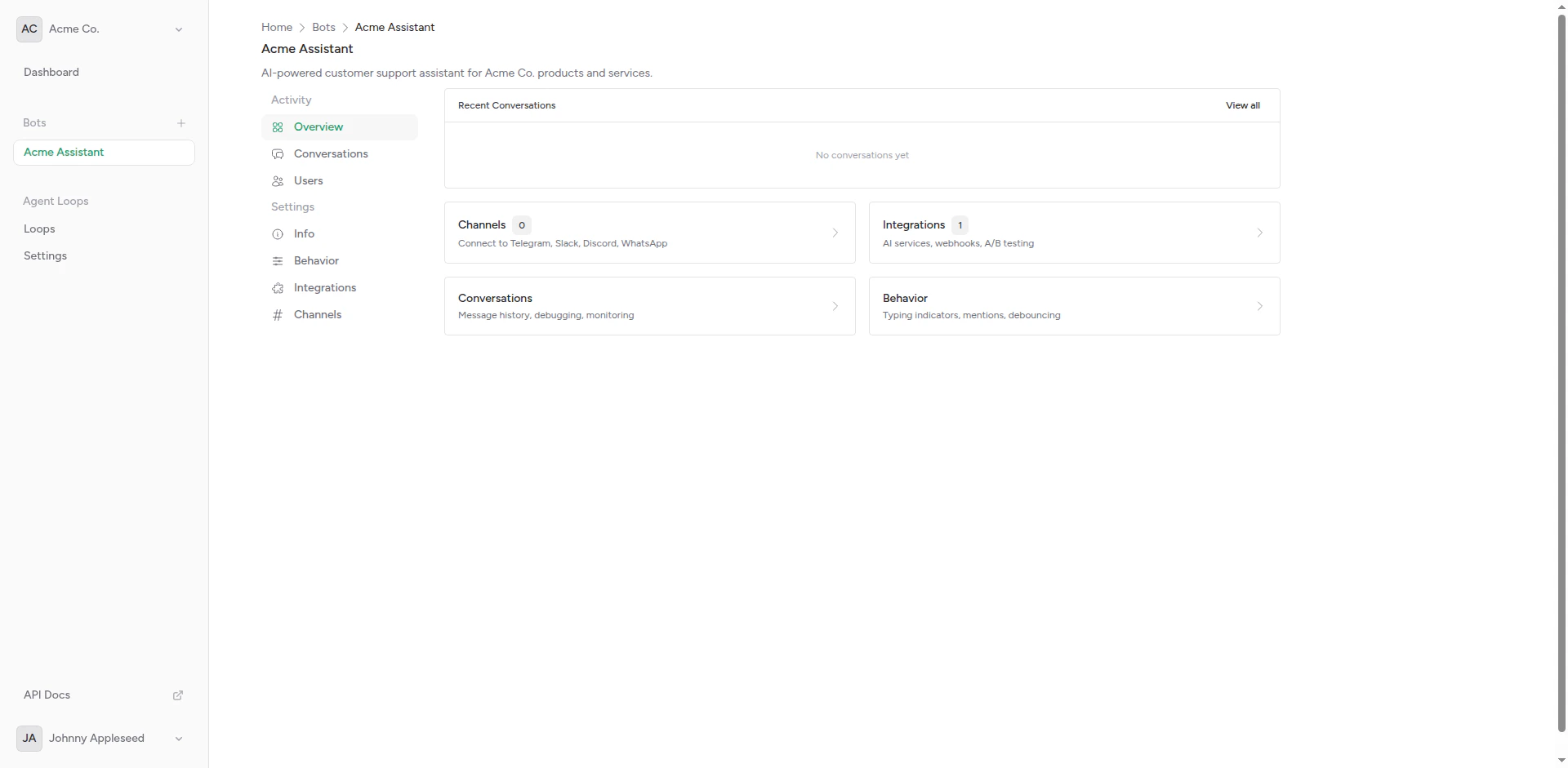
Bot overview showing channels, integrations, and settings
Creating a Bot
1
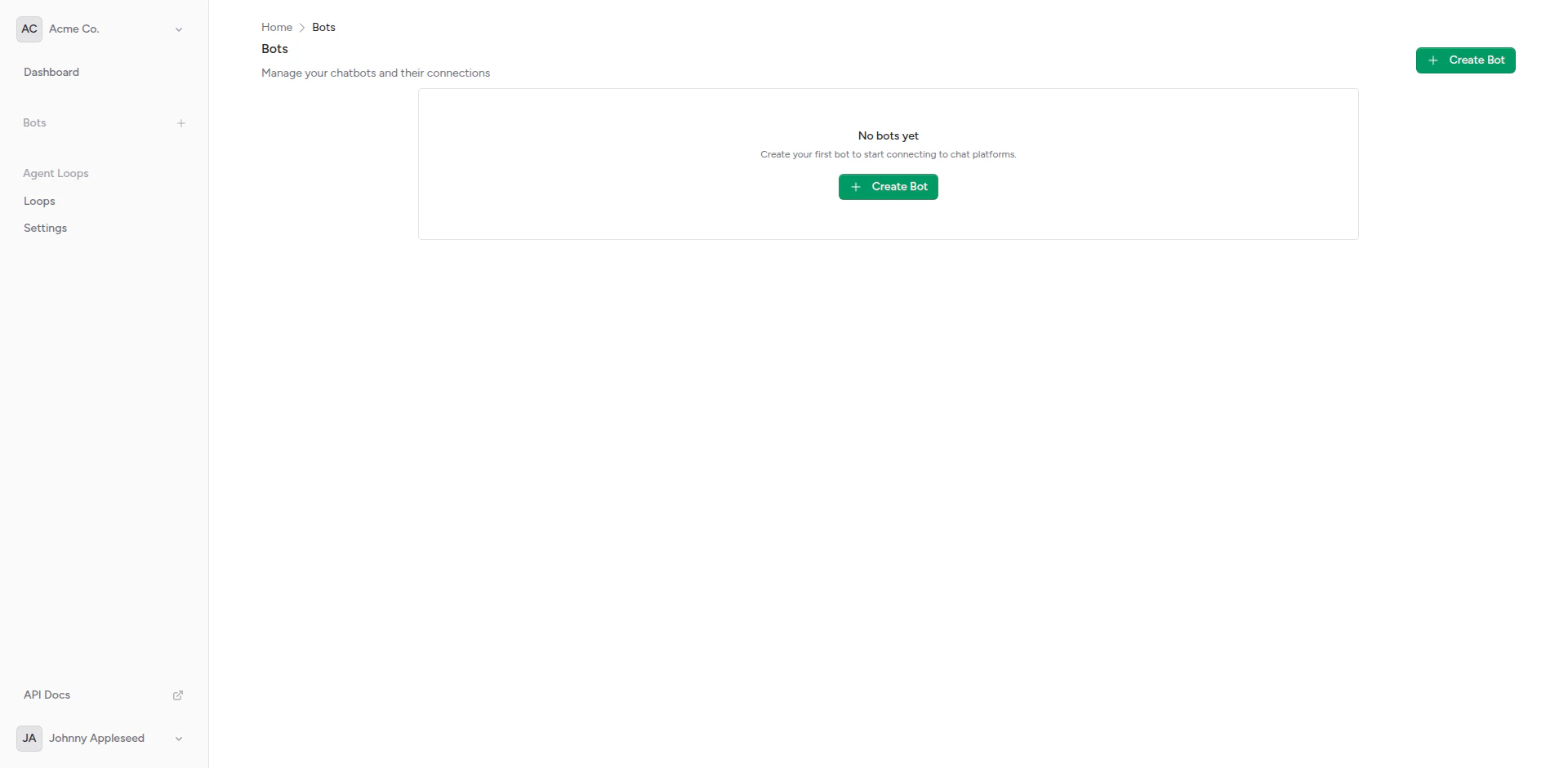
Navigate to Bots
From your dashboard, click Bots in the sidebar.
Empty bots page
2
Fill in Details
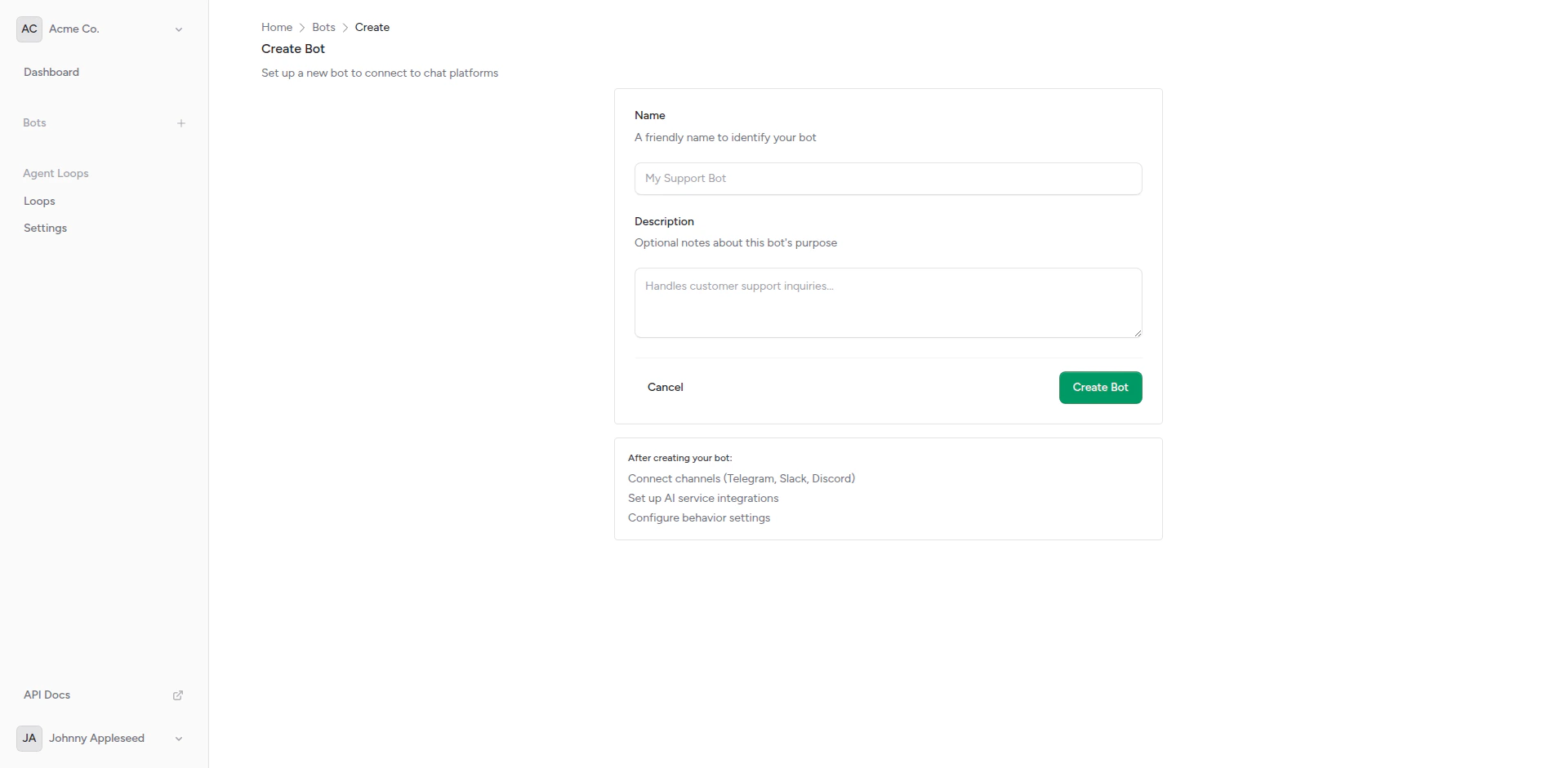
Click Create Bot and provide:
Name: A friendly name for internal reference
Description: Optional description of the bot’s purpose
Create bot form
3
Configure Settings
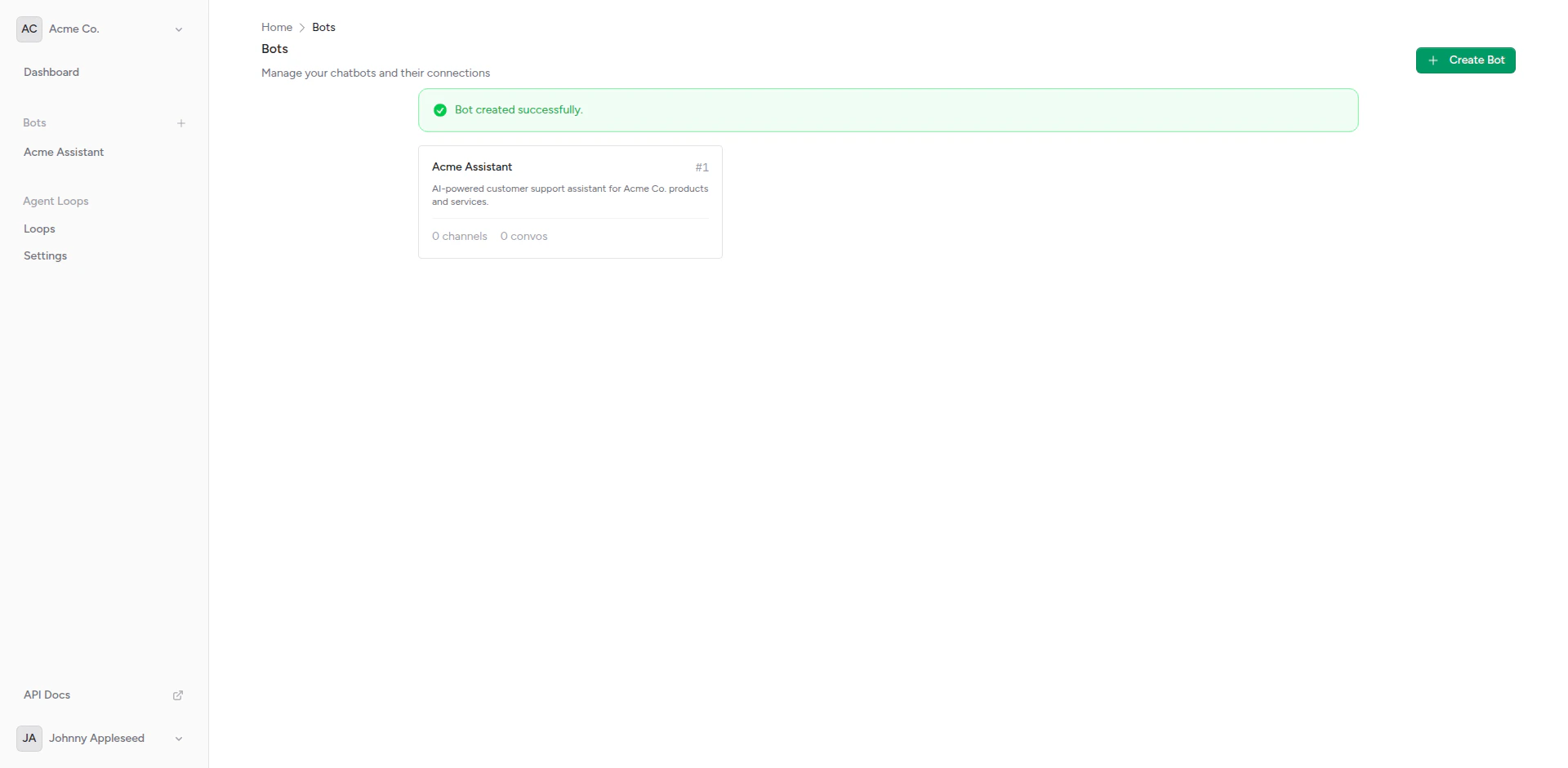
After creation, you’ll see the bot overview where you can configure behaviors, add integrations, and connect channels.
Newly created bot
Bot Components
Behaviors
Control how your bot interacts with users:
Typing Indicators
Show “thinking” messages while generating responses
Reply Detection
Control when bot responds to messages
Response Timing
Configure natural response delays
Should Respond
Detect when bot should reply in groups
Integrations
Connect your bot to AI backends:
Webhook Setup
Configure connections to OpenAI, Anthropic, or custom APIs
Webhook Payload
Complete payload reference with examples
Async Replies
Handle long-running operations
A/B Testing
Compare multiple AI backends with weighted distribution
Custom Headers
Add authentication and custom headers to requests
Channels
Deploy your bot to messaging platforms:
Telegram
Connect to Telegram with bot tokens
Slack
Integrate with Slack workspaces
Discord
Deploy to Discord servers (coming soon)
Adding Channels
How to add new channel types
Conversations
Manage message history and context:
Conversation Overview
View and manage bot conversations
Message History
Configure context window and history_limit
Conversation API
Programmatic conversation management
Default Integration
Every bot comes with a default “echo” integration that simply returns the user’s message. This is useful for:
Testing channel setup before connecting a real AI backend
Debugging webhook delivery
Understanding message flow
Replace the echo integration with a real AI backend when you’re ready.
Multiple Channels
A single bot can be connected to multiple channels simultaneously. This allows you to:
Deploy the same bot across Telegram, Slack, and Discord
Use one AI backend for all platforms
Maintain separate conversation contexts per platform
Centralize bot management
Bot Settings
Configure these settings for each bot:
Setting
Description
Default
Name
Display name for internal reference
Required
Description
Optional purpose description
Empty
Typing Indicators
Show “thinking” messages
Enabled
Message Detection
Conversation grouping strategy
Platform-specific
Context Window
Number of messages to include
10
API Access
Manage bots programmatically using the API.
Create a bot via API
cURL
JavaScript
PHP
Python
curl -X POST https://api.chatbotplatform.io/v1/bots \
  -H "Authorization: Bearer YOUR_API_KEY" \
  -H "Content-Type: application/json" \
  -d '{
    "name": "My Bot",
    "description": "A helpful AI assistant"
  }'