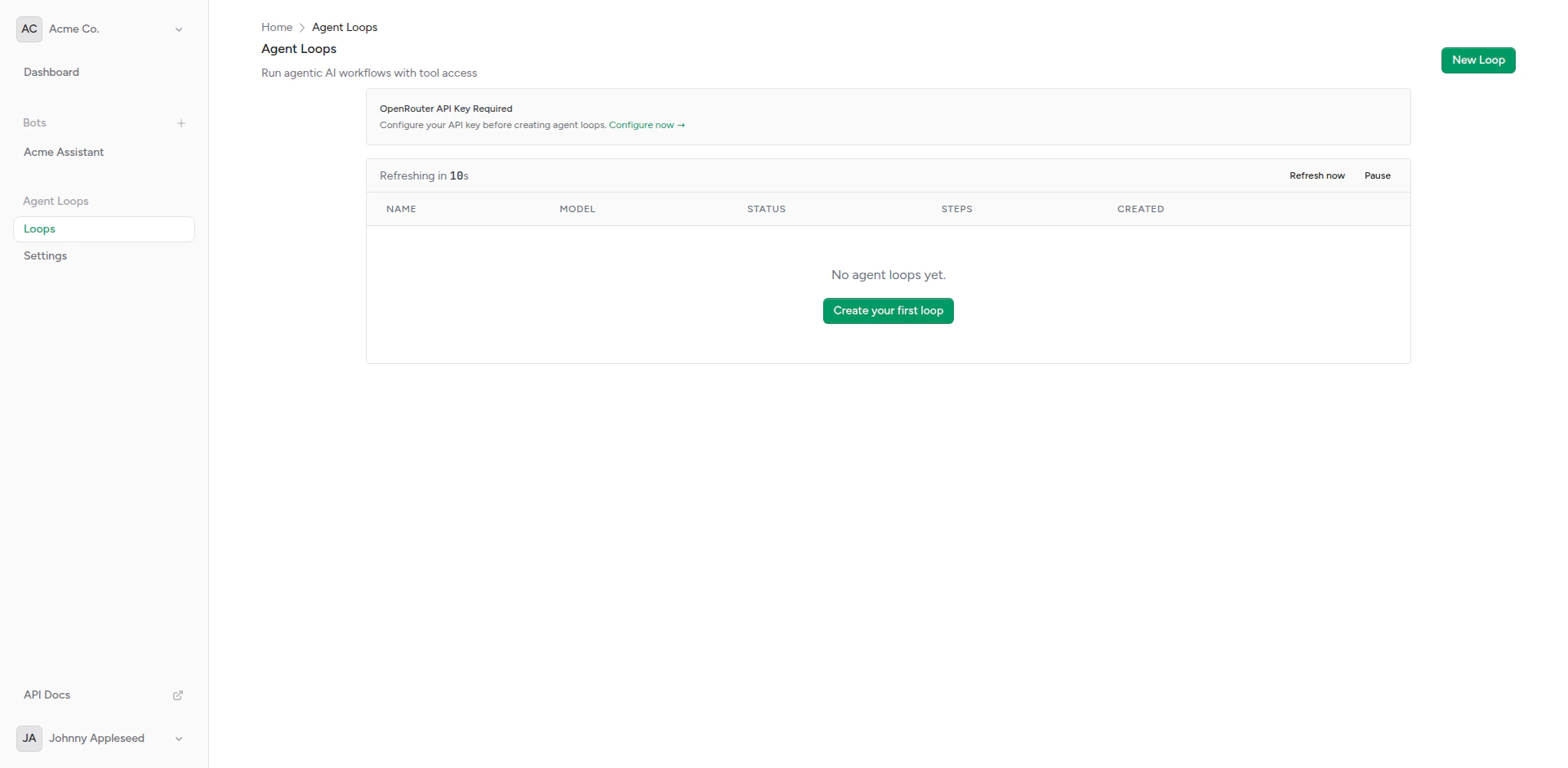
Agent loops overview
Overview
An Agent Loop is an AI agent that:- Runs Autonomously: Executes tasks without user messages
- Uses Tools: Accesses MCP servers for capabilities like file systems, databases, APIs
- Makes Decisions: Determines which tools to use and when
- Sends Results: Delivers output via callback webhooks
- Iterates: Can run multiple reasoning steps to complete tasks
Use Cases
Scheduled Reports
Generate and send daily/weekly reports automatically
Data Processing
Process files, databases, or API data on schedule
Monitoring
Check systems and alert on issues
Content Generation
Create blog posts, summaries, or documentation
Agent Loop Components
System Prompt
Instructions that define the agent’s behavior: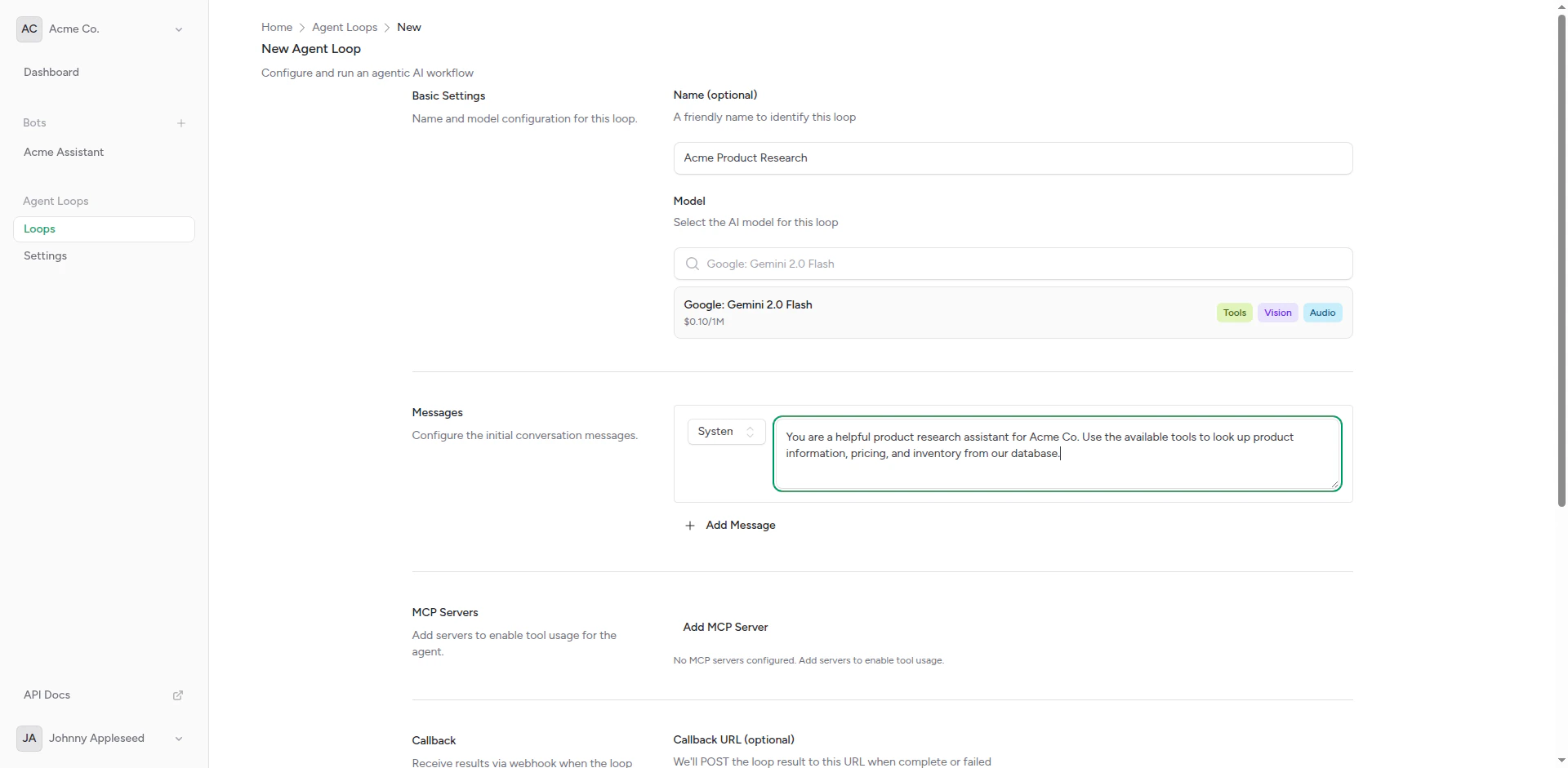
System prompt configuration
User Message
The task or question given to the agent: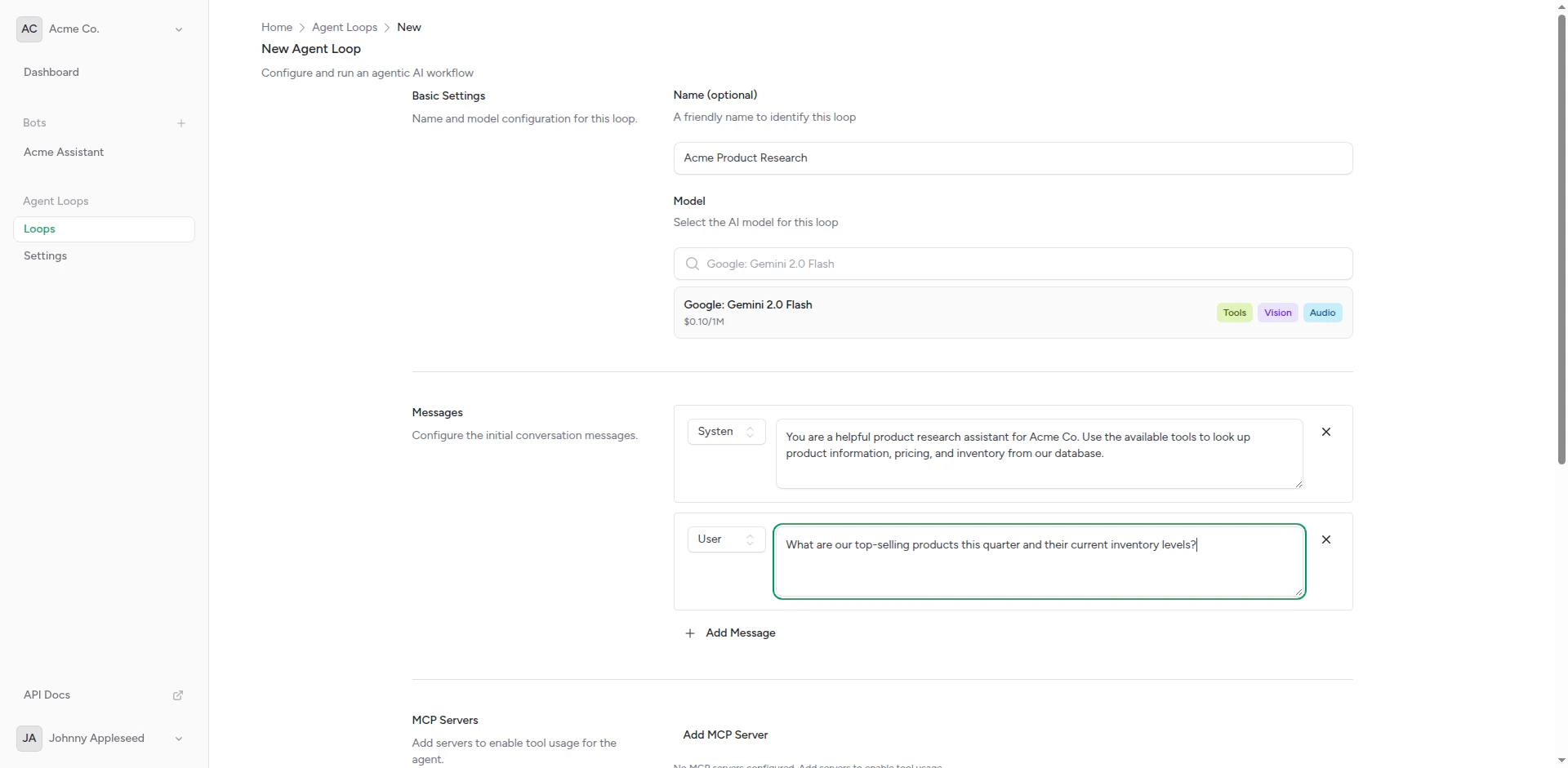
User message input
MCP Servers
Tools the agent can use:- File System: Read/write files
- Database: Query SQL databases
- HTTP: Make API requests
- Custom: Your own tool implementations
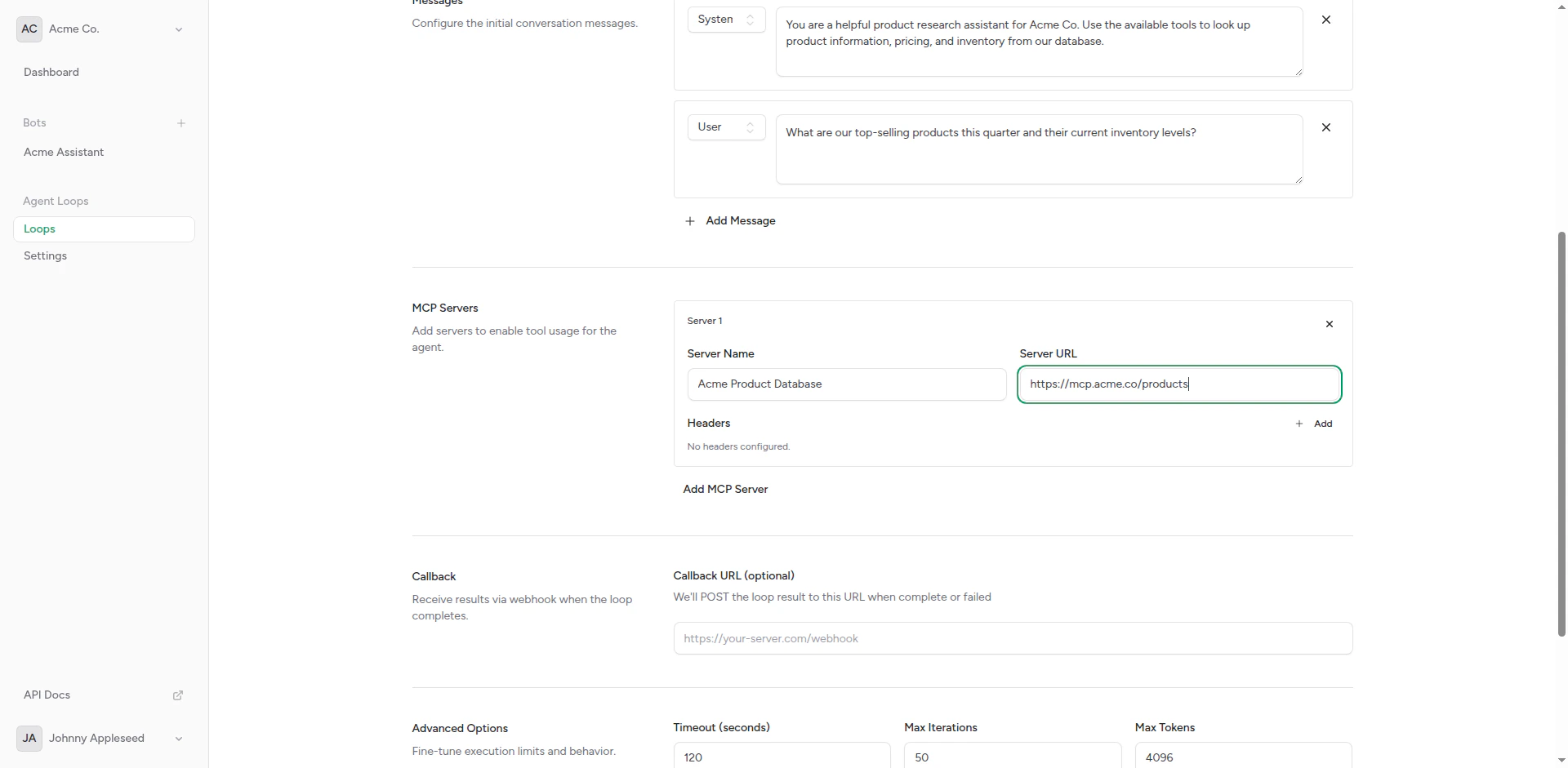
MCP server configuration
Callback Webhook
Where to send results when the agent completes its task: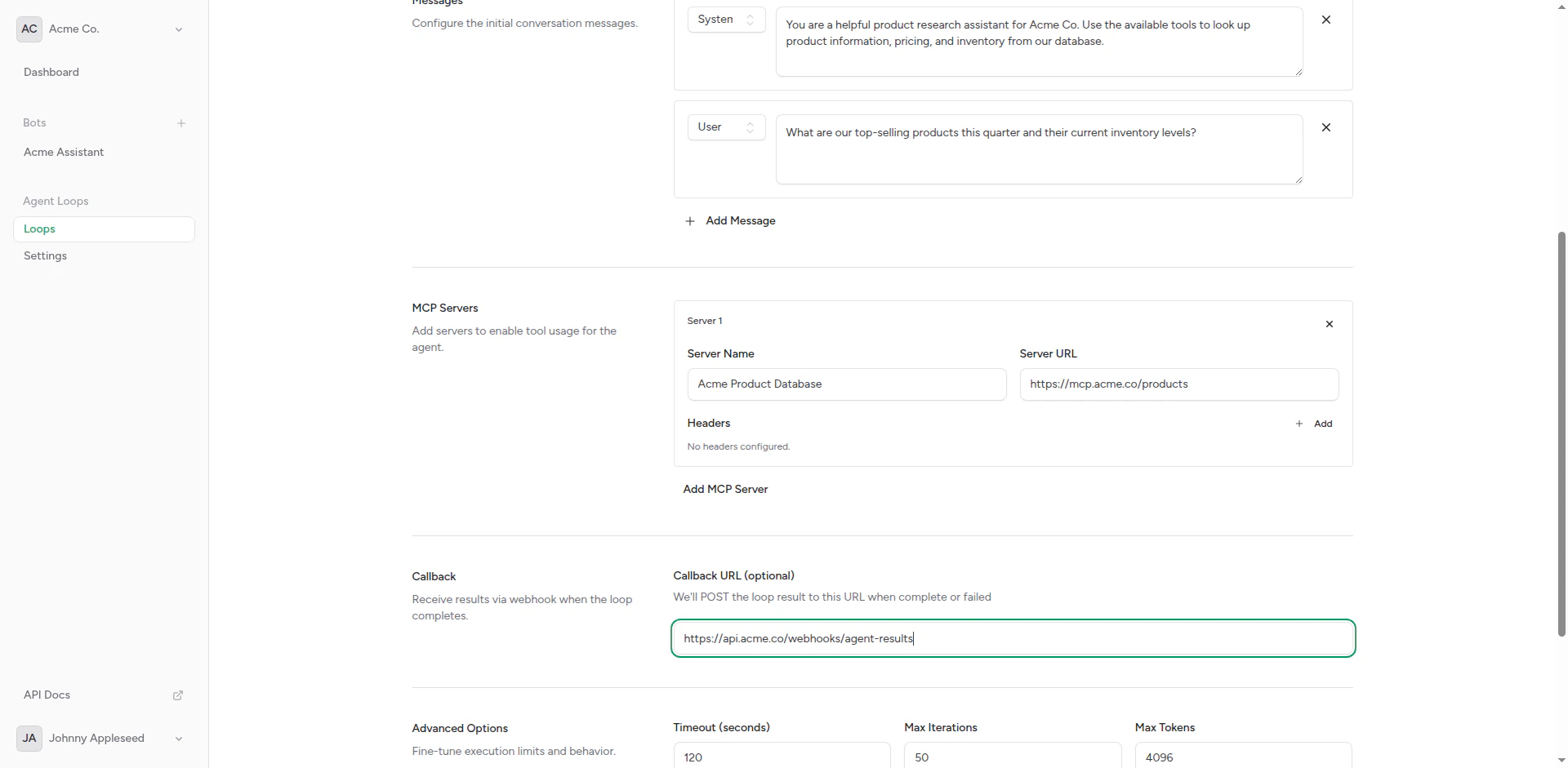
Callback webhook setup
Creating an Agent Loop
1
Navigate to Agent Loops
From your dashboard, click Agent Loops in the sidebar.
Agent loops list
2
Click Create
Click Create Agent Loop to open the form.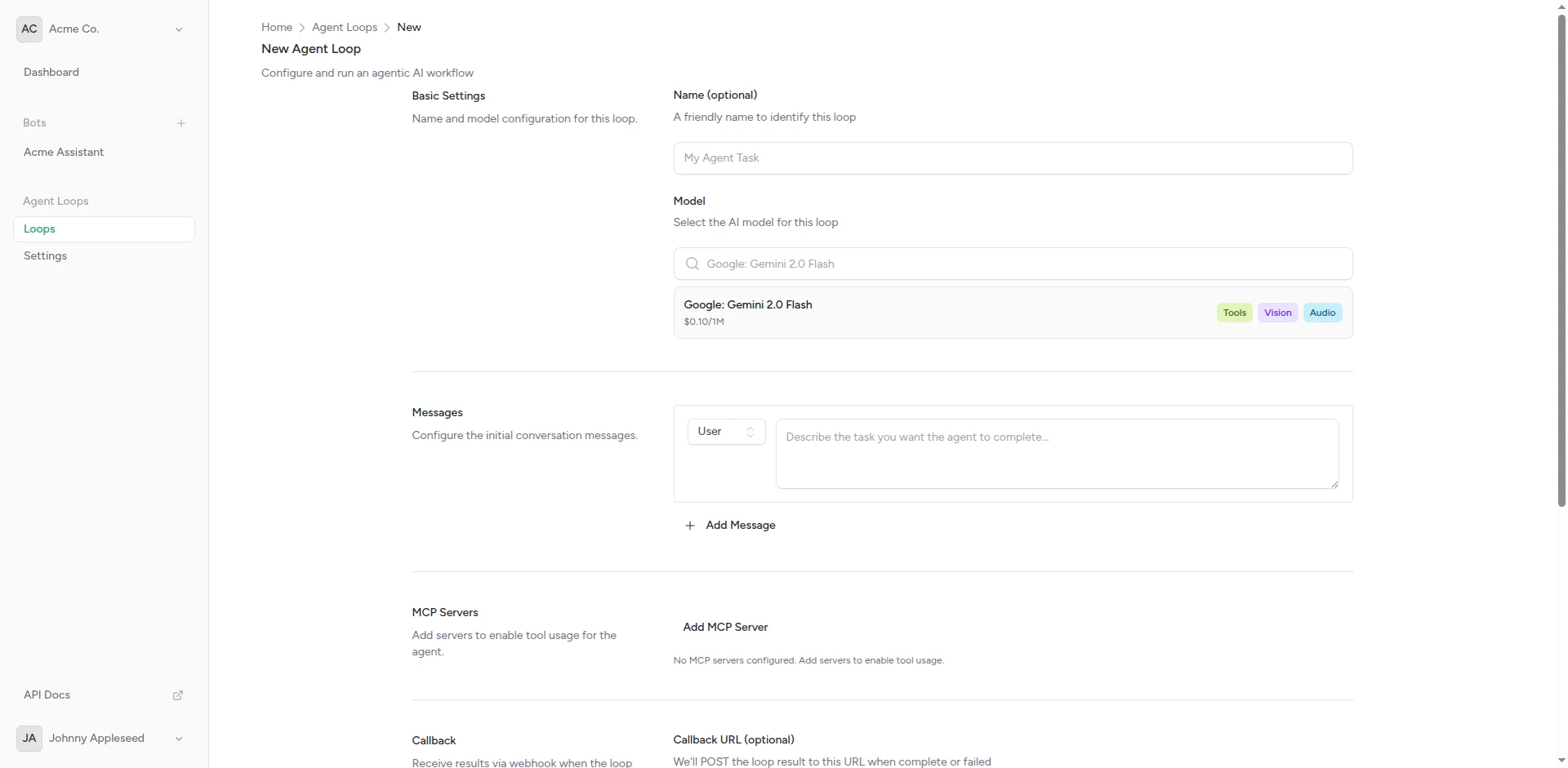
Create agent loop form
3
Name Your Agent
Give it a descriptive name: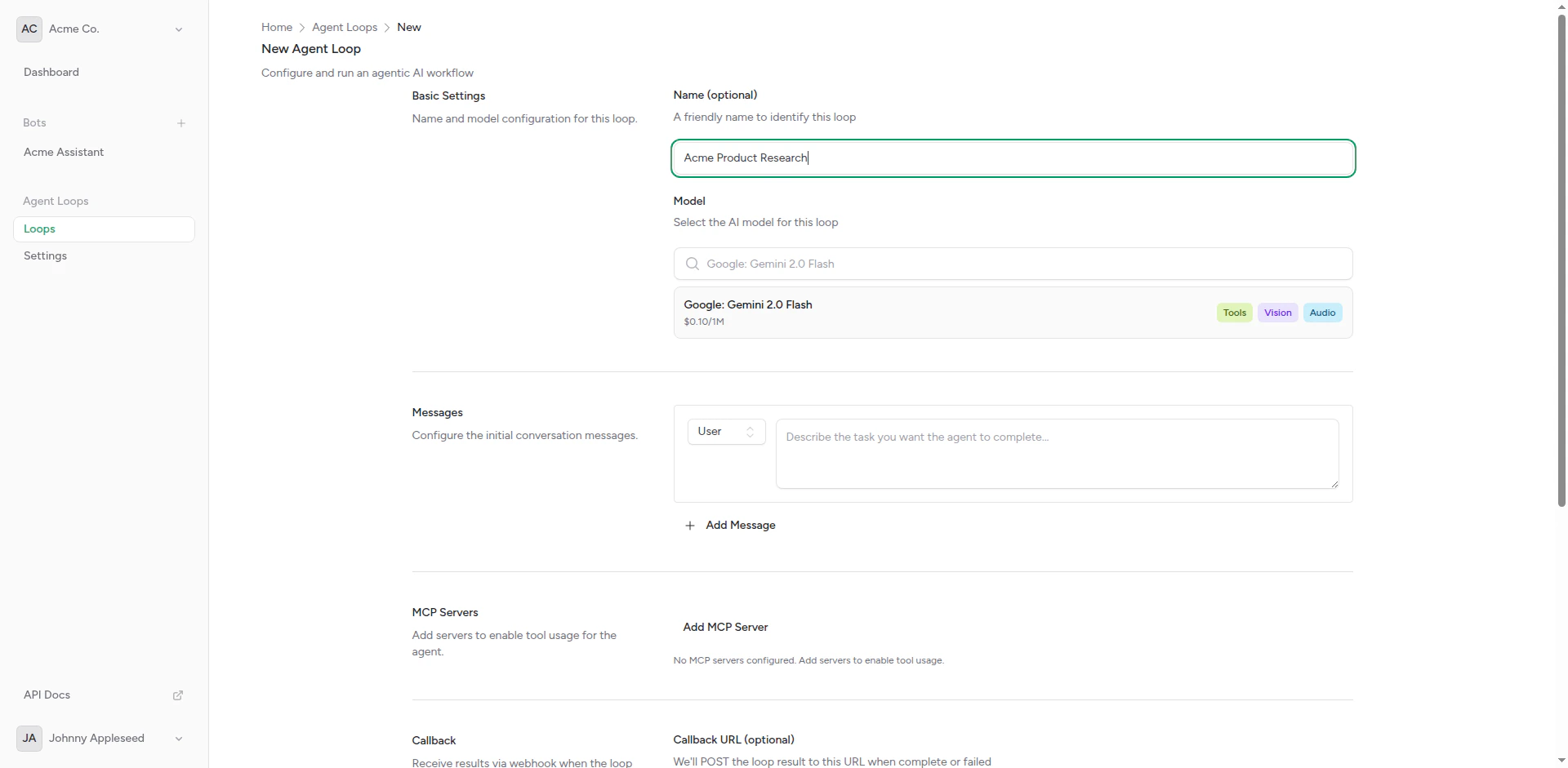
Agent loop named
4
Write System Prompt
Define the agent’s role and behavior.
5
Set User Message
Provide the task or question.
6
Configure MCP Servers
Add any tools the agent needs (optional but recommended).
7
Add Callback Webhook
Specify where to send results (optional).
8
Configure Advanced Settings
Set model, max iterations, timeout, etc.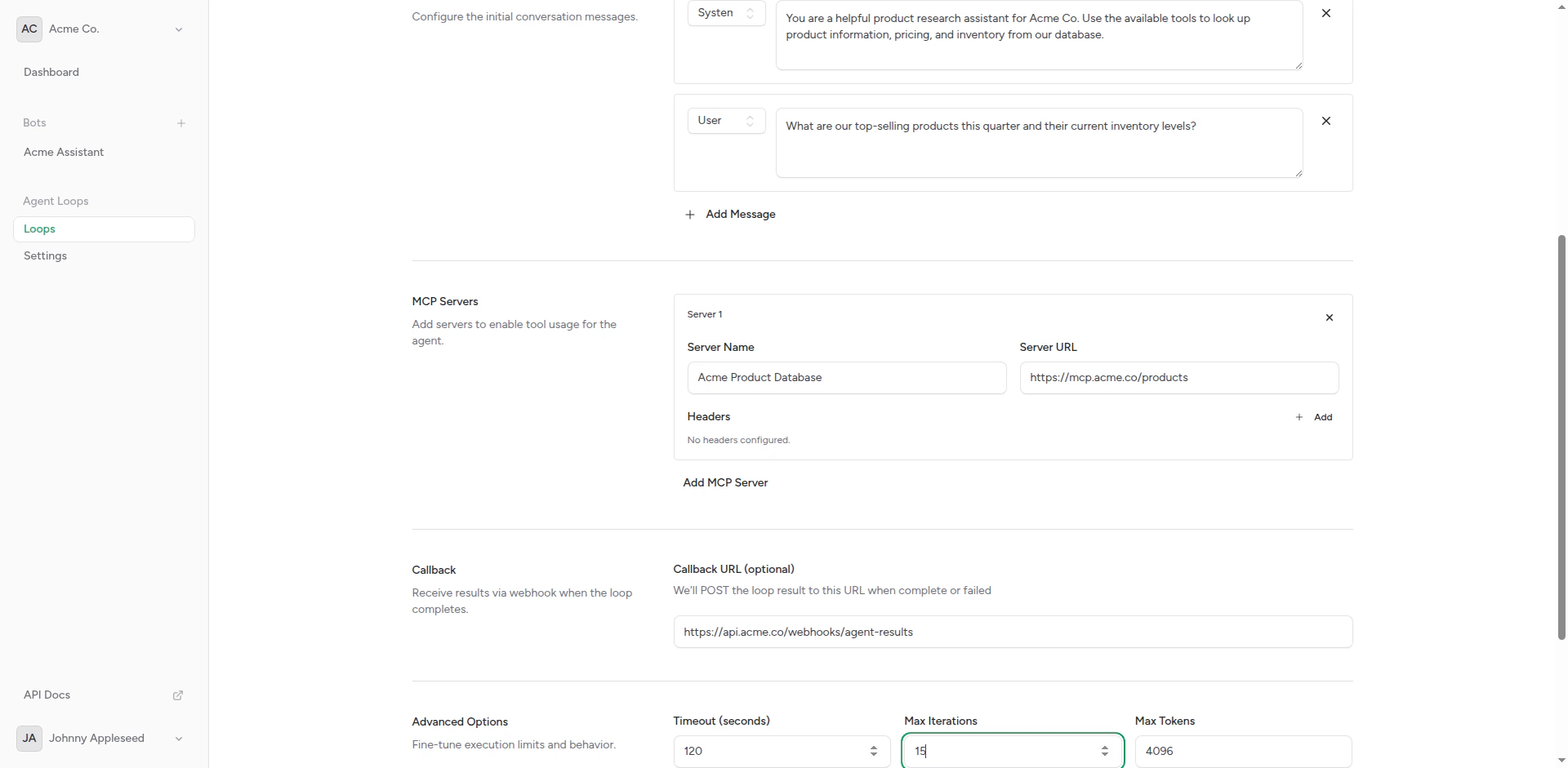
Advanced settings
9
Save
Click Create to save the agent loop.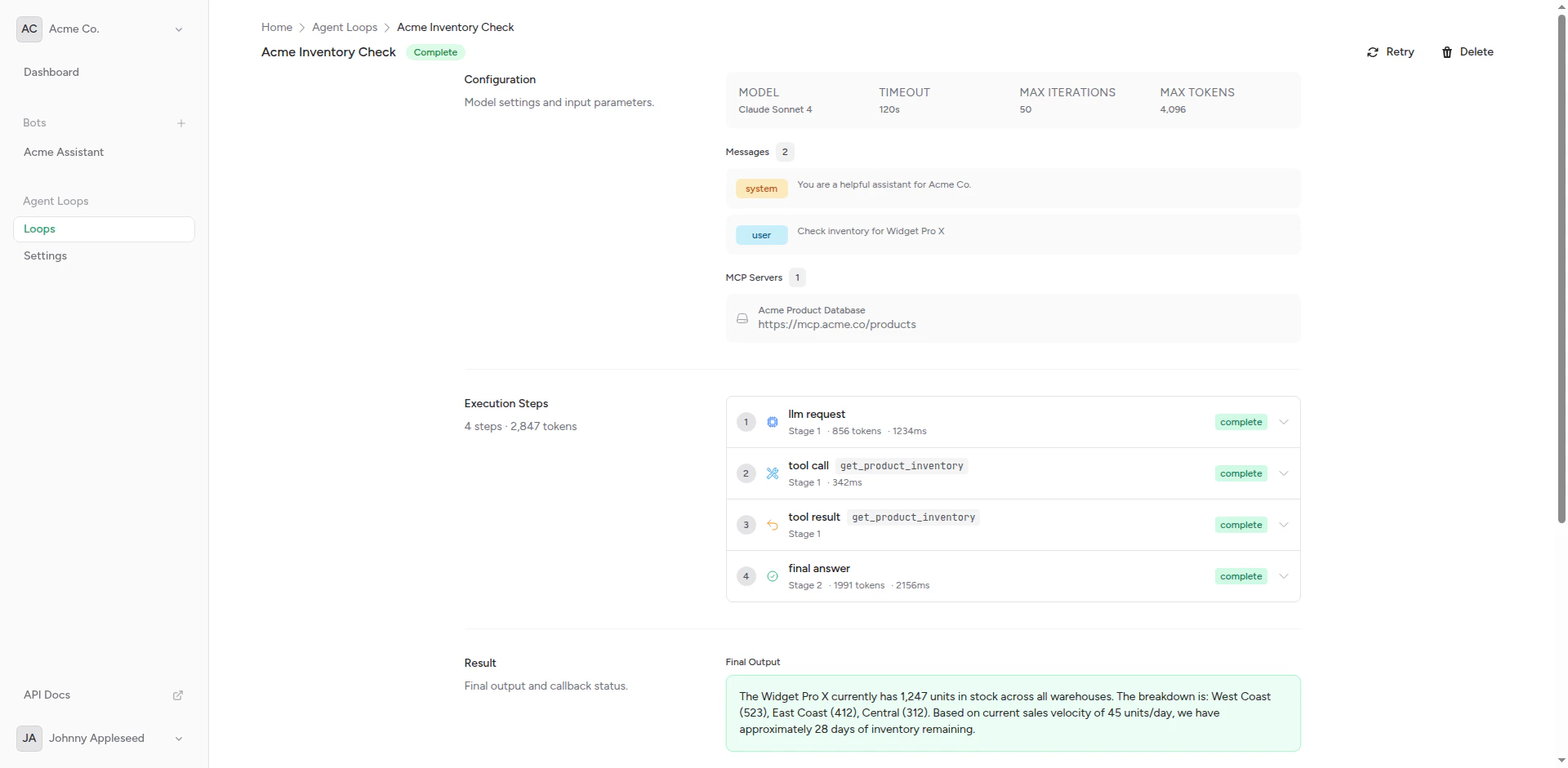
Complete agent loop
Running Agent Loops
Manual Execution
Run an agent loop on demand:1
Open Agent Loop
Navigate to the agent loop details page.
2
Click Run
Click the Run button to start execution.
3
Monitor Progress
Watch the execution log for status updates.
4
Review Results
Check the output and any callback webhook responses.
Scheduled Execution (Coming Soon)
Future support for:- Cron-based schedules (daily, weekly, monthly)
- Interval-based triggers (every N minutes/hours)
- Event-based triggers (webhook received, file uploaded)
API Execution
Trigger agent loops via API:MCP Servers
Model Context Protocol (MCP) servers provide tools for agents:Built-in MCP Servers
File System:- Read files
- Write files
- List directories
- Make GET/POST/PUT/DELETE requests
- Handle authentication
- Parse responses
- Query SQL databases
- Execute statements
- Transaction support
Custom MCP Servers
Deploy your own MCP servers:1
Implement MCP Protocol
Follow the MCP specification to create a tool server.
2
Deploy Server
Host your MCP server at a public endpoint.
3
Add to Agent Loop
Configure the MCP server URL in your agent loop settings.
4
Test
Run the agent and verify tool calls work correctly.
Callback Webhooks
Send agent results to external systems:Webhook Format
The callback webhook receives:Response Expected
Your webhook should return:Advanced Settings
Max Iterations
Limit how many reasoning steps the agent can take:
More iterations = longer execution time.
Timeout
Maximum execution time in seconds:- 60s: Quick tasks
- 300s (5 min): Standard
- 900s (15 min): Long-running tasks
- 3600s (1 hour): Maximum
Best Practices
Clear Instructions
Write explicit system prompts and tasks
Right Tools
Provide only necessary MCP servers
Set Limits
Use appropriate iteration and timeout limits
Test First
Run manually before scheduling
System Prompt Tips
Good:Troubleshooting
Agent Doesn’t Complete
Check:- Max iterations is sufficient
- Timeout is long enough
- MCP servers are accessible
- System prompt is clear
Tool Calls Fail
Check:- MCP server URLs are correct
- Authentication is configured
- Server is running and responsive
- Agent has permission to access tools
No Callback Received
Check:- Callback URL is correct
- Webhook endpoint is accessible
- Agent loop completed successfully
- Check execution logs for errors
API Access
Manage agent loops programmatically using the API.Create an agent loop via API
Create an agent loop via API
- cURL
- JavaScript
- PHP
- Python
Run an agent loop
Run an agent loop
- cURL
- JavaScript
- PHP
- Python
List agent loop executions
List agent loop executions
- cURL
- JavaScript
- PHP
- Python
Complete API Reference
View the full API specification with all endpoints, parameters, and response schemas.
Next Steps
Getting Started
Create your first agent loop
MCP Servers
Configure tool access
Callbacks
Set up result webhooks