> ## Documentation Index
> Fetch the complete documentation index at: https://docs.chatbotplatform.io/llms.txt
> Use this file to discover all available pages before exploring further.
# A/B Testing Integrations
> Compare multiple AI backends with weighted distribution
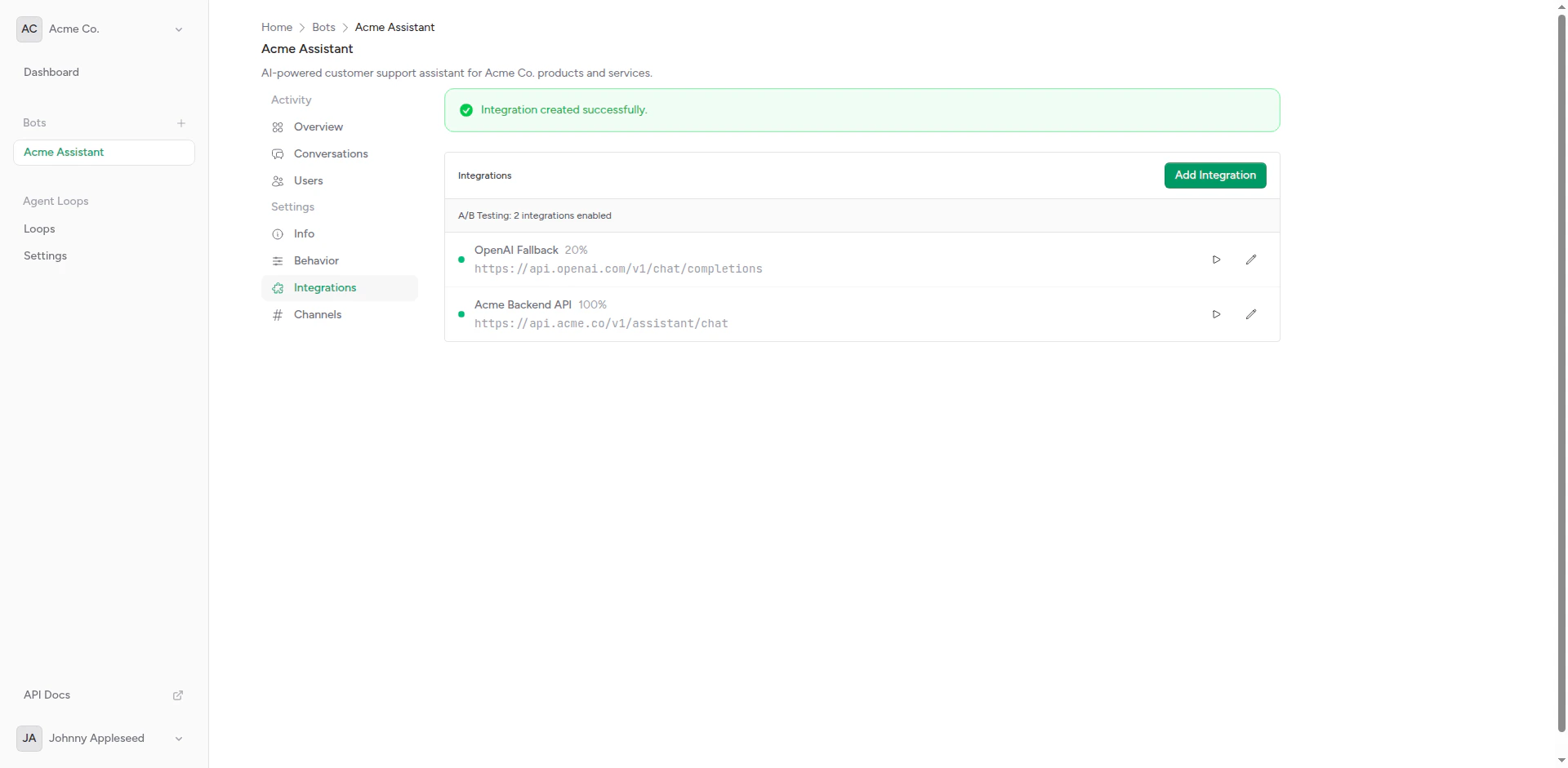
A/B testing allows you to run multiple integrations simultaneously and distribute requests between them based on configurable weights. This enables you to compare AI models, test new backends, and implement gradual rollouts.
 ## How It Works
When your bot receives a message:
1. **Check Active Integrations**: Bot finds all integrations with weight > 0
2. **Calculate Distribution**: Total weight determines probability for each
3. **Select Integration**: Randomly select based on weights
4. **Send Request**: Forward message to selected integration
5. **Track Performance**: Log which integration was used
## Setting Up A/B Testing
Create 2 or more integrations for your bot. For example:
* Integration A: "GPT-4" (OpenAI)
* Integration B: "Claude 3.5 Sonnet" (Anthropic)
Set weights for each integration:
* GPT-4: Weight 50
* Claude: Weight 50
This creates a 50/50 split.
Ensure both integrations are active (not disabled).
Messages will automatically distribute according to weights.
## Weight Distribution
Weights determine the probability of each integration being selected:
### Equal Distribution
```
Integration A: Weight 1
Integration B: Weight 1
Total: 2
A: 1/2 = 50% of requests
B: 1/2 = 50% of requests
```
### Unequal Distribution
```
Integration A: Weight 3
Integration B: Weight 1
Total: 4
A: 3/4 = 75% of requests
B: 1/4 = 25% of requests
```
### Gradual Rollout
Start with a small percentage and increase over time:
**Week 1**:
```
Old Backend: Weight 95
New Backend: Weight 5
→ 95% old, 5% new
```
**Week 2**:
```
Old Backend: Weight 80
New Backend: Weight 20
→ 80% old, 20% new
```
**Week 3**:
```
Old Backend: Weight 50
New Backend: Weight 50
→ 50% old, 50% new
```
**Week 4**:
```
Old Backend: Weight 0
New Backend: Weight 100
→ 0% old, 100% new (full migration)
```
## Use Cases
### Model Comparison
Compare different AI models on the same traffic:
```
GPT-4: Weight 50
Claude 3.5: Weight 50
```
### Feature Testing
Test new features or prompts:
```
Current Prompt: Weight 90
New Prompt: Weight 10
```
Safely test changes on a small percentage of traffic.
### Fallback Strategy
Use weights with fallback integrations:
```
Primary: Weight 100, Fallback: No
Backup: Weight 0, Fallback: Yes
```
The backup integration only runs when primary fails.
## Best Practices
Begin with 5-10% traffic to new integrations
Know what you're measuring before starting
Collect enough data for statistical significance
Test one change at a time for clear results
### Statistical Significance
Don't draw conclusions too early:
| Traffic Level | Minimum Test Duration |
| ------------------ | --------------------- |
| 100 requests/day | 2-3 weeks |
| 1000 requests/day | 1 week |
| 10000 requests/day | 2-3 days |
Wait until each integration has served enough requests to see patterns.
### Avoid Common Pitfalls
**Don't**:
* Change weights daily (let tests run)
* Test too many variables at once
* Ignore statistical significance
* Compare apples to oranges (different use cases)
**Do**:
* Test one change at a time
* Keep detailed notes
* Use consistent metrics
* Document learnings
## Configuration Examples
### Canary Deployment
Gradually roll out a new model:
```
Day 1:
Old Model: Weight 99
New Model: Weight 1
Day 3:
Old Model: Weight 95
New Model: Weight 5
Day 7:
Old Model: Weight 90
New Model: Weight 10
Day 14:
Old Model: Weight 70
New Model: Weight 30
Day 21:
Old Model: Weight 50
New Model: Weight 50
Day 30:
Old Model: Weight 0
New Model: Weight 100
```
### Multi-Variant Testing
Test three options:
```
Option A: Weight 33
Option B: Weight 33
Option C: Weight 34
```
Each gets roughly 1/3 of traffic.
### Champion vs. Challenger
Keep a proven option dominant:
```
Champion (proven): Weight 80
Challenger (new): Weight 20
```
The champion serves most traffic while you evaluate the challenger.
## Advanced Techniques
### User-Based Testing
Use custom headers to route specific users:
```
X-User-Tier: premium → Integration A
X-User-Tier: free → Integration B
```
Requires custom logic in your integration selection.
### Geographic Testing
Route by user location (if available):
```
US Users → Integration A (English optimized)
EU Users → Integration B (Multi-language optimized)
```
## Ending an A/B Test
When your test concludes:
Review all collected metrics and determine the winner.
Decide which integration to use going forward.
Set winner to Weight 100, others to Weight 0 (or delete them).
Record what you learned for future reference.
Keep losing integrations configured but disabled (Weight 0) so you can easily re-test if needed.
## Troubleshooting
### Uneven Distribution
If traffic doesn't match weights:
* **Low Traffic**: Need more requests for distribution to even out
* **Caching**: Check if responses are cached
* **Time of Day**: Traffic patterns may affect distribution
### One Integration Always Fails
If one integration has high error rate:
* Check timeout settings
* Verify API credentials
* Test integration manually
* Review error logs
## Next Steps
Configure integration endpoints
Add routing logic with headers
## How It Works
When your bot receives a message:
1. **Check Active Integrations**: Bot finds all integrations with weight > 0
2. **Calculate Distribution**: Total weight determines probability for each
3. **Select Integration**: Randomly select based on weights
4. **Send Request**: Forward message to selected integration
5. **Track Performance**: Log which integration was used
## Setting Up A/B Testing
Create 2 or more integrations for your bot. For example:
* Integration A: "GPT-4" (OpenAI)
* Integration B: "Claude 3.5 Sonnet" (Anthropic)
Set weights for each integration:
* GPT-4: Weight 50
* Claude: Weight 50
This creates a 50/50 split.
Ensure both integrations are active (not disabled).
Messages will automatically distribute according to weights.
## Weight Distribution
Weights determine the probability of each integration being selected:
### Equal Distribution
```
Integration A: Weight 1
Integration B: Weight 1
Total: 2
A: 1/2 = 50% of requests
B: 1/2 = 50% of requests
```
### Unequal Distribution
```
Integration A: Weight 3
Integration B: Weight 1
Total: 4
A: 3/4 = 75% of requests
B: 1/4 = 25% of requests
```
### Gradual Rollout
Start with a small percentage and increase over time:
**Week 1**:
```
Old Backend: Weight 95
New Backend: Weight 5
→ 95% old, 5% new
```
**Week 2**:
```
Old Backend: Weight 80
New Backend: Weight 20
→ 80% old, 20% new
```
**Week 3**:
```
Old Backend: Weight 50
New Backend: Weight 50
→ 50% old, 50% new
```
**Week 4**:
```
Old Backend: Weight 0
New Backend: Weight 100
→ 0% old, 100% new (full migration)
```
## Use Cases
### Model Comparison
Compare different AI models on the same traffic:
```
GPT-4: Weight 50
Claude 3.5: Weight 50
```
### Feature Testing
Test new features or prompts:
```
Current Prompt: Weight 90
New Prompt: Weight 10
```
Safely test changes on a small percentage of traffic.
### Fallback Strategy
Use weights with fallback integrations:
```
Primary: Weight 100, Fallback: No
Backup: Weight 0, Fallback: Yes
```
The backup integration only runs when primary fails.
## Best Practices
Begin with 5-10% traffic to new integrations
Know what you're measuring before starting
Collect enough data for statistical significance
Test one change at a time for clear results
### Statistical Significance
Don't draw conclusions too early:
| Traffic Level | Minimum Test Duration |
| ------------------ | --------------------- |
| 100 requests/day | 2-3 weeks |
| 1000 requests/day | 1 week |
| 10000 requests/day | 2-3 days |
Wait until each integration has served enough requests to see patterns.
### Avoid Common Pitfalls
**Don't**:
* Change weights daily (let tests run)
* Test too many variables at once
* Ignore statistical significance
* Compare apples to oranges (different use cases)
**Do**:
* Test one change at a time
* Keep detailed notes
* Use consistent metrics
* Document learnings
## Configuration Examples
### Canary Deployment
Gradually roll out a new model:
```
Day 1:
Old Model: Weight 99
New Model: Weight 1
Day 3:
Old Model: Weight 95
New Model: Weight 5
Day 7:
Old Model: Weight 90
New Model: Weight 10
Day 14:
Old Model: Weight 70
New Model: Weight 30
Day 21:
Old Model: Weight 50
New Model: Weight 50
Day 30:
Old Model: Weight 0
New Model: Weight 100
```
### Multi-Variant Testing
Test three options:
```
Option A: Weight 33
Option B: Weight 33
Option C: Weight 34
```
Each gets roughly 1/3 of traffic.
### Champion vs. Challenger
Keep a proven option dominant:
```
Champion (proven): Weight 80
Challenger (new): Weight 20
```
The champion serves most traffic while you evaluate the challenger.
## Advanced Techniques
### User-Based Testing
Use custom headers to route specific users:
```
X-User-Tier: premium → Integration A
X-User-Tier: free → Integration B
```
Requires custom logic in your integration selection.
### Geographic Testing
Route by user location (if available):
```
US Users → Integration A (English optimized)
EU Users → Integration B (Multi-language optimized)
```
## Ending an A/B Test
When your test concludes:
Review all collected metrics and determine the winner.
Decide which integration to use going forward.
Set winner to Weight 100, others to Weight 0 (or delete them).
Record what you learned for future reference.
Keep losing integrations configured but disabled (Weight 0) so you can easily re-test if needed.
## Troubleshooting
### Uneven Distribution
If traffic doesn't match weights:
* **Low Traffic**: Need more requests for distribution to even out
* **Caching**: Check if responses are cached
* **Time of Day**: Traffic patterns may affect distribution
### One Integration Always Fails
If one integration has high error rate:
* Check timeout settings
* Verify API credentials
* Test integration manually
* Review error logs
## Next Steps
Configure integration endpoints
Add routing logic with headers