> ## Documentation Index
> Fetch the complete documentation index at: https://docs.chatbotplatform.io/llms.txt
> Use this file to discover all available pages before exploring further.
# Conversations
> View and manage bot conversations
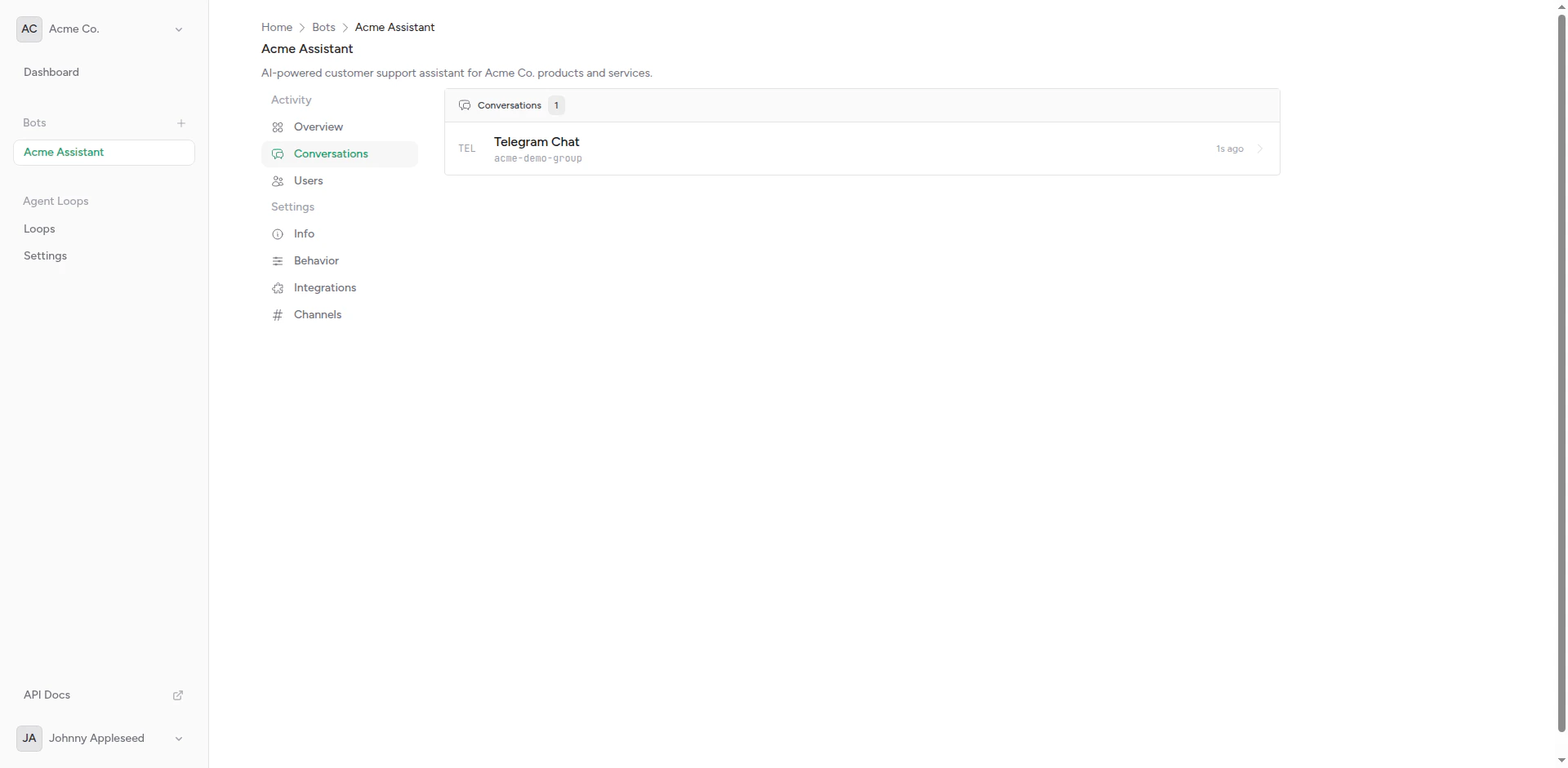
The Conversations page shows all interactions between your bot and users across all connected channels. Each conversation maintains message history and context for better AI responses.
 ## Overview
A conversation is a grouped series of messages between a user and your bot. Conversations are automatically created and managed based on your bot's message detection settings.
## Overview
A conversation is a grouped series of messages between a user and your bot. Conversations are automatically created and managed based on your bot's message detection settings.
 ## Conversation Structure
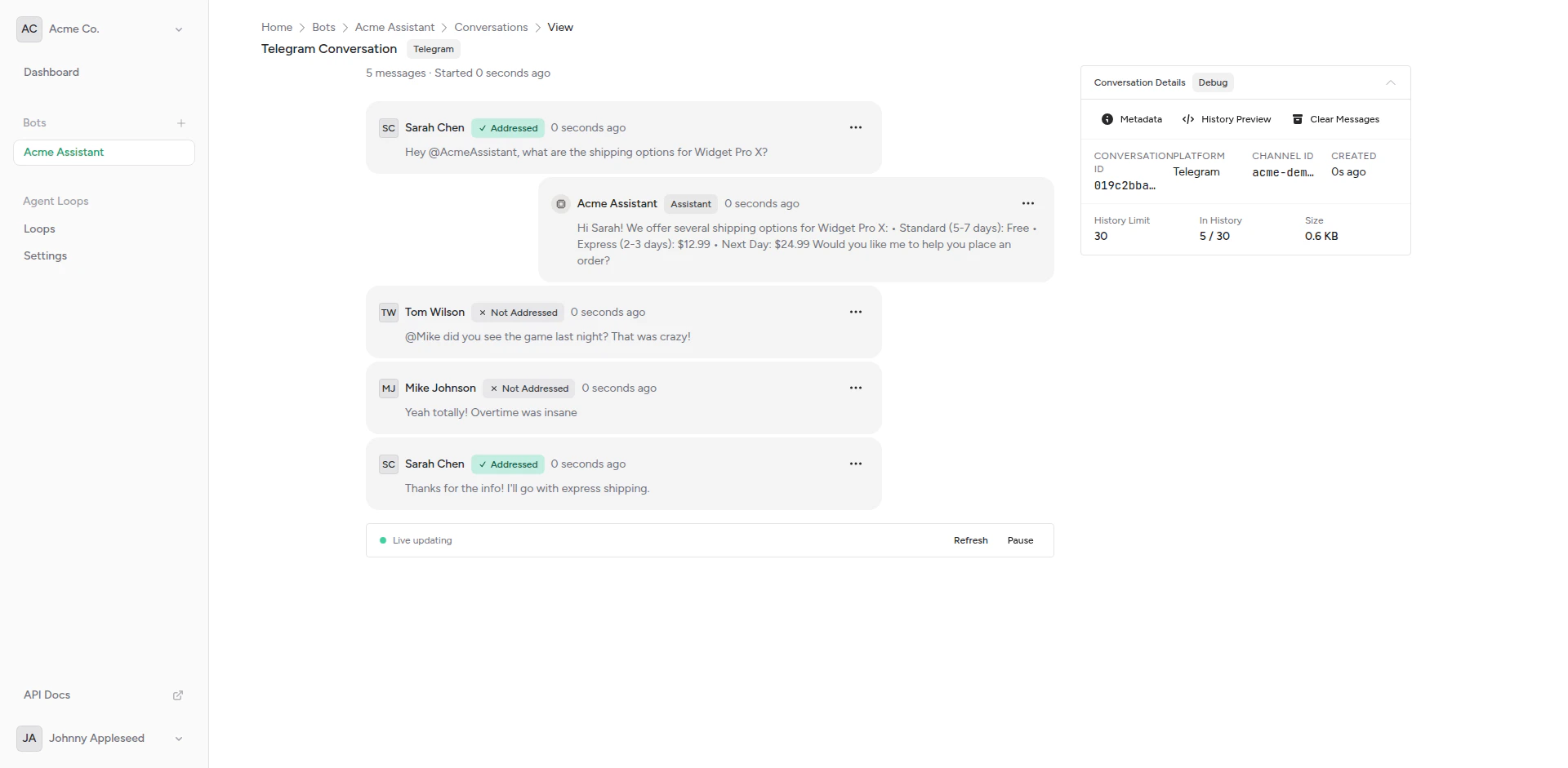
Each conversation includes:
* **Unique ID**: Persistent identifier
* **User Information**: Platform, username, display name
* **Channel**: Which platform the conversation is on
* **Message History**: All messages in chronological order
* **Metadata**: Timestamps, platform-specific data
* **Context**: Recent messages sent to AI integration
## Viewing Conversations
From your bot page, click **Conversations** in the sidebar.
See all conversations ordered by most recent activity.
Click on a conversation to view full message history.
See user messages, bot responses, and timestamps.
## Conversation Attributes
### User Information
* **User ID**: Unique platform identifier
* **Username**: Platform username (if available)
* **Display Name**: User's display name
* **Platform**: telegram, slack, discord, etc.
### Channel Information
* **Channel Type**: Platform name
* **Channel ID**: Unique channel identifier
* **Chat ID**: Specific chat or thread identifier
* **Metadata**: Platform-specific context
### Message History
* **Messages**: Ordered list of user and assistant messages
* **Timestamps**: When each message was sent
* **Roles**: `user`, `assistant`, or `system`
* **Content**: Message text or multimodal content (text + images)
* **Message Types**: Regular messages or synthetic messages (system-generated)
### Synthetic Messages
Synthetic messages are system-generated messages injected into conversations by features like reminders:
* **Created by System**: Not sent by users, but appear as user messages in the conversation
* **Trigger Bot Responses**: Bot responds as if the user sent the message
* **Scheduled**: Created at specific times (e.g., reminder triggers)
* **Use Cases**: Reminders, scheduled notifications, automated follow-ups
Example: When a reminder triggers, a synthetic message is created in the conversation prompting the bot to remind the user about something.
## Message Detection
How messages are grouped into conversations depends on your bot's detection settings:
### Thread-Based (Slack)
Each Slack thread is a separate conversation:
```
Main Message → Conversation A
↳ Reply 1 → Conversation A
↳ Reply 2 → Conversation A
New Main Message → Conversation B
```
### User-Based (Telegram Groups)
Each user in a group has their own conversation:
```
Group: Support
User A → Conversation A
User B → Conversation B
User A again → Still Conversation A
```
### Session-Based (Custom)
Conversations expire after inactivity:
```
User Message (10:00) → Conversation A
User Message (10:05) → Conversation A
[30 minute timeout]
User Message (10:40) → Conversation B (new)
```
Learn more in [Should Respond Detection](/bots/behaviors/should-respond).
## Context Window
The context window determines how many recent messages are included when calling your AI integration:
| Window Size | Messages Sent | Use Case |
| ------------ | ----------------- | ------------------ |
| 5 | Last 5 messages | Short-term context |
| 10 (default) | Last 10 messages | Balanced |
| 20 | Last 20 messages | Long conversations |
| 50+ | Last 50+ messages | Maximum context |
### Configuring Context Window
Set this in bot behavior settings:
Navigate to your bot's settings page.
Look for the **Context Window** or **Message History** setting.
Enter the number of messages to include (e.g., 10).
Click **Save** to apply changes.
Larger context windows use more tokens and increase costs, but provide better context for the AI.
## Conversation Lifecycle
### Creation
Conversations are created automatically when:
* First message from a new user
* New thread started (Slack)
* Session timeout expired
### Updates
Conversations are updated when:
* User sends new message
* Bot sends response
* Context changes (group, thread, etc.)
### Archival
Conversations may be archived:
* After long inactivity
* When user blocks bot
* Manual archival (coming soon)
## Searching Conversations
Search and filter conversations by:
* **User**: Find conversations with specific users
* **Date Range**: Messages within timeframe
* **Channel**: Filter by platform
* **Content**: Search message text (coming soon)
## Privacy and Data
### Data Storage
Conversations are stored:
* Encrypted at rest
* Per-team isolation
* Retained according to your plan
### Data Access
* **Team Members**: Can view all team conversations
* **API Access**: Retrieve via API with authentication
* **Exports**: Export conversation history (coming soon)
### Data Deletion
Delete conversations:
* Individual conversations (coming soon)
* Bulk deletion (coming soon)
* Account deletion (removes all data)
Deleted conversations cannot be recovered. Ensure you export any needed data first.
## Conversation Insights
Use conversations to:
* **Improve Bot Performance**: See where bot struggles
* **Improve Prompts**: Identify common misunderstandings
* **Track Usage**: Understand user behavior
* **Debug Issues**: Investigate error reports
## Best Practices
Check conversations to identify improvements
Configure message history for your use case
Handle user data responsibly
Learn from conversation patterns
## API Access
Retrieve and manage conversations programmatically using the API.
```bash theme={null}
curl https://api.chatbotplatform.io/v1/bots/bot_123/conversations \
-H "Authorization: Bearer YOUR_API_KEY"
```
```javascript theme={null}
const response = await fetch('https://api.chatbotplatform.io/v1/bots/bot_123/conversations', {
headers: {
'Authorization': 'Bearer YOUR_API_KEY'
}
});
const { data } = await response.json();
```
```php theme={null}
$response = Http::withToken('YOUR_API_KEY')
->get('https://api.chatbotplatform.io/v1/bots/bot_123/conversations');
$conversations = $response->json('data');
```
```python theme={null}
response = requests.get(
'https://api.chatbotplatform.io/v1/bots/bot_123/conversations',
headers={'Authorization': 'Bearer YOUR_API_KEY'}
)
conversations = response.json()['data']
```
```bash theme={null}
curl https://api.chatbotplatform.io/v1/conversations/conv_123 \
-H "Authorization: Bearer YOUR_API_KEY"
```
```javascript theme={null}
const response = await fetch('https://api.chatbotplatform.io/v1/conversations/conv_123', {
headers: {
'Authorization': 'Bearer YOUR_API_KEY'
}
});
const conversation = await response.json();
```
```php theme={null}
$response = Http::withToken('YOUR_API_KEY')
->get('https://api.chatbotplatform.io/v1/conversations/conv_123');
$conversation = $response->json();
```
```python theme={null}
response = requests.get(
'https://api.chatbotplatform.io/v1/conversations/conv_123',
headers={'Authorization': 'Bearer YOUR_API_KEY'}
)
conversation = response.json()
```
```bash theme={null}
curl https://api.chatbotplatform.io/v1/conversations/conv_123/messages \
-H "Authorization: Bearer YOUR_API_KEY"
```
```javascript theme={null}
const response = await fetch('https://api.chatbotplatform.io/v1/conversations/conv_123/messages', {
headers: {
'Authorization': 'Bearer YOUR_API_KEY'
}
});
const { data } = await response.json();
```
```php theme={null}
$response = Http::withToken('YOUR_API_KEY')
->get('https://api.chatbotplatform.io/v1/conversations/conv_123/messages');
$messages = $response->json('data');
```
```python theme={null}
response = requests.get(
'https://api.chatbotplatform.io/v1/conversations/conv_123/messages',
headers={'Authorization': 'Bearer YOUR_API_KEY'}
)
messages = response.json()['data']
```
View the full API specification with all endpoints, parameters, and response schemas.
## Next Steps
Configure context window
Control when bot responds
## Conversation Structure
Each conversation includes:
* **Unique ID**: Persistent identifier
* **User Information**: Platform, username, display name
* **Channel**: Which platform the conversation is on
* **Message History**: All messages in chronological order
* **Metadata**: Timestamps, platform-specific data
* **Context**: Recent messages sent to AI integration
## Viewing Conversations
From your bot page, click **Conversations** in the sidebar.
See all conversations ordered by most recent activity.
Click on a conversation to view full message history.
See user messages, bot responses, and timestamps.
## Conversation Attributes
### User Information
* **User ID**: Unique platform identifier
* **Username**: Platform username (if available)
* **Display Name**: User's display name
* **Platform**: telegram, slack, discord, etc.
### Channel Information
* **Channel Type**: Platform name
* **Channel ID**: Unique channel identifier
* **Chat ID**: Specific chat or thread identifier
* **Metadata**: Platform-specific context
### Message History
* **Messages**: Ordered list of user and assistant messages
* **Timestamps**: When each message was sent
* **Roles**: `user`, `assistant`, or `system`
* **Content**: Message text or multimodal content (text + images)
* **Message Types**: Regular messages or synthetic messages (system-generated)
### Synthetic Messages
Synthetic messages are system-generated messages injected into conversations by features like reminders:
* **Created by System**: Not sent by users, but appear as user messages in the conversation
* **Trigger Bot Responses**: Bot responds as if the user sent the message
* **Scheduled**: Created at specific times (e.g., reminder triggers)
* **Use Cases**: Reminders, scheduled notifications, automated follow-ups
Example: When a reminder triggers, a synthetic message is created in the conversation prompting the bot to remind the user about something.
## Message Detection
How messages are grouped into conversations depends on your bot's detection settings:
### Thread-Based (Slack)
Each Slack thread is a separate conversation:
```
Main Message → Conversation A
↳ Reply 1 → Conversation A
↳ Reply 2 → Conversation A
New Main Message → Conversation B
```
### User-Based (Telegram Groups)
Each user in a group has their own conversation:
```
Group: Support
User A → Conversation A
User B → Conversation B
User A again → Still Conversation A
```
### Session-Based (Custom)
Conversations expire after inactivity:
```
User Message (10:00) → Conversation A
User Message (10:05) → Conversation A
[30 minute timeout]
User Message (10:40) → Conversation B (new)
```
Learn more in [Should Respond Detection](/bots/behaviors/should-respond).
## Context Window
The context window determines how many recent messages are included when calling your AI integration:
| Window Size | Messages Sent | Use Case |
| ------------ | ----------------- | ------------------ |
| 5 | Last 5 messages | Short-term context |
| 10 (default) | Last 10 messages | Balanced |
| 20 | Last 20 messages | Long conversations |
| 50+ | Last 50+ messages | Maximum context |
### Configuring Context Window
Set this in bot behavior settings:
Navigate to your bot's settings page.
Look for the **Context Window** or **Message History** setting.
Enter the number of messages to include (e.g., 10).
Click **Save** to apply changes.
Larger context windows use more tokens and increase costs, but provide better context for the AI.
## Conversation Lifecycle
### Creation
Conversations are created automatically when:
* First message from a new user
* New thread started (Slack)
* Session timeout expired
### Updates
Conversations are updated when:
* User sends new message
* Bot sends response
* Context changes (group, thread, etc.)
### Archival
Conversations may be archived:
* After long inactivity
* When user blocks bot
* Manual archival (coming soon)
## Searching Conversations
Search and filter conversations by:
* **User**: Find conversations with specific users
* **Date Range**: Messages within timeframe
* **Channel**: Filter by platform
* **Content**: Search message text (coming soon)
## Privacy and Data
### Data Storage
Conversations are stored:
* Encrypted at rest
* Per-team isolation
* Retained according to your plan
### Data Access
* **Team Members**: Can view all team conversations
* **API Access**: Retrieve via API with authentication
* **Exports**: Export conversation history (coming soon)
### Data Deletion
Delete conversations:
* Individual conversations (coming soon)
* Bulk deletion (coming soon)
* Account deletion (removes all data)
Deleted conversations cannot be recovered. Ensure you export any needed data first.
## Conversation Insights
Use conversations to:
* **Improve Bot Performance**: See where bot struggles
* **Improve Prompts**: Identify common misunderstandings
* **Track Usage**: Understand user behavior
* **Debug Issues**: Investigate error reports
## Best Practices
Check conversations to identify improvements
Configure message history for your use case
Handle user data responsibly
Learn from conversation patterns
## API Access
Retrieve and manage conversations programmatically using the API.
```bash theme={null}
curl https://api.chatbotplatform.io/v1/bots/bot_123/conversations \
-H "Authorization: Bearer YOUR_API_KEY"
```
```javascript theme={null}
const response = await fetch('https://api.chatbotplatform.io/v1/bots/bot_123/conversations', {
headers: {
'Authorization': 'Bearer YOUR_API_KEY'
}
});
const { data } = await response.json();
```
```php theme={null}
$response = Http::withToken('YOUR_API_KEY')
->get('https://api.chatbotplatform.io/v1/bots/bot_123/conversations');
$conversations = $response->json('data');
```
```python theme={null}
response = requests.get(
'https://api.chatbotplatform.io/v1/bots/bot_123/conversations',
headers={'Authorization': 'Bearer YOUR_API_KEY'}
)
conversations = response.json()['data']
```
```bash theme={null}
curl https://api.chatbotplatform.io/v1/conversations/conv_123 \
-H "Authorization: Bearer YOUR_API_KEY"
```
```javascript theme={null}
const response = await fetch('https://api.chatbotplatform.io/v1/conversations/conv_123', {
headers: {
'Authorization': 'Bearer YOUR_API_KEY'
}
});
const conversation = await response.json();
```
```php theme={null}
$response = Http::withToken('YOUR_API_KEY')
->get('https://api.chatbotplatform.io/v1/conversations/conv_123');
$conversation = $response->json();
```
```python theme={null}
response = requests.get(
'https://api.chatbotplatform.io/v1/conversations/conv_123',
headers={'Authorization': 'Bearer YOUR_API_KEY'}
)
conversation = response.json()
```
```bash theme={null}
curl https://api.chatbotplatform.io/v1/conversations/conv_123/messages \
-H "Authorization: Bearer YOUR_API_KEY"
```
```javascript theme={null}
const response = await fetch('https://api.chatbotplatform.io/v1/conversations/conv_123/messages', {
headers: {
'Authorization': 'Bearer YOUR_API_KEY'
}
});
const { data } = await response.json();
```
```php theme={null}
$response = Http::withToken('YOUR_API_KEY')
->get('https://api.chatbotplatform.io/v1/conversations/conv_123/messages');
$messages = $response->json('data');
```
```python theme={null}
response = requests.get(
'https://api.chatbotplatform.io/v1/conversations/conv_123/messages',
headers={'Authorization': 'Bearer YOUR_API_KEY'}
)
messages = response.json()['data']
```
View the full API specification with all endpoints, parameters, and response schemas.
## Next Steps
Configure context window
Control when bot responds