> ## Documentation Index
> Fetch the complete documentation index at: https://docs.chatbotplatform.io/llms.txt
> Use this file to discover all available pages before exploring further.
# Slack Channel
> Integrate your bot with Slack workspaces
Connect your bot to Slack workspaces with full thread support, workspace events, and native typing indicators.
 ## Prerequisites
* Slack workspace with admin access (or permission to install apps)
* Ability to create Slack apps at [api.slack.com/apps](https://api.slack.com/apps)
## Creating a Slack App
Go to [api.slack.com/apps](https://api.slack.com/apps) and click **Create New App**.
Choose **From scratch** and provide:
* App name (e.g., "Support Bot")
* Workspace to develop in
Go to **OAuth & Permissions** and add these Bot Token Scopes:
* `chat:write` - Send messages
* `channels:history` - Read public channel messages
* `groups:history` - Read private channel messages
* `im:history` - Read DM messages
* `mpim:history` - Read group DM messages
* `users:read` - Get user information
Click **Install to Workspace** and authorize the app.
Copy the **Bot User OAuth Token** (starts with `xoxb-`).
Go to **Basic Information** and find **Signing Secret**.
Click **Show** and copy the secret.
Copy your **App ID** from the Basic Information page.
## Connecting to Chatbot Platform
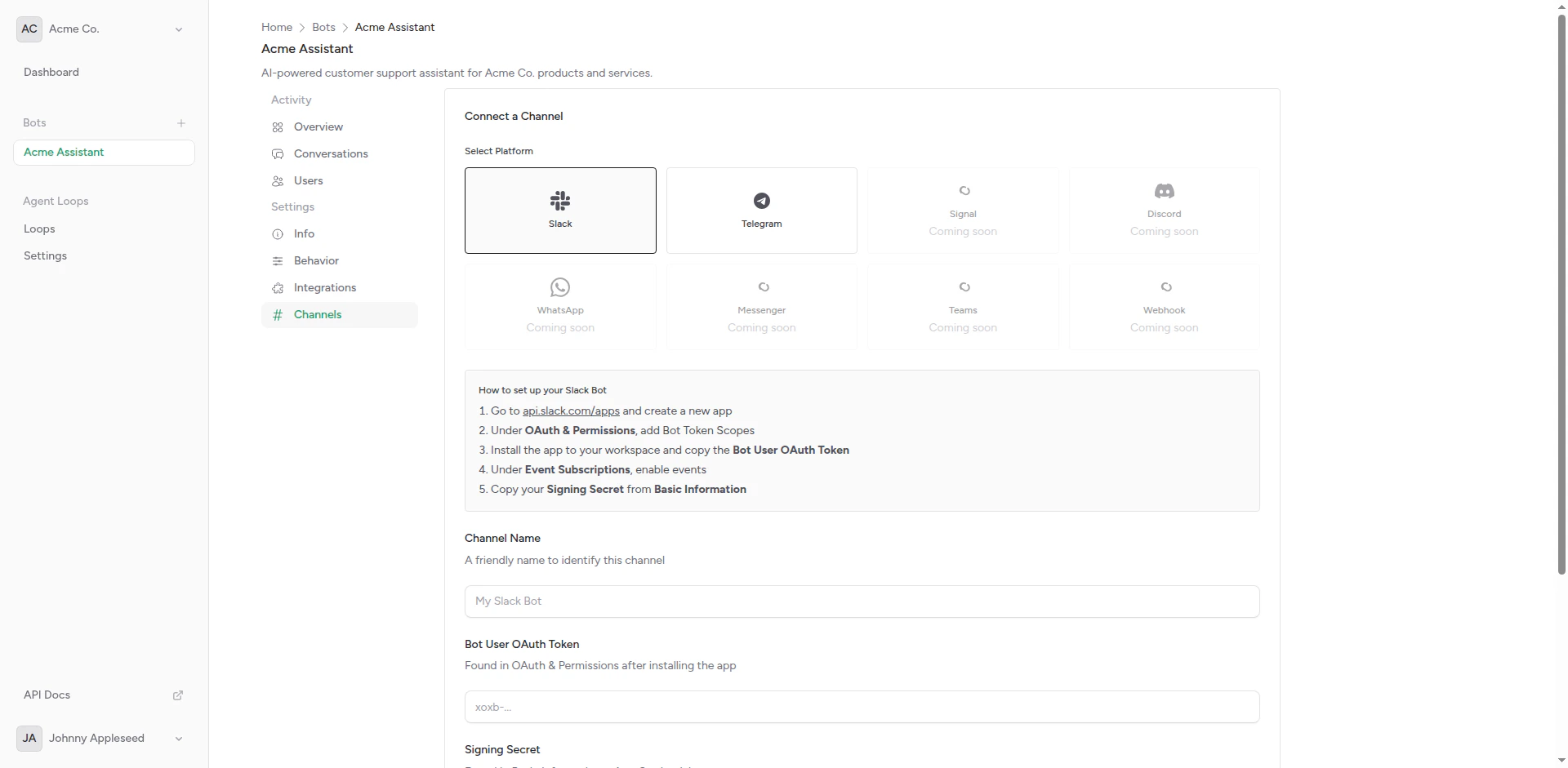
In Chatbot Platform, navigate to your bot's channels and click **Create Channel**.
Select **Slack**.
## Prerequisites
* Slack workspace with admin access (or permission to install apps)
* Ability to create Slack apps at [api.slack.com/apps](https://api.slack.com/apps)
## Creating a Slack App
Go to [api.slack.com/apps](https://api.slack.com/apps) and click **Create New App**.
Choose **From scratch** and provide:
* App name (e.g., "Support Bot")
* Workspace to develop in
Go to **OAuth & Permissions** and add these Bot Token Scopes:
* `chat:write` - Send messages
* `channels:history` - Read public channel messages
* `groups:history` - Read private channel messages
* `im:history` - Read DM messages
* `mpim:history` - Read group DM messages
* `users:read` - Get user information
Click **Install to Workspace** and authorize the app.
Copy the **Bot User OAuth Token** (starts with `xoxb-`).
Go to **Basic Information** and find **Signing Secret**.
Click **Show** and copy the secret.
Copy your **App ID** from the Basic Information page.
## Connecting to Chatbot Platform
In Chatbot Platform, navigate to your bot's channels and click **Create Channel**.
Select **Slack**.
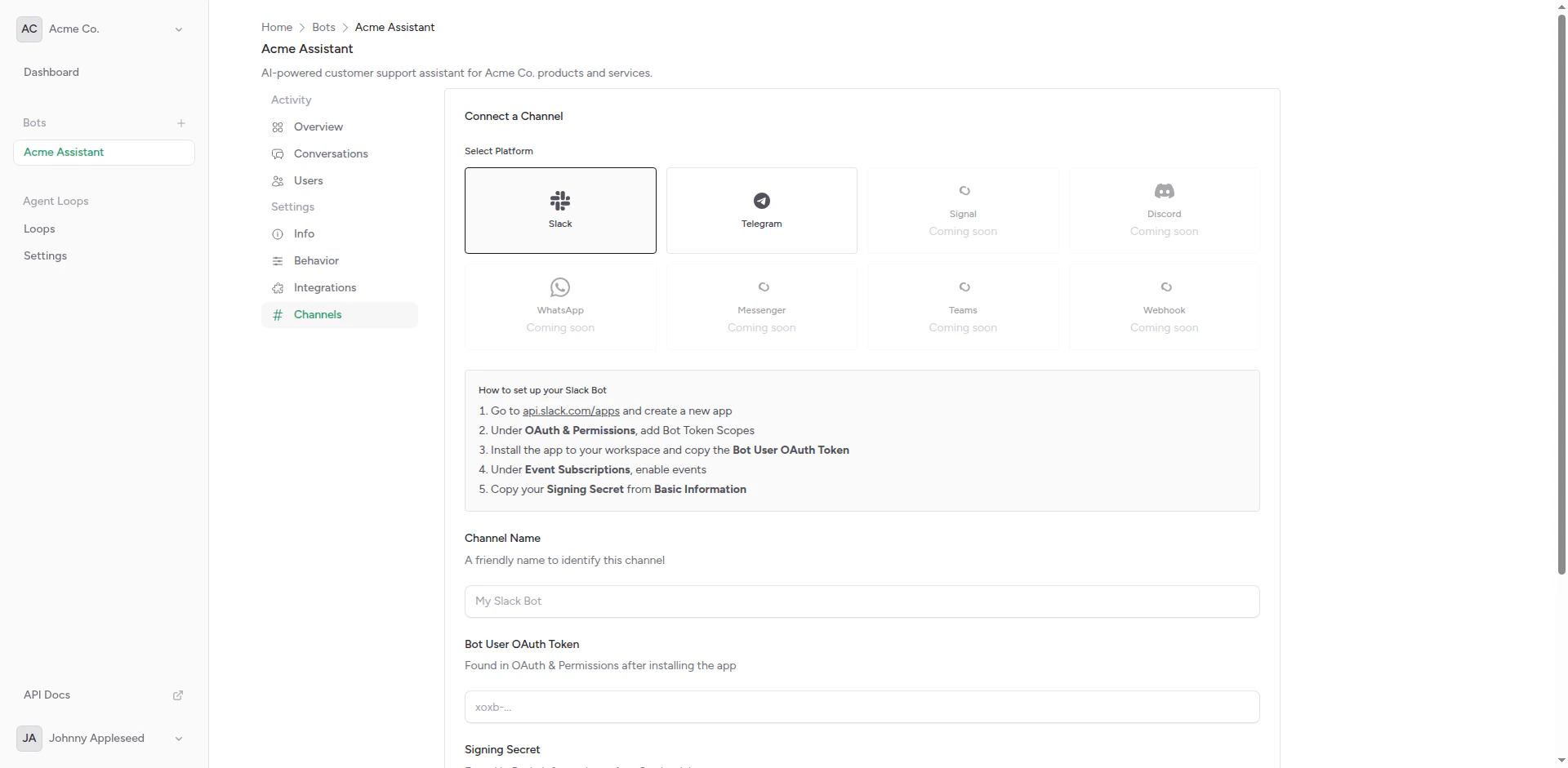 Fill in the form:
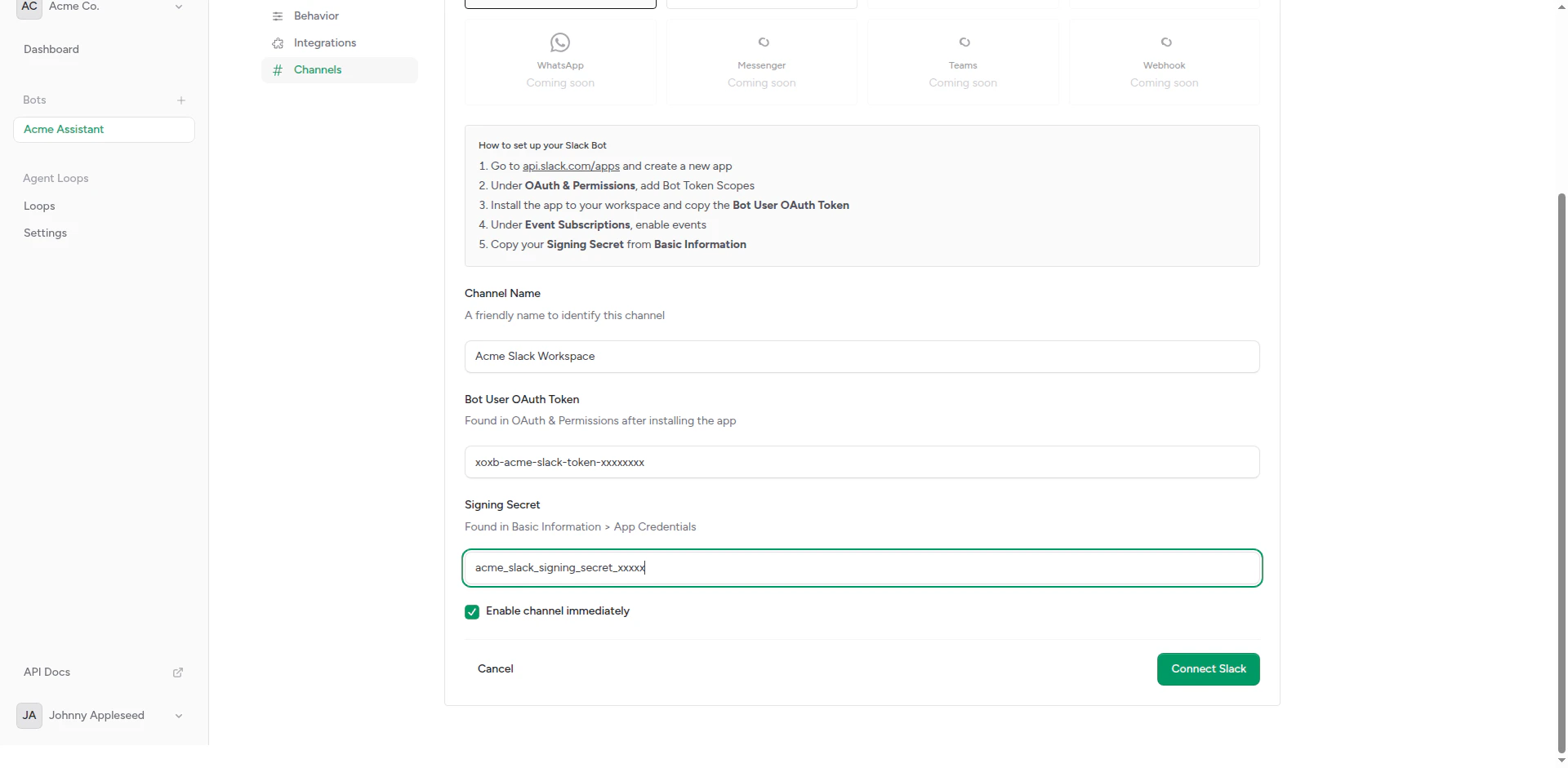 * **Bot Token**: Paste the `xoxb-...` token
* **Signing Secret**: Paste the signing secret
* **App ID**: Paste the app ID (optional but recommended)
After creating the channel, copy the generated webhook URL.
Back in your Slack app settings:
1. Go to **Event Subscriptions**
2. Enable events
3. Paste the webhook URL into **Request URL**
4. Wait for verification (green checkmark)
Add these bot events:
* `message.channels` - Messages in public channels
* `message.groups` - Messages in private channels
* `message.im` - Direct messages
* `message.mpim` - Group direct messages
Click **Save Changes** and reinstall the app to your workspace.
The webhook URL verification happens automatically when you paste it into Slack's settings.
## Features
### Thread Support
Slack channels maintain thread-aware conversations:
```
Main channel message → New conversation
↳ Thread reply 1 → Same conversation
↳ Thread reply 2 → Same conversation
New main message → Different conversation
```
Each thread is treated as a separate conversation with its own context.
### Direct Messages
1:1 conversations in DMs work seamlessly with full context history.
### Channel Messages
Bot can participate in:
* Public channels (if invited)
* Private channels (if invited)
* Group DMs
### Native Typing Indicators
Slack shows typing indicators natively when enabled in bot behavior settings.
## Testing
In a Slack channel, type:
```
/invite @YourBotName
```
@mention your bot or send a DM:
```
@YourBotName Hello!
```
Bot should respond using your configured integration.
## Configuration
### Bot Mention Requirement
Configure whether bot requires @mention in channels:
**Option 1: Require @mention**
* Bot only responds when @mentioned
* Quieter in busy channels
* User intent is clear
**Option 2: All Messages**
* Bot sees all channel messages
* Can respond to any message
* May be noisy in active channels
Configure via message detection settings.
### Home Tab (Coming Soon)
Future support for Slack's Home Tab feature for bot configuration UI.
### Slash Commands (Coming Soon)
Register custom slash commands like `/support` or `/ask`.
## Troubleshooting
### Events Not Received
**Check**:
* Event subscriptions are enabled
* Webhook URL is verified (green checkmark)
* Bot events are subscribed
* App is reinstalled after changes
### Bot Not Responding
**Check**:
* Bot token starts with `xoxb-`
* Required OAuth scopes are granted
* Bot is invited to the channel
* Integration is configured and working
### Verification Failed
If webhook URL won't verify:
* Ensure channel is created and active
* Check webhook URL is copied correctly
* No extra spaces or characters in URL
* Try creating new channel if needed
### Duplicate Messages
If bot responds multiple times:
* Check for duplicate event subscriptions
* Verify only one channel per Slack app
* Review event logs for duplicates
## Slack App Distribution
### Private Distribution
For single workspace:
* Install to your workspace only
* No approval process needed
* Immediate access
### Public Distribution (Future)
To distribute to other workspaces:
* Submit for Slack App Directory review
* Follow Slack's app guidelines
* Handle multi-workspace authentication
Currently, Chatbot Platform supports single-workspace installations per channel.
## Security
All requests verified using Slack signing secret
Bot tokens securely stored and encrypted
Only request necessary permissions
Each workspace has separate configuration
## Rate Limits
Slack enforces rate limits:
| Tier | Limit |
| ------------------------- | ------------- |
| Tier 1 (chat.postMessage) | 1 per second |
| Tier 2 (user info) | 20 per minute |
| Tier 3 (channel list) | 50 per minute |
| Tier 4 (files) | 20 per minute |
The platform handles rate limiting automatically.
## Best Practices
**Do**:
* Test in a private channel first
* Set clear app description and icon
* Use threads for context
* Enable typing indicators for better UX
**Don't**:
* Expose bot token or signing secret
* Respond to all messages in busy channels
* Forget to handle thread context
* Skip OAuth scope review
## Next Steps
Also deploy to Telegram
Configure thread awareness
* **Bot Token**: Paste the `xoxb-...` token
* **Signing Secret**: Paste the signing secret
* **App ID**: Paste the app ID (optional but recommended)
After creating the channel, copy the generated webhook URL.
Back in your Slack app settings:
1. Go to **Event Subscriptions**
2. Enable events
3. Paste the webhook URL into **Request URL**
4. Wait for verification (green checkmark)
Add these bot events:
* `message.channels` - Messages in public channels
* `message.groups` - Messages in private channels
* `message.im` - Direct messages
* `message.mpim` - Group direct messages
Click **Save Changes** and reinstall the app to your workspace.
The webhook URL verification happens automatically when you paste it into Slack's settings.
## Features
### Thread Support
Slack channels maintain thread-aware conversations:
```
Main channel message → New conversation
↳ Thread reply 1 → Same conversation
↳ Thread reply 2 → Same conversation
New main message → Different conversation
```
Each thread is treated as a separate conversation with its own context.
### Direct Messages
1:1 conversations in DMs work seamlessly with full context history.
### Channel Messages
Bot can participate in:
* Public channels (if invited)
* Private channels (if invited)
* Group DMs
### Native Typing Indicators
Slack shows typing indicators natively when enabled in bot behavior settings.
## Testing
In a Slack channel, type:
```
/invite @YourBotName
```
@mention your bot or send a DM:
```
@YourBotName Hello!
```
Bot should respond using your configured integration.
## Configuration
### Bot Mention Requirement
Configure whether bot requires @mention in channels:
**Option 1: Require @mention**
* Bot only responds when @mentioned
* Quieter in busy channels
* User intent is clear
**Option 2: All Messages**
* Bot sees all channel messages
* Can respond to any message
* May be noisy in active channels
Configure via message detection settings.
### Home Tab (Coming Soon)
Future support for Slack's Home Tab feature for bot configuration UI.
### Slash Commands (Coming Soon)
Register custom slash commands like `/support` or `/ask`.
## Troubleshooting
### Events Not Received
**Check**:
* Event subscriptions are enabled
* Webhook URL is verified (green checkmark)
* Bot events are subscribed
* App is reinstalled after changes
### Bot Not Responding
**Check**:
* Bot token starts with `xoxb-`
* Required OAuth scopes are granted
* Bot is invited to the channel
* Integration is configured and working
### Verification Failed
If webhook URL won't verify:
* Ensure channel is created and active
* Check webhook URL is copied correctly
* No extra spaces or characters in URL
* Try creating new channel if needed
### Duplicate Messages
If bot responds multiple times:
* Check for duplicate event subscriptions
* Verify only one channel per Slack app
* Review event logs for duplicates
## Slack App Distribution
### Private Distribution
For single workspace:
* Install to your workspace only
* No approval process needed
* Immediate access
### Public Distribution (Future)
To distribute to other workspaces:
* Submit for Slack App Directory review
* Follow Slack's app guidelines
* Handle multi-workspace authentication
Currently, Chatbot Platform supports single-workspace installations per channel.
## Security
All requests verified using Slack signing secret
Bot tokens securely stored and encrypted
Only request necessary permissions
Each workspace has separate configuration
## Rate Limits
Slack enforces rate limits:
| Tier | Limit |
| ------------------------- | ------------- |
| Tier 1 (chat.postMessage) | 1 per second |
| Tier 2 (user info) | 20 per minute |
| Tier 3 (channel list) | 50 per minute |
| Tier 4 (files) | 20 per minute |
The platform handles rate limiting automatically.
## Best Practices
**Do**:
* Test in a private channel first
* Set clear app description and icon
* Use threads for context
* Enable typing indicators for better UX
**Don't**:
* Expose bot token or signing secret
* Respond to all messages in busy channels
* Forget to handle thread context
* Skip OAuth scope review
## Next Steps
Also deploy to Telegram
Configure thread awareness