> ## Documentation Index
> Fetch the complete documentation index at: https://docs.chatbotplatform.io/llms.txt
> Use this file to discover all available pages before exploring further.
# Channels
> Connect your bot to messaging platforms
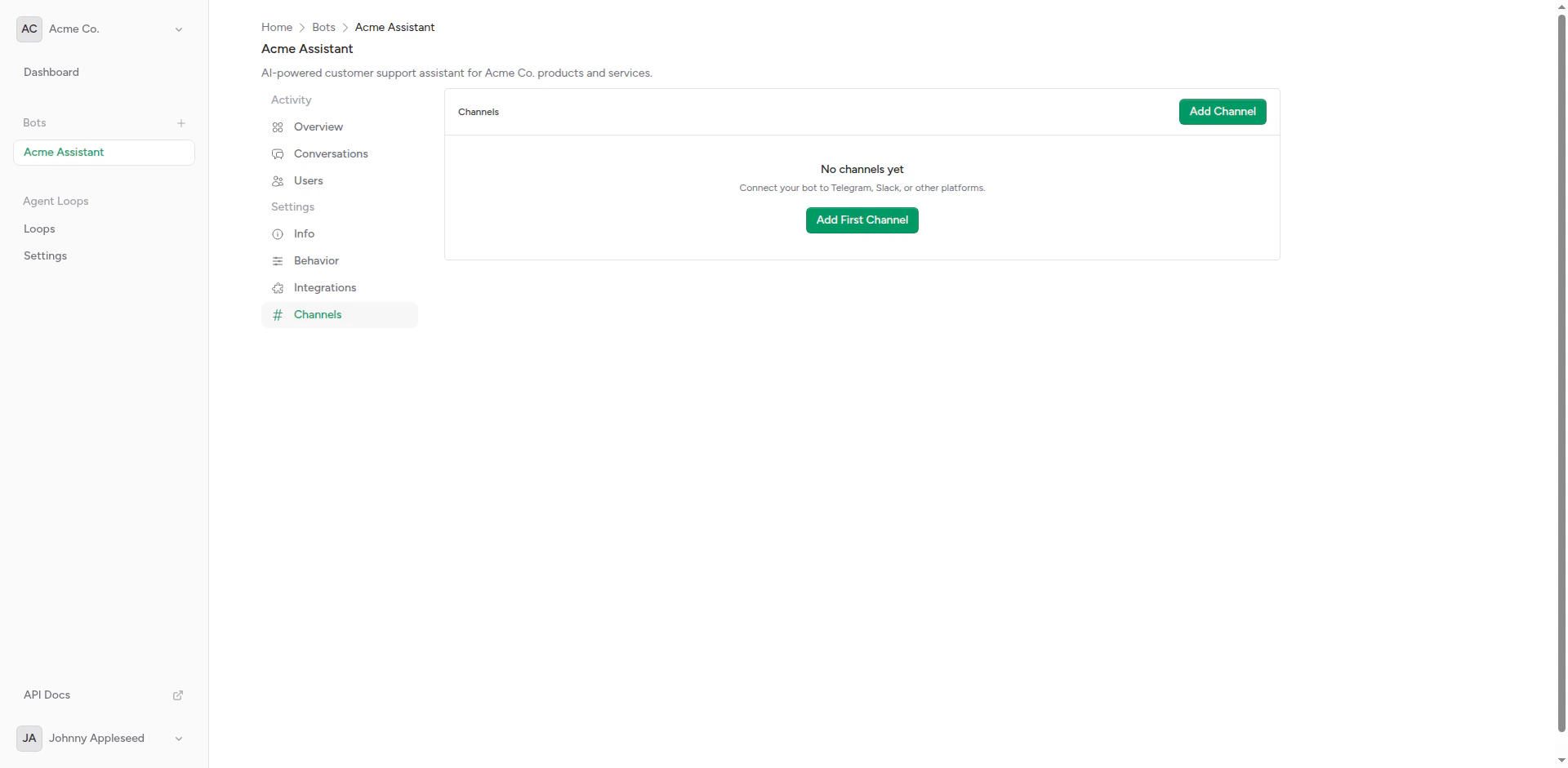
Channels connect your bots to messaging platforms like Telegram, Slack, Discord, and WhatsApp. Each channel represents a platform-specific configuration that routes messages to and from your bot.
 ## Overview
A channel is:
* **Platform Connection**: Link to Telegram, Slack, Discord, etc.
* **Webhook Handler**: Receives incoming messages from the platform
* **Message Sender**: Sends bot responses back to users
* **Configuration**: Platform-specific credentials and settings
## Supported Platforms
Bot API with native typing indicators
Workspace integration with thread support
Guild bots with slash commands (coming soon)
Business API integration (coming soon)
## Creating a Channel
Decide which messaging platform to connect.
Create a bot or app on the platform:
* Telegram: Use [@BotFather](https://t.me/BotFather)
* Slack: Create app at [api.slack.com/apps](https://api.slack.com/apps)
* Discord: Create bot at [discord.com/developers](https://discord.com/developers/applications)
Copy the required credentials:
* Telegram: Bot token
* Slack: Bot token + signing secret
* Discord: Bot token + application ID
Create the channel in Chatbot Platform and enter credentials.
Send a test message to verify the connection works.
## Channel Features
### Platform-Specific Capabilities
Different platforms support different features:
| Feature | Telegram | Slack | Discord\* | WhatsApp\* |
| ----------------- | -------- | ------ | --------- | ---------- |
| Typing Indicators | Native | Native | Native | Native |
| Thread Support | No | Yes | Yes | No |
| Group Chats | Yes | Yes | Yes | Yes |
| Media Messages | Yes | Yes | Yes | Yes |
| Buttons/Actions | Yes | Yes | Yes | Yes |
\*Coming soon
### Webhook Management
Channels use webhooks to receive messages:
1. **Platform Sends Message**: User sends message on platform
2. **Webhook Receives**: Platform forwards to Chatbot Platform webhook
3. **Bot Processes**: Bot handles message and generates response
4. **Response Sent**: Bot sends reply back through platform API
Webhooks are configured automatically when you create a channel.
## Multi-Channel Bots
A single bot can connect to multiple channels:
```
Bot: "Customer Support Bot"
├─ Channel: Telegram
├─ Channel: Slack
└─ Channel: Discord
```
Benefits:
* Unified bot logic across platforms
* Single integration configuration
* Centralized management
* Consistent user experience
Each channel maintains separate conversations and context.
## Channel Settings
Configure these per channel:
| Setting | Description | Default |
| ----------- | ------------------------------ | -------- |
| Platform | Telegram, Slack, Discord, etc. | Required |
| Credentials | API tokens and keys | Required |
| Webhook URL | Auto-generated by platform | Auto |
| Status | Active or disabled | Active |
## Testing Channels
After setting up a channel:
Check that channel status shows "Connected" or "Active".
Send a message to the bot on the platform.
Verify the bot responds correctly.
Check conversation history to see the message was received.
## Troubleshooting
### Channel Not Receiving Messages
**Check**:
* Webhook URL is correctly configured on platform
* Bot/app has required permissions
* Platform credentials are valid
* Channel is enabled (not disabled)
### Bot Not Responding
**Check**:
* Bot has active integration
* Integration is working (test manually)
* No timeout errors in logs
* Bot is connected to correct channel
### Webhook Errors
**Common Issues**:
* Invalid signature (Slack)
* Webhook URL changed
* SSL certificate issues
* Firewall blocking requests
## Security
Chatbot Platform validates all incoming webhook requests using platform-specific verification methods.
### Platform Verification
**Telegram**: Bot token validation
**Slack**: Request signature verification
**Discord**: Application verification
This ensures only legitimate requests from the platform are processed.
## API Access
Manage channels programmatically using the API.
```bash theme={null}
curl -X POST https://api.chatbotplatform.io/v1/bots/bot_123/channels \
-H "Authorization: Bearer YOUR_API_KEY" \
-H "Content-Type: application/json" \
-d '{
"platform": "telegram",
"credentials": {
"bot_token": "123456789:ABCdefGHIjklMNOpqrsTUVwxyz"
}
}'
```
```javascript theme={null}
const response = await fetch('https://api.chatbotplatform.io/v1/bots/bot_123/channels', {
method: 'POST',
headers: {
'Authorization': 'Bearer YOUR_API_KEY',
'Content-Type': 'application/json'
},
body: JSON.stringify({
platform: 'telegram',
credentials: {
bot_token: '123456789:ABCdefGHIjklMNOpqrsTUVwxyz'
}
})
});
const data = await response.json();
```
```php theme={null}
$response = Http::withToken('YOUR_API_KEY')
->post('https://api.chatbotplatform.io/v1/bots/bot_123/channels', [
'platform' => 'telegram',
'credentials' => [
'bot_token' => '123456789:ABCdefGHIjklMNOpqrsTUVwxyz'
]
]);
$channel = $response->json();
```
```python theme={null}
response = requests.post(
'https://api.chatbotplatform.io/v1/bots/bot_123/channels',
headers={'Authorization': 'Bearer YOUR_API_KEY'},
json={
'platform': 'telegram',
'credentials': {
'bot_token': '123456789:ABCdefGHIjklMNOpqrsTUVwxyz'
}
}
)
channel = response.json()
```
```bash theme={null}
curl https://api.chatbotplatform.io/v1/bots/bot_123/channels \
-H "Authorization: Bearer YOUR_API_KEY"
```
```javascript theme={null}
const response = await fetch('https://api.chatbotplatform.io/v1/bots/bot_123/channels', {
headers: {
'Authorization': 'Bearer YOUR_API_KEY'
}
});
const { data } = await response.json();
```
```php theme={null}
$response = Http::withToken('YOUR_API_KEY')
->get('https://api.chatbotplatform.io/v1/bots/bot_123/channels');
$channels = $response->json('data');
```
```python theme={null}
response = requests.get(
'https://api.chatbotplatform.io/v1/bots/bot_123/channels',
headers={'Authorization': 'Bearer YOUR_API_KEY'}
)
channels = response.json()['data']
```
```bash theme={null}
curl -X DELETE https://api.chatbotplatform.io/v1/channels/ch_123 \
-H "Authorization: Bearer YOUR_API_KEY"
```
```javascript theme={null}
await fetch('https://api.chatbotplatform.io/v1/channels/ch_123', {
method: 'DELETE',
headers: {
'Authorization': 'Bearer YOUR_API_KEY'
}
});
```
```php theme={null}
Http::withToken('YOUR_API_KEY')
->delete('https://api.chatbotplatform.io/v1/channels/ch_123');
```
```python theme={null}
requests.delete(
'https://api.chatbotplatform.io/v1/channels/ch_123',
headers={'Authorization': 'Bearer YOUR_API_KEY'}
)
```
View the full API specification with all endpoints, parameters, and response schemas.
## Next Steps
Connect to Telegram
Integrate with Slack workspaces
## Overview
A channel is:
* **Platform Connection**: Link to Telegram, Slack, Discord, etc.
* **Webhook Handler**: Receives incoming messages from the platform
* **Message Sender**: Sends bot responses back to users
* **Configuration**: Platform-specific credentials and settings
## Supported Platforms
Bot API with native typing indicators
Workspace integration with thread support
Guild bots with slash commands (coming soon)
Business API integration (coming soon)
## Creating a Channel
Decide which messaging platform to connect.
Create a bot or app on the platform:
* Telegram: Use [@BotFather](https://t.me/BotFather)
* Slack: Create app at [api.slack.com/apps](https://api.slack.com/apps)
* Discord: Create bot at [discord.com/developers](https://discord.com/developers/applications)
Copy the required credentials:
* Telegram: Bot token
* Slack: Bot token + signing secret
* Discord: Bot token + application ID
Create the channel in Chatbot Platform and enter credentials.
Send a test message to verify the connection works.
## Channel Features
### Platform-Specific Capabilities
Different platforms support different features:
| Feature | Telegram | Slack | Discord\* | WhatsApp\* |
| ----------------- | -------- | ------ | --------- | ---------- |
| Typing Indicators | Native | Native | Native | Native |
| Thread Support | No | Yes | Yes | No |
| Group Chats | Yes | Yes | Yes | Yes |
| Media Messages | Yes | Yes | Yes | Yes |
| Buttons/Actions | Yes | Yes | Yes | Yes |
\*Coming soon
### Webhook Management
Channels use webhooks to receive messages:
1. **Platform Sends Message**: User sends message on platform
2. **Webhook Receives**: Platform forwards to Chatbot Platform webhook
3. **Bot Processes**: Bot handles message and generates response
4. **Response Sent**: Bot sends reply back through platform API
Webhooks are configured automatically when you create a channel.
## Multi-Channel Bots
A single bot can connect to multiple channels:
```
Bot: "Customer Support Bot"
├─ Channel: Telegram
├─ Channel: Slack
└─ Channel: Discord
```
Benefits:
* Unified bot logic across platforms
* Single integration configuration
* Centralized management
* Consistent user experience
Each channel maintains separate conversations and context.
## Channel Settings
Configure these per channel:
| Setting | Description | Default |
| ----------- | ------------------------------ | -------- |
| Platform | Telegram, Slack, Discord, etc. | Required |
| Credentials | API tokens and keys | Required |
| Webhook URL | Auto-generated by platform | Auto |
| Status | Active or disabled | Active |
## Testing Channels
After setting up a channel:
Check that channel status shows "Connected" or "Active".
Send a message to the bot on the platform.
Verify the bot responds correctly.
Check conversation history to see the message was received.
## Troubleshooting
### Channel Not Receiving Messages
**Check**:
* Webhook URL is correctly configured on platform
* Bot/app has required permissions
* Platform credentials are valid
* Channel is enabled (not disabled)
### Bot Not Responding
**Check**:
* Bot has active integration
* Integration is working (test manually)
* No timeout errors in logs
* Bot is connected to correct channel
### Webhook Errors
**Common Issues**:
* Invalid signature (Slack)
* Webhook URL changed
* SSL certificate issues
* Firewall blocking requests
## Security
Chatbot Platform validates all incoming webhook requests using platform-specific verification methods.
### Platform Verification
**Telegram**: Bot token validation
**Slack**: Request signature verification
**Discord**: Application verification
This ensures only legitimate requests from the platform are processed.
## API Access
Manage channels programmatically using the API.
```bash theme={null}
curl -X POST https://api.chatbotplatform.io/v1/bots/bot_123/channels \
-H "Authorization: Bearer YOUR_API_KEY" \
-H "Content-Type: application/json" \
-d '{
"platform": "telegram",
"credentials": {
"bot_token": "123456789:ABCdefGHIjklMNOpqrsTUVwxyz"
}
}'
```
```javascript theme={null}
const response = await fetch('https://api.chatbotplatform.io/v1/bots/bot_123/channels', {
method: 'POST',
headers: {
'Authorization': 'Bearer YOUR_API_KEY',
'Content-Type': 'application/json'
},
body: JSON.stringify({
platform: 'telegram',
credentials: {
bot_token: '123456789:ABCdefGHIjklMNOpqrsTUVwxyz'
}
})
});
const data = await response.json();
```
```php theme={null}
$response = Http::withToken('YOUR_API_KEY')
->post('https://api.chatbotplatform.io/v1/bots/bot_123/channels', [
'platform' => 'telegram',
'credentials' => [
'bot_token' => '123456789:ABCdefGHIjklMNOpqrsTUVwxyz'
]
]);
$channel = $response->json();
```
```python theme={null}
response = requests.post(
'https://api.chatbotplatform.io/v1/bots/bot_123/channels',
headers={'Authorization': 'Bearer YOUR_API_KEY'},
json={
'platform': 'telegram',
'credentials': {
'bot_token': '123456789:ABCdefGHIjklMNOpqrsTUVwxyz'
}
}
)
channel = response.json()
```
```bash theme={null}
curl https://api.chatbotplatform.io/v1/bots/bot_123/channels \
-H "Authorization: Bearer YOUR_API_KEY"
```
```javascript theme={null}
const response = await fetch('https://api.chatbotplatform.io/v1/bots/bot_123/channels', {
headers: {
'Authorization': 'Bearer YOUR_API_KEY'
}
});
const { data } = await response.json();
```
```php theme={null}
$response = Http::withToken('YOUR_API_KEY')
->get('https://api.chatbotplatform.io/v1/bots/bot_123/channels');
$channels = $response->json('data');
```
```python theme={null}
response = requests.get(
'https://api.chatbotplatform.io/v1/bots/bot_123/channels',
headers={'Authorization': 'Bearer YOUR_API_KEY'}
)
channels = response.json()['data']
```
```bash theme={null}
curl -X DELETE https://api.chatbotplatform.io/v1/channels/ch_123 \
-H "Authorization: Bearer YOUR_API_KEY"
```
```javascript theme={null}
await fetch('https://api.chatbotplatform.io/v1/channels/ch_123', {
method: 'DELETE',
headers: {
'Authorization': 'Bearer YOUR_API_KEY'
}
});
```
```php theme={null}
Http::withToken('YOUR_API_KEY')
->delete('https://api.chatbotplatform.io/v1/channels/ch_123');
```
```python theme={null}
requests.delete(
'https://api.chatbotplatform.io/v1/channels/ch_123',
headers={'Authorization': 'Bearer YOUR_API_KEY'}
)
```
View the full API specification with all endpoints, parameters, and response schemas.
## Next Steps
Connect to Telegram
Integrate with Slack workspaces