> ## Documentation Index
> Fetch the complete documentation index at: https://docs.chatbotplatform.io/llms.txt
> Use this file to discover all available pages before exploring further.
# Typing Indicators
> Show visual feedback while your bot generates responses
Typing indicators provide visual feedback to users while your bot is processing their message and generating a response. This creates a more natural, conversational experience.
## How It Works
When a user sends a message:
1. **Message Received**: Channel forwards the message to your bot
2. **Indicator Sent**: Bot immediately shows typing feedback
3. **Processing**: Integration generates response (this takes time)
4. **Response Sent**: Bot sends the reply and removes the indicator
The typing indicator bridges the gap between message receipt and response delivery.
## Native vs. Simulated
Different platforms support different indicator types:
### Native Indicators
Platforms with built-in typing support:
**Telegram**
* Uses `sendChatAction` with `typing` action
* Shows three animated dots
* Automatically disappears after 5 seconds or when message sent
* Looks identical to human typing
**Slack**
* Uses ephemeral "thinking" messages or app status
* Shows in thread or channel
* Visible only to the message sender
### Simulated Indicators
For platforms without native support, the bot sends a temporary message:
```
🤔 Thinking...
```
This message is:
* Sent immediately when processing starts
* Deleted when the response is ready
* Visible to all participants (in groups)
## Configuration
Navigate to your bot and click on the **Behaviors** tab.
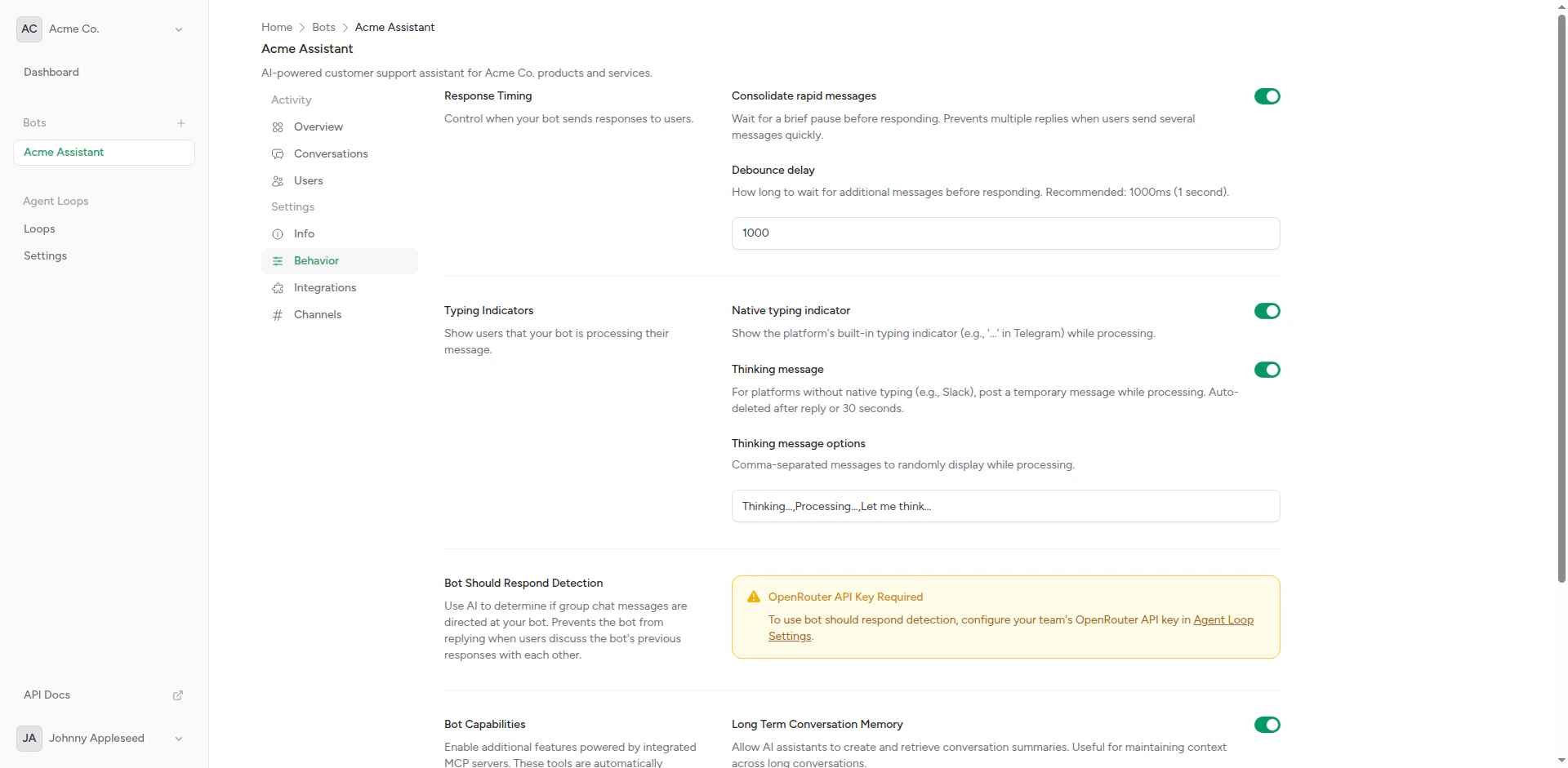 Toggle the **Typing Indicators** option on or off.
Click **Save** to apply changes. New conversations will use the updated setting immediately.
## When to Use Typing Indicators
### Recommended Use Cases
Enable typing indicators when your integration typically takes **2+ seconds** to generate responses.
**Good fits**:
* Complex AI reasoning (GPT-4, Claude)
* Long-form content generation
* Multiple API calls in sequence
* User-facing customer support bots
**Less useful**:
* Instant responses (\< 1 second)
* Batch processing scenarios
* Backend automation (no human waiting)
* Testing and development
### User Experience Impact
**With Typing Indicators**:
* Users know the bot is working
* Reduces perceived wait time
* Feels more like human conversation
* Clear expectation that response is coming
**Without Typing Indicators**:
* Silent period after message sent
* Users may send duplicate messages
* Feels more asynchronous
* Better for automated workflows
## Platform Behavior
### Telegram
Native typing indicator using `sendChatAction`:
```
User: "Hello!"
Bot: [shows typing animation]
Bot: "Hi there! How can I help you?"
```
In groups:
* Indicator shown to all participants
* Shows "Bot is typing..."
* Auto-expires after 5 seconds
### Slack
Ephemeral thinking messages or app status:
```
User: "What's the weather?"
Bot: "🤔 Thinking..." (only user sees this)
Bot: "The weather is sunny, 72°F"
```
In threads:
* Indicator appears in the thread
* Visible only to thread participants
* Deleted when response sent
### Discord (Coming Soon)
Will use Discord's native typing endpoint:
```
POST /channels/{channel_id}/typing
```
## Timing Considerations
### Indicator Duration
**Native indicators**:
* Automatically managed by platform
* Usually 5-10 second display
* Renewed if still processing
**Simulated indicators**:
* Displayed entire duration
* Deleted when response ready
* No automatic timeout
### Integration Timeouts
If your integration times out:
* Typing indicator stops
* Error message sent to user
* No "stuck" indicator left behind
Configure integration timeouts to handle slow responses:
Set integration timeout to be less than channel timeout to avoid stuck indicators.
## Testing Typing Indicators
To verify typing indicators work:
Turn on typing indicators in bot behaviors.
Send a message through the connected channel.
Watch for typing animation (Telegram) or thinking message (other platforms).
Confirm indicator disappears when response arrives.
## Troubleshooting
### Indicator Not Showing
**Check**:
* Typing indicators enabled in bot settings
* Channel properly connected and authorized
* Bot has permission to send messages
* Platform supports typing indicators
### Indicator Stuck
**Possible causes**:
* Integration timeout not configured
* Network issue preventing response
* AI backend not responding
**Solution**:
* Set appropriate timeout values
* Check integration health
* Review error logs
### Multiple Indicators
If you see multiple indicators:
* Check for duplicate channel connections
* Verify A/B testing isn't causing double-sends
* Review integration configuration
## Best Practices
Enable indicators when responses take > 2 seconds
Verify behavior on each connected channel
Configure timeouts to avoid stuck indicators
Disable for automated or backend workflows
## Next Steps
Configure when your bot responds
Optimize response times
Toggle the **Typing Indicators** option on or off.
Click **Save** to apply changes. New conversations will use the updated setting immediately.
## When to Use Typing Indicators
### Recommended Use Cases
Enable typing indicators when your integration typically takes **2+ seconds** to generate responses.
**Good fits**:
* Complex AI reasoning (GPT-4, Claude)
* Long-form content generation
* Multiple API calls in sequence
* User-facing customer support bots
**Less useful**:
* Instant responses (\< 1 second)
* Batch processing scenarios
* Backend automation (no human waiting)
* Testing and development
### User Experience Impact
**With Typing Indicators**:
* Users know the bot is working
* Reduces perceived wait time
* Feels more like human conversation
* Clear expectation that response is coming
**Without Typing Indicators**:
* Silent period after message sent
* Users may send duplicate messages
* Feels more asynchronous
* Better for automated workflows
## Platform Behavior
### Telegram
Native typing indicator using `sendChatAction`:
```
User: "Hello!"
Bot: [shows typing animation]
Bot: "Hi there! How can I help you?"
```
In groups:
* Indicator shown to all participants
* Shows "Bot is typing..."
* Auto-expires after 5 seconds
### Slack
Ephemeral thinking messages or app status:
```
User: "What's the weather?"
Bot: "🤔 Thinking..." (only user sees this)
Bot: "The weather is sunny, 72°F"
```
In threads:
* Indicator appears in the thread
* Visible only to thread participants
* Deleted when response sent
### Discord (Coming Soon)
Will use Discord's native typing endpoint:
```
POST /channels/{channel_id}/typing
```
## Timing Considerations
### Indicator Duration
**Native indicators**:
* Automatically managed by platform
* Usually 5-10 second display
* Renewed if still processing
**Simulated indicators**:
* Displayed entire duration
* Deleted when response ready
* No automatic timeout
### Integration Timeouts
If your integration times out:
* Typing indicator stops
* Error message sent to user
* No "stuck" indicator left behind
Configure integration timeouts to handle slow responses:
Set integration timeout to be less than channel timeout to avoid stuck indicators.
## Testing Typing Indicators
To verify typing indicators work:
Turn on typing indicators in bot behaviors.
Send a message through the connected channel.
Watch for typing animation (Telegram) or thinking message (other platforms).
Confirm indicator disappears when response arrives.
## Troubleshooting
### Indicator Not Showing
**Check**:
* Typing indicators enabled in bot settings
* Channel properly connected and authorized
* Bot has permission to send messages
* Platform supports typing indicators
### Indicator Stuck
**Possible causes**:
* Integration timeout not configured
* Network issue preventing response
* AI backend not responding
**Solution**:
* Set appropriate timeout values
* Check integration health
* Review error logs
### Multiple Indicators
If you see multiple indicators:
* Check for duplicate channel connections
* Verify A/B testing isn't causing double-sends
* Review integration configuration
## Best Practices
Enable indicators when responses take > 2 seconds
Verify behavior on each connected channel
Configure timeouts to avoid stuck indicators
Disable for automated or backend workflows
## Next Steps
Configure when your bot responds
Optimize response times