> ## Documentation Index
> Fetch the complete documentation index at: https://docs.chatbotplatform.io/llms.txt
> Use this file to discover all available pages before exploring further.
# Bot Behaviors
> Configure how your bot interacts with users
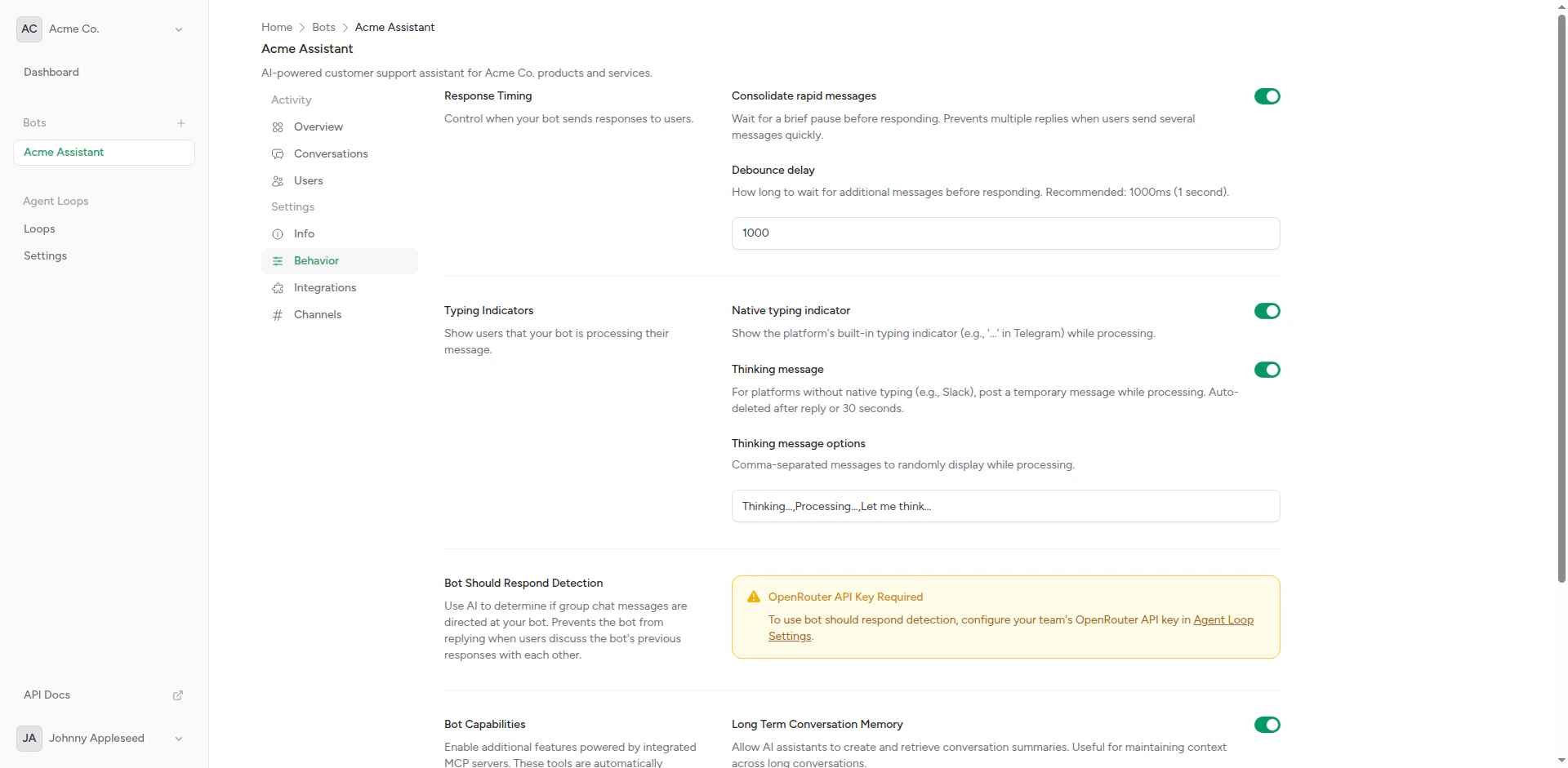
Bot behaviors control how your chatbot interacts with users across different messaging platforms. These settings determine the user experience during conversations.
 ## Available Behaviors
Control response delays for natural conversation flow
Show visual feedback while generating responses
Detect when your bot should reply to messages
## Why Behaviors Matter
Behaviors significantly impact user experience:
### User Expectations
Users expect chatbots to behave like human conversation partners:
* **Natural Timing**: Responses that don't feel instant or robotic
* **Visual Feedback**: Typing indicators show the bot is "thinking"
* **Smart Responses**: Bot knows when to respond and when to stay silent
### Platform Differences
Different platforms have different capabilities:
* **Native Support**: Some platforms (Telegram, Slack) have built-in typing indicators
* **Group Behavior**: Bots need to know when they're being addressed in group chats
* **Threading**: Slack threads vs. Telegram groups require different response strategies
## Configuration
Behaviors are configured per bot in the bot settings page:
From your bot overview, click on the **Behaviors** tab.
* **Response Timing**: Set delays for natural conversation feel
* **Typing Indicators**: Enable visual feedback during processing
* **Should Respond**: Configure when bot should reply in groups
Click **Save** to apply the new behavior configuration. Changes take effect immediately.
## Behavior Interactions
Behaviors work together to create natural conversations:
### Complete Flow
1. User sends a message
2. **Should Respond** checks if bot should reply (mentions, DMs, etc.)
3. If yes, **Typing Indicator** shows immediately
4. AI generates response
5. **Response Timing** adds natural delay if response was too fast
6. Bot sends reply
### Example: Group Chat
```
User: @SupportBot what's my order status?
↓
[Should Respond: Yes - bot was mentioned]
↓
[Typing Indicator: Shows "typing..."]
↓
[AI generates response in 1.2 seconds]
↓
[Response Timing: No delay needed - processing took enough time]
↓
Bot: Your order #12345 shipped yesterday and arrives tomorrow!
```
## Platform-Specific Behavior
### Telegram
* Native typing indicators via `sendChatAction`
* Group-aware should respond (mentions and replies)
* Per-user conversation contexts in groups
### Slack
* Native typing indicators
* Thread-aware detection
* App mentions trigger responses
### Discord (Coming Soon)
* Native typing indicators
* @mention and reply detection
* Slash command support
## Best Practices
**Start with defaults**: The platform's default behavior settings work well for most use cases. Only customize if you have specific requirements.
Visual feedback improves perceived responsiveness
Prevent bot from interrupting conversations
Verify conversations feel natural, not robotic
Check conversation logs for behavior issues
## Next Steps
Configure response delays
Set up visual feedback
Control when bot replies
## Available Behaviors
Control response delays for natural conversation flow
Show visual feedback while generating responses
Detect when your bot should reply to messages
## Why Behaviors Matter
Behaviors significantly impact user experience:
### User Expectations
Users expect chatbots to behave like human conversation partners:
* **Natural Timing**: Responses that don't feel instant or robotic
* **Visual Feedback**: Typing indicators show the bot is "thinking"
* **Smart Responses**: Bot knows when to respond and when to stay silent
### Platform Differences
Different platforms have different capabilities:
* **Native Support**: Some platforms (Telegram, Slack) have built-in typing indicators
* **Group Behavior**: Bots need to know when they're being addressed in group chats
* **Threading**: Slack threads vs. Telegram groups require different response strategies
## Configuration
Behaviors are configured per bot in the bot settings page:
From your bot overview, click on the **Behaviors** tab.
* **Response Timing**: Set delays for natural conversation feel
* **Typing Indicators**: Enable visual feedback during processing
* **Should Respond**: Configure when bot should reply in groups
Click **Save** to apply the new behavior configuration. Changes take effect immediately.
## Behavior Interactions
Behaviors work together to create natural conversations:
### Complete Flow
1. User sends a message
2. **Should Respond** checks if bot should reply (mentions, DMs, etc.)
3. If yes, **Typing Indicator** shows immediately
4. AI generates response
5. **Response Timing** adds natural delay if response was too fast
6. Bot sends reply
### Example: Group Chat
```
User: @SupportBot what's my order status?
↓
[Should Respond: Yes - bot was mentioned]
↓
[Typing Indicator: Shows "typing..."]
↓
[AI generates response in 1.2 seconds]
↓
[Response Timing: No delay needed - processing took enough time]
↓
Bot: Your order #12345 shipped yesterday and arrives tomorrow!
```
## Platform-Specific Behavior
### Telegram
* Native typing indicators via `sendChatAction`
* Group-aware should respond (mentions and replies)
* Per-user conversation contexts in groups
### Slack
* Native typing indicators
* Thread-aware detection
* App mentions trigger responses
### Discord (Coming Soon)
* Native typing indicators
* @mention and reply detection
* Slash command support
## Best Practices
**Start with defaults**: The platform's default behavior settings work well for most use cases. Only customize if you have specific requirements.
Visual feedback improves perceived responsiveness
Prevent bot from interrupting conversations
Verify conversations feel natural, not robotic
Check conversation logs for behavior issues
## Next Steps
Configure response delays
Set up visual feedback
Control when bot replies